
Overview
Purpose: This guide explains how to access the Revela platform using a web browser.
Target Audience: Employees, property managers, and admins.
Note: If you're looking for How to Log In as a Member/Tenant or Co-Tenant/Parent, visit this article.Step-by-Step
- Open a Web Browser
- Use a supported browser such as:
- Google Chrome
- Safari
- Microsoft Edge
- Use a supported browser such as:
-
Enter Your Company’s Revela URL
-
In the browser’s address bar, type your company’s subdomain followed by “.revela.co”.
-
Example: If your company is Umbrella, the URL might be:
-
For Property Managers & Admins: https:/umbrella.revela.co/property_managers/login
-
For tenants/residents:
-
- If you are unsure what your subdomain is, please reach out to your system administrator.
-
-
Press Enter
-
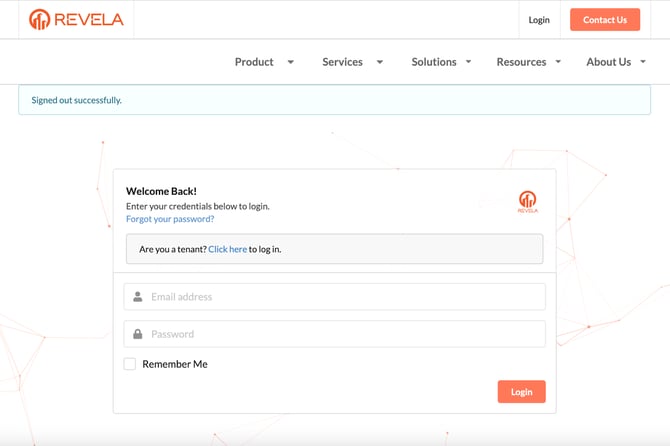
The page will load, directing you to the Revela login screen.
-
Best Practices, Tips, and Notes
- Bookmark your login page for quick access. In Chrome or Safari, click Bookmarks > Bookmark This Page.
- Ensure you enter the correct subdomain for your company, as each company has a unique URL.
- If you experience login issues, verify your internet connection and check if the URL is correct.
Common Issues & Troubleshooting
Issue 1: Unable to access the website.- Solution: Double-check the URL spelling and ensure your internet connection is active.
- Solution: Confirm the subdomain with your system administrator.
- Solution: Try clearing your browser’s cache and cookies, or switch to another browser.