
Overview
- Purpose: This guide provides step-by-step instructions for logging into Revela, setting up your account, and navigating the tenant portal.
- Target Audience: Tenants, fraternal members, and admins.
Step-by-Step
Step 1: Receiving the Account Confirmation Email
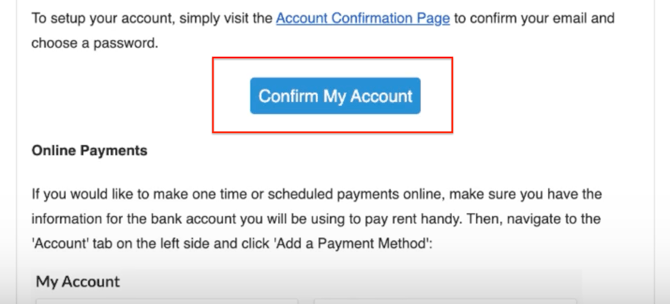
- Look for an email with the subject Revela Account Confirmation.
- If you don’t see it in your inbox, check your Spam or Promotions folder.
Step 2: Activating Your Account
-
Click the activation link in the confirmation email.
-
Set a secure password that includes:
-
At least one uppercase letter
-
At least one lowercase letter
-
At least one number
-
-
Click Activate to complete the activation process.
Step 3: Completing Your Profile
-
Fill in your personal details (if applicable), including:
-
Full name
-
Phone number
-
Email address
-
-
For fraternal clients: You have the option to add a parent for access to bills, agreements, and notifications.
-
Agree to receive text messages from your chapter, Revela, and affiliates.
-
Click Save at the bottom of the page to finalize your account setup.
Step 4: Navigating Your Member Portal
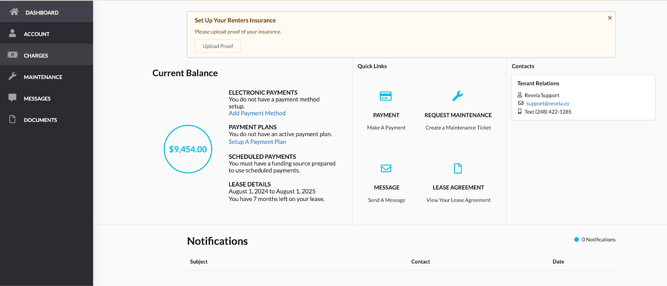
Once logged in, you can access the following sections:
-
Dashboard: View balances, make payments, schedule payments, contact your chapter/property manager, and see notifications.
-
Account: Manage your contact information and payment methods.
-
Charges: Review a list of paid and unpaid payments.
-
Maintenance: Submit and track maintenance tickets.
-
Messages: Communicate with your chapter or property management.
-
Documents: Access important lease agreements, policies, and other files.
Step 5: Logging In & Out
-
To log in, visit your Revela portal at:
-
Your company’s subdomain was selected during implementation by your admin.
-
Enter your registered email address and password.
-
To log out, click the logout option in your account menu.
Step 5: Resetting Password If Needed
Here are a few common reasons why the reset email may not have arrived:
-
It might have gone to your spam/junk or promotions folder.
-
You might be logged into your different email address on your gmail
-
The email on file may be different from the one entered on the reset page.
-
In some cases, email providers block or filter automated emails.
What you can try:
-
Check your spam/junk/promotions folders for an email called "Password Reset Instructions"
-
Search your general inbox for “password reset” or “Revela.”
- Click on "Looks Safe" on the email and you will be able to use the link
-
If still not received, please try sending the reset link again, making sure you enter the same email address tied to your account.
-
Wait 10–15 minutes and retry if needed.
Best Practices, Tips, and Notes
- Bookmark your login page for easy access:
- In Google Chrome or Firefox, click on Bookmarks > Bookmark this Page.
- If you forget your password, use the ‘Forgot Password’ option on the login page to reset it.
Common Issues & Troubleshooting
Issue 1: Didn’t receive the confirmation email.- Solution 1: Please reach out to your property manager or chapter admin to double check if the email has been registered correctly in the system
- Solution 2: Please check your SPAM or Promotions folder as it usually goes there if it is your first time logging in
- Solution: Double-check your email and password, or reset your password if needed.