What is a Management Contract in Revela?
In Revela, management contracts define the financial terms between a property management company and the owner whose properties they manage. A management contract specifies the fees charged for various services (rent collection, leasing, maintenance), approval thresholds that require owner sign-off, and which properties fall under the agreement. In other words, management contracts represent the services a management company provides, the compensation they receive (typically a percentage of collected rent), and other management criteria.
A management contract tells Revela how to calculate and bill owners based on the terms of the agreement. Once configured, the system automatically applies the defined rules when charging management fees, ensuring that your company is accurately compensated for the services it performs on behalf of your property owner(s).
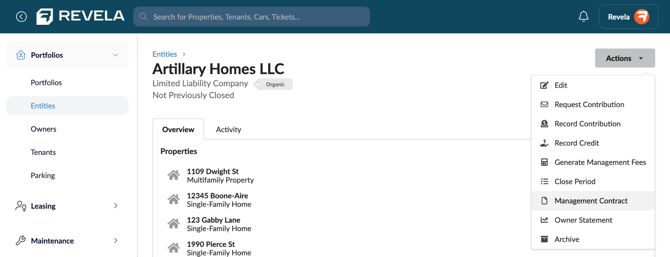
Each managed entity in Revela has one management contract. To set up a new management contract, navigate to an owner-entity and select Actions > Management Contract.
On the initial review window, review any management contract criteria that have already been set up (if applicable). Add or modify criteria by clicking Actions > Edit.
The following criteria are configurable on a property owner’s management contract:
Duration of Management:
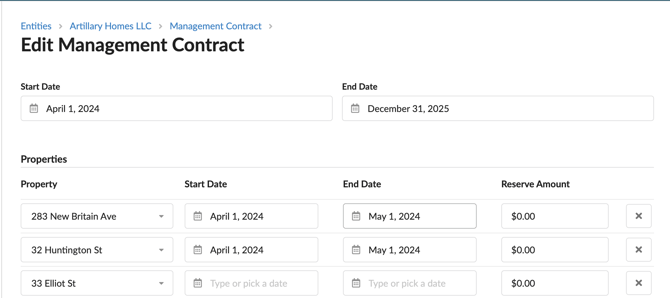
- Set start and end dates for the management agreement.
Properties Under Management:
- Select properties covered under the contract.
- Add new properties with customized start and end dates.
- Configure reserve funds to cover emergencies and unexpected expenses (if applicable).
Billing Terms:
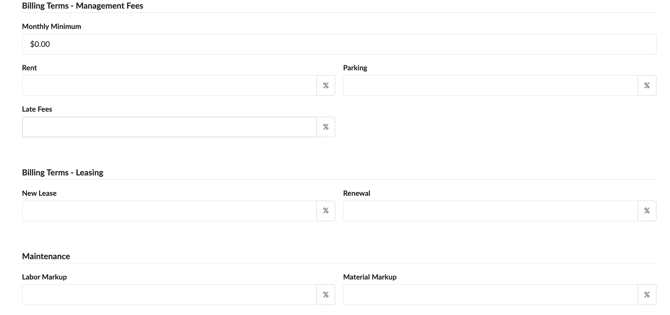
- Specify the monthly base rate for management services. Rates can be entered by percentage or dollar amounts by clicking the “%” icon.
- Define additional charges, such as rent collection fees (e.g., 20% of rent collected).
- Set fees for placing new tenant leases and lease renewals.
- Define the markup percentage for maintenance services and materials purchased.
Approval Terms:
- Set approval requirements for high-cost expenses (e.g., expenses exceeding $200).
- Determine whether owners must approve invoices before payments are processed.
Configuring Additional Fees:
- Assign GL codes to define any extra fees the property owner will be billed for (e.g., pet deposits, admin fees).
- Define whether owners will be charged for any demand letters or eviction notices that are electronically filed within Revela.
Property Cash Rebalance Status:
- When checked, the properties under this contract will be included in bulk property cash rebalancing during the month-end process. Property cash rebalancing transfers funds from properties with a positive balance to properties with a negative balance within the same entity.
- For more information on property rebalance transfers, please refer to our article linked here.
Once criteria for the Management Contract has been finalized, click Update to save the added contract details. Contract details can be reviewed and edited if needed.
Sending the Management Contract for Signatures:
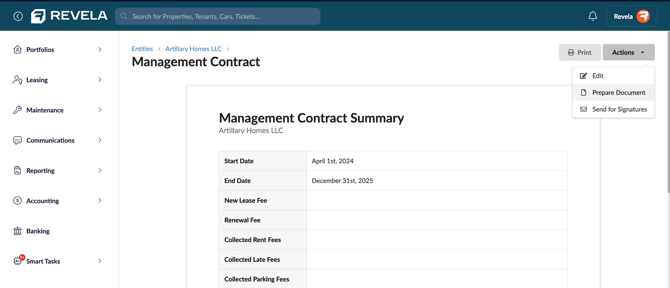
Once you have saved the management contract, an electronic document can be created and sent to the owners for electronic signature. Create the agreement document by clicking Actions > Prepare Document.
Once this document is created, you can review the agreement by clicking “Unexecuted Document.” This can then be sent to owners by clicking Actions > Send for Signatures.
The Signature History section at the bottom of the Management Contract page tracks the status of any signature requests.
Best Practices & Tips
✔ Clearly define billing terms and management fees to avoid disputes.
✔ Configure approval settings for high-cost expenses to ensure financial transparency.
✔ Regularly review and update contracts to reflect changes in portfolio management.
FAQS
Issue 1: My Management Contract details aren’t saving! What should I do?
- Solution: Ensure all mandatory fields (e.g., start date, property selection) are configured before clicking Update.
Issue 2: Management fees billed incorrectly! What happened?
- Solution: Double-check that fee amounts and percentages are set correctly under Billing Terms.
Issue 3: My owner wasn’t sent an approval notification for a high-cost expense. What should I check?
- Solution: Verify approval thresholds and ensure expense limits are correctly configured.