
Inspections Tab in Revela
-
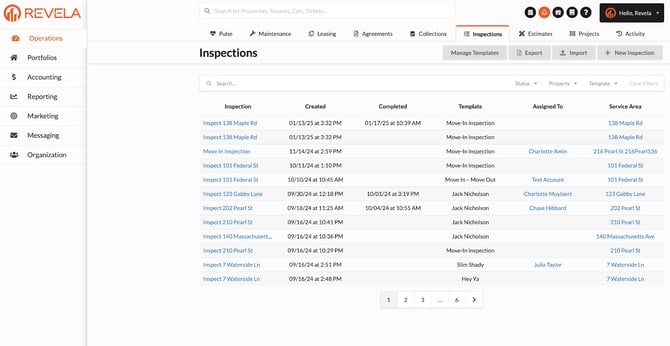
Go to Operations (left menu) > Inspections (top toolbar) to view inspections in progress
-
Create and Manage Inspection Templates
- Reach out to your CSM or Revela support to create inspection templates on your behalf
- Examples: Move-In, Move-Out, Acquisition, Recurring, Rehab, Other
- Reach out to your CSM or Revela support to create inspection templates on your behalf
-
Create an Inspection Ticket
-
Go to Operations (left menu) > Inspections (top toolbar) > + New Inspection
-
Fill in details for:
-
Inspection Type: Acquisition, Move-In/Out, Recurring, Rehab, Other
-
Template: Based on Inspection Type chosen, the available templates related to that type will appear in the dropdown
-
-
-
-
-
Inspection Area: Search your instance for a specific property, building or unit
- Name: Choose a name that helps differentiate from the general template used
- Example: 123 Main St - Move In
-
Assignee: Type in the name of the tenant/member whose property/unit is getting inspected
-
-
-
Conduct the Inspection
-
Review the Inspection Ticket created
-
Evaluate conditions of the different components of the property
-
Example: Walls, ceilings, furniture, appliances, etc.
-
-
Upload photos (if requested) and provide notes on any issues found
-
-
Complete the Inspection
-
Provide additional comments on the inspection (optional)
-
Submit the inspection and review the summary of the inspection details for accuracy
-
-
Filter and Sort Inspections
-
Filter inspection tickets by status (Incomplete or Complete)
-
Sort inspections by property or type (Move-In, Move-Out, etc.)
-
Auto Inspection Assignments
-
If you already have a template configured under Organization (left menu) > Configurations (top toolbar) > Inspections (left sub-menu):
-
The Move-In Inspection will auto generate for tenants/members in their portal on the lease start date
-
If you do not have an Inspection Configuration set up, but would like to, please refer to this article outlining how to begin setting up Configurations in the Revela system
-
-
Note: Tenants/members are notified when they are assigned to an inspection as part of the default templates/configurations mentioned above
-
Move-In Auto Triggers: Revela has an automated daily system trigger at 9:00 AM ET (7 days/week) that generates auto populated inspections
-
Move-In Inspections will NOT auto generate if:
-
A lease is created after 9:00 AM ET on the lease start date
-
Note: any lease created after 9:00 AM ET on lease start date will auto generate the next day unless manually triggered
-
-
-
-
-
-
- To manually trigger, navigate to the Lease Summary page > Actions (dropdown) > Move In
-
-
-
Move-Out Inspections will always require a manual trigger by navigating to the Lease Summary page > Actions (dropdown) > Move Out
-
Information will be pre-populated for the tenant/member, but will not auto-generate on the lease end date
-