
Overview
-
Purpose
This article explains the functionality of each option available in the Actions Dropdown for managing vendors, including tasks like onboarding, invoice management, and vendor data access. -
Target Audience
Staff members managing vendors and vendor payments through the system.
Step-by-Step
Step 1: Open the Actions Dropdown
-
Navigate to the Vendor Profile in your system.
-
Click on the Actions Dropdown to reveal available options.
-
The dropdown includes the following actions:
Actions Dropdown Options
Invite
-
Sends an onboarding workflow to the vendor as defined by your company’s process.
-
The onboarding flow typically requests:
-
Billing details
-
Contact information
-
Insurance documentation
-
Signature on a Master Services Agreement (if required by your company)
-
Pay Invoices
-
Visible only if you’re authorized to make payments on behalf of the property.
-
Clicking this opens the Make Payment page where you can:
-
View all submitted invoices from the vendor
-
Select specific invoices to pay
-
Edit
-
Allows you to edit the vendor’s information (name, tags, contact details, etc.).
Archive
-
Moves the vendor record to an archived state.
-
Archived vendors will no longer appear in active lists but can be reactivated later if needed.
Vendor Tags
-
Tags help you categorize vendors (e.g., plumber, electrician, recurring service provider).
-
These tags are searchable and allow you to filter and sort vendor lists easily.
Vendor Address
-
Displays the vendor’s preferred mailing address for physical correspondence or checks.
Vendor Payment Information
-
Shows electronic payment details including:
-
Bank account number
-
Routing number
-
Note: Access to this data may be restricted based on user permissions.
Vendor Contact
-
Lists all associated contacts for the vendor, including names, emails, and phone numbers.
Invoice/Billing Summary
-
Displays:
-
Total balance due to the vendor
-
Total amount invoiced over time
-
Filter Vendor Invoices
-
Shows all invoices submitted by the vendor.
-
Includes:
-
Invoice status (e.g., Paid, Pending, Overdue)
-
Due dates and filters for quick sorting
-
View Details of Vendor Invoices
-
Allows you to drill down into individual invoices to view:
-
Status
-
Due date
-
Date received
-
-
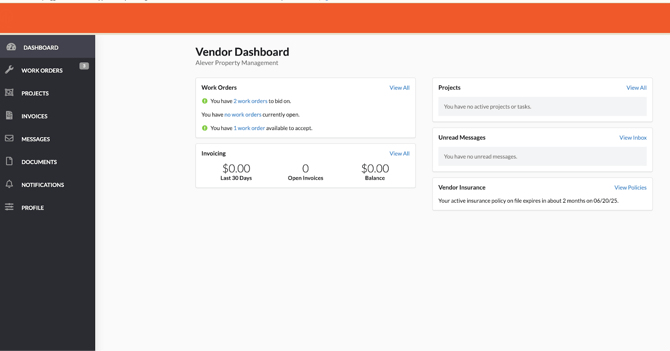
Masquerade as your vendor and resolve solutions.
-
They will have access to work orders and invoices that are affiliated with them
-
They can configure their ACH information under Profile -> Deposit information -> Enable Electronic Deposits and add routing and account numbers
-
Best Practices & Tips:
-
Always complete the Invite process to ensure vendors are properly onboarded before issuing payments.
-
Use Vendor Tags consistently to improve filtering and reporting.
-
Periodically review the Invoice/Billing Summary for trends or discrepancies.
Common Issues & Troubleshooting:
Issue 1: 'Pay Invoices' option is missing
-
Solution: Ensure your user role has payment authorization permissions.
Issue 2: Vendor has not completed onboarding
-
Solution: Resend the invite using the Invite option or contact the vendor directly.