
Overview
-
Purpose: This guide explains how to access, manage, and reconcile journals in Revela for accurate financial tracking.
-
Target Audience: Property managers, accountants, and financial administrators.
Step-by-Step
1. Accessing Journals
To view and manage journal entries:
-
Navigate to Accounting > Journals in Revela.
-
Access a list of existing journal entries, categorized by:
-
Main owner entity
-
Other associated owner entities
-

2. Viewing Journal Entries
-
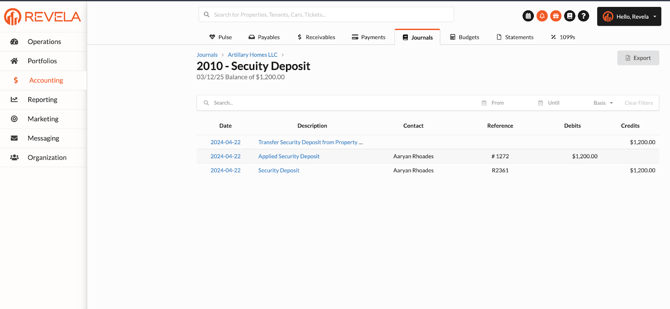
Click on a journal name to open the General Ledger (GL).
-
Available actions include:
✅ Pull general ledger or account ledger codes for reference.
✅ Access reporting options for financial analysis.
3. Locking Journals (Actions -> Lock/Unlock)
-
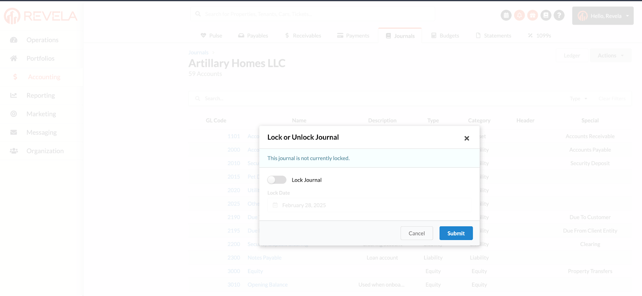
After reconciling financial records, lock journals to prevent modifications.
-
You can select and lock multiple journals at once to ensure data integrity.
-
Lock journals as of the most recent reconciled date to maintain accurate records.
4. Journal Actions
In Journals, users can perform several key actions:
✅ Add a Journal Entry – Create new financial entries.
✅ Lock/Unlock Journals – Secure or modify journal statuses.
✅ Close Fiscal Year – Finalize accounting periods by locking journal entries.
✅ Import Journal Entries – Upload General Ledger, Trial Balance, or Bill Details.
✅ Clear Entries – Not recommended unless absolutely necessary.
✅ Edit Journal Entries – Modify default accounts and require property associations.
5. Adding a Journal Entry
Users can add a journal entry through bank reconciliation or by accessing the Journals module directly.
-
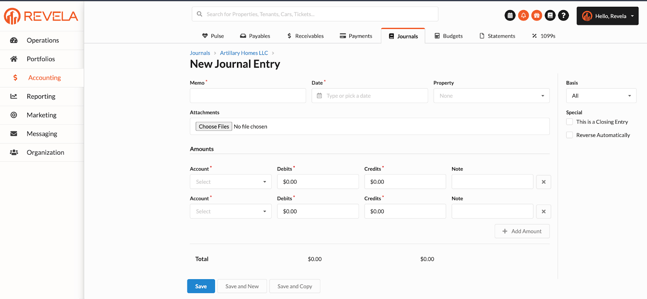
Click Actions -> "Add Journal Entry".
-
Input entry details, including:
-
Memo – Description of the transaction.
-
Date – The date of the journal entry.
-
Property Association – Links the entry to a specific property or portfolio.
-
Documentation Attachment – Upload supporting documents if necessary.
-
-
Select debit and credit accounts for accurate accounting.
-
Add or remove lines as needed.
-
Entry Options:
-
Mark the transaction as a closing entry if applicable.
-
Set the entry to reverse automatically if adjustments are needed.
-
The default basis is "All" – avoid selecting cash-only or accrual-only unless experienced.
-
6. Saving Journal Entries
Once the entry is complete, users can:
✔ Save and New – Save the current entry and immediately create another.
✔ Save – Save the entry and exit the form.
✔ Save and Copy – Save the entry and create a duplicate for quick adjustments.
7. Importing a Trial Balance
Importing a Trial Balance is recommended for historical data adjustments.
Actions -> Import Trial Balance

-
Download the sample file from Revela.
-
Ensure the Chart of Accounts matches the correct format.
-
Input monthly data and effective dates for accuracy.
-
Adjust entries to reflect the trial balance correctly without compounding errors.
Best Practices & Tips
✔ Lock journals after reconciliation to prevent unintentional changes.
✔ Use "Save and Copy" to duplicate similar journal entries quickly.
✔ Import trial balances carefully to maintain financial consistency.
Common Issues & Troubleshooting
Issue 1: Unable to Edit a Journal Entry
-
Solution: Check if the journal is locked. If locked, unlock it before making changes.
Issue 2: Incorrect Trial Balance Import
-
Solution: Ensure that the file format matches the required template and that effective dates are correct.
Issue 3: Need to Reverse a Journal Entry
-
Solution: Use the automatic reversal setting when creating an entry, or manually create an offsetting entry.