
Overview
-
Purpose: This guide explains how to configure, manage, and add companies within Revela.
-
Target Audience: Property managers, financial administrators, and legal representatives managing business entities.
1. Introduction to Companies in Revela
The Companies feature in Revela allows users to manage legal entities that own or manage properties.
-
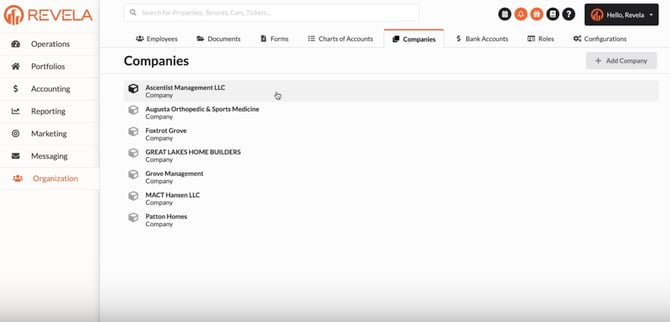
Navigate to Organization > Companies in Revela.
2. Overview of Company Configuration
Each company profile represents a legal entity responsible for managing or owning at least one property.
Key Fields in Company Setup:
-
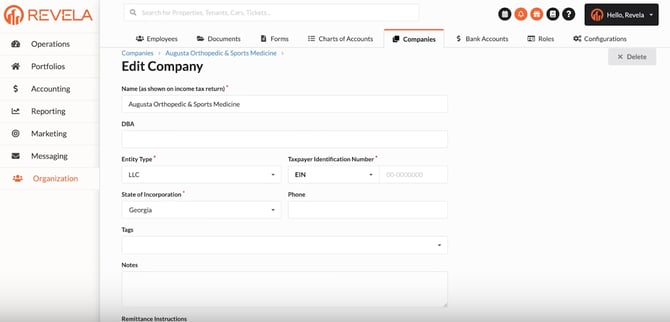
Legal Name – The official registered name of the business.
-
DBA (Doing Business As) – If applicable, the company’s trade name.
-
Entity Type – Select from LLC, Corporation, Non-Profit, etc.
-
Tax Identification Number (TIN) – Required for tax and financial transactions.
-
Tag (Configuration can be found in Organization -> Configuration -> Tag)
-
State of Incorporation – If applicable, the state where the company was legally formed.
-
Contact Information – Includes phone numbers, tags, and additional identifiers.
To create a new company profile, follow these steps: Go to Organization > Companies > Add Company and fill out the details above
4. Managing Financial Transactions
Using the Transfer Funds Button
-
Facilitates fund transfers between companies, such as:
✅ Security deposit transfers
✅ Management fee payments -
Bank Account Setup
-
Companies must have linked bank accounts to process transactions.
-
6. Conclusion
By properly configuring the Companies feature, users can:
✔ Ensure accurate financial tracking for legal entities.
✔ Streamline fund transfers between businesses.
✔ Maintain organized records for tax and legal compliance.
If further assistance is needed, reach out to Revela support at support@revela.co