
Overview
-
Purpose: This article provides tenants with an overview of the Revela Tenant Portal dashboard and explains how to navigate its key features.
-
Target Audience: Tenants using the Revela Tenant Portal for lease, payment, and communication purposes.
Step-by-Step
-
Step 1: Accessing the Tenant Portal
-
As a tenant, you will receive access to the Revela Tenant Portal.
-
If you did not receive an invitation email upon signing your lease, please contact your support representative to have the invite resent.
-
-
Step 2: Dashboard Overview
-
Once logged in, the dashboard is the first page you will see. Key sections are defined and outlined below
-
Dashboard Elements
Current Balance Section
-
Current Balance:
The blue circle displays the total balance owed. -
Electronic Payments:
To pay electronically, you must set up a payment method by clicking “Add Payment Method.” Accepted payment methods include:-
Credit/Debit Card
-
E-Check / ACH
-
-
Scheduled Payments:
Once a payment method is set up, you can create scheduled payments to automatically pay specific charges on a recurring basis. -
Lease Details:
Displays:-
Lease start and end dates
-
Time remaining on your current lease
-
Quick Links Section
-
Payment
-
Click the payment button to view all outstanding charges.
-
You may choose specific charges to pay or pay the full balance.
-
-
Request Maintenance
-
Click the wrench icon to create and submit maintenance tickets for repairs or issues.
-
-
Message
-
Click the envelope icon to send messages to your support contact (found under Tenant Relations).
-
Replies will appear in your Messages tab.
-
-
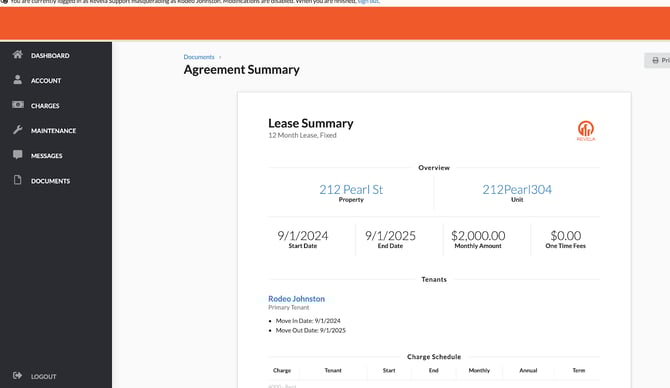
Lease Agreement
-
Click the document icon to view a copy of your executed lease agreement, which includes:
-
Property details (address, unit number, etc.)
-
Lease start and end dates
-
Contacts tied to your lease
-
Move-in and move-out dates
-
Charge schedule (monthly and one-time charges)
-
-
Best Practices & Tips
-
Make sure to set up your payment method right after logging in to avoid missing due dates.
-
Check the Messages tab regularly for any responses from your property manager or support contact.
-
Use scheduled payments to avoid late fees.
Common Issues & Troubleshooting:
Issue 1: Didn’t receive an invite email
-
Solution: Reach out to your support contact to have it resent.
Issue 2: Payment not going through
-
Solution: Verify your payment method is correctly set up and not expired.