
Overview
- Purpose: This guide explains how to send and manage chats in Revela for seamless communication between property managers
Step-by-Step
- Sending a Chat Message
-
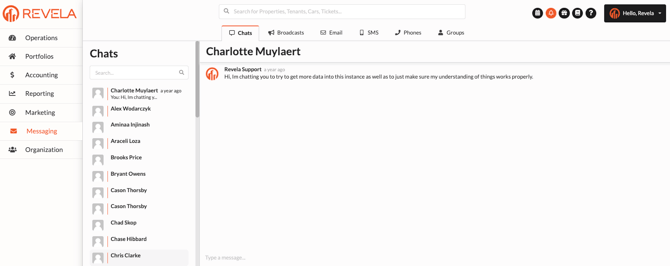
- Navigate to Messaging > Chats in Revela.
- Select the person you wish to send a chat message to.
- Type your message and send it instantly.
Who Can Receive Chats?
- Employees (for inquiries, maintenance updates, and general communication).
- Other admin users with access to Revela (for internal communication).
- Viewing Chat History
-
- All past chat messages can be accessed within the Messaging > Chats section.
- Chat history is also available within employee’s profile under the Activity Log for reference.
Best Practices & Tips
✔ Use chats for quick, real-time communication with tenants and team tenants.
✔ Check the Activity Log in a tenant’s profile for past conversations.
✔ Use chat alongside other communication methods (e.g., email, notices) for important updates.
Common Issues & Troubleshooting
Issue 1: Unable to Find an employee in the Chat List
- Solution: Ensure the employee has active access to the system and is listed in tenant records.
Issue 2: Chat History Not Showing Up in the Activity Log
- Solution: Refresh the page or check the Messaging > Chats section for the latest conversations.