Overview
In this document, we will walk through how to review and properly code transactions made with your Revela debit card. This process is important to ensure both that all transactions have been accounted for and that your financial data remains accurate.
Reviewing Individual Transactions
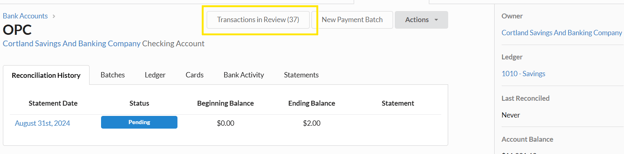
- Navigate to Organization > Bank Accounts and select the corresponding bank account.
- Select Transactions in Review
-
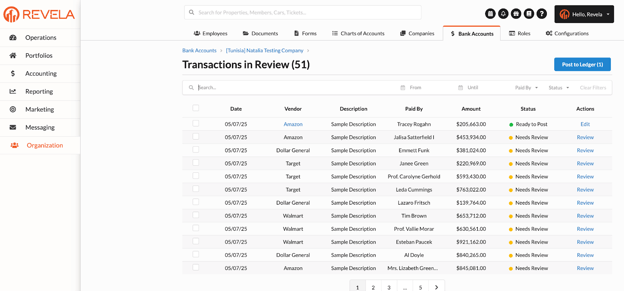
The Transactions in Review page shows the following information:
-
Date of the debit card transaction
-
Vendor and Description - this information is pulled directly from the bank statement
-
Paid By - this is the person whose name is on the card
-
Amount of the transaction
-
Status - Ready to Post, Needs Review, and Ignored
-
Ignored transactions will only remain on the list for 90 days
-
-
-
You can filter the list by:
-
Date Range
-
Cardholder (Paid By)
-
Status
-
Search: You can search for a Vendor or Description
-
-
You have the option to review a single transaction or select multiple at one time. To review a single transaction, click the Review button in the far right column
-
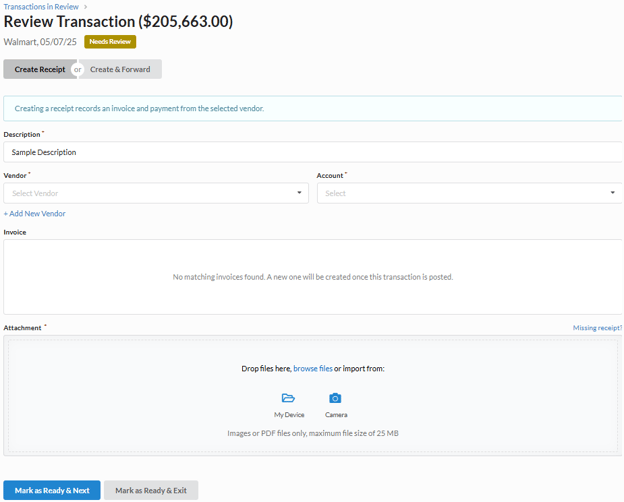
- Enter a Description. This will be the description of the invoice that is created from this transaction.
- Select a Vendor. If the card purchase was at a vendor that has not yet been entered into Revela, you can click the Add New Vendor button
- Select the desired expense account
-
If an invoice matching that amount, expense account, and vendor already exists, it will be displayed. You can choose to select that invoice to prevent a duplicate invoice from being created.
-
-
Upload an Attachment or take a photo of a receipt.
-
Image files and PDFs are the only file type allowed. Maximum size of 25 MB
-
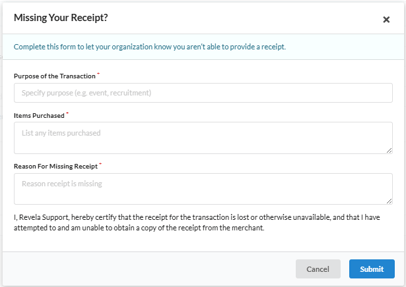
If you are missing a receipt, click the Missing Receipt button to the right of the attachment field. You will be asked to fill in three fields. Filling this form out will add it as an attachment to the invoice that is created.
-
-
You can choose to automatically move to the next transaction in the Needs Review status by selecting Mark as Ready & Next or you can submit and go back to the full transactions list by clicking Mark as Ready & Exit.
Reviewing Transactions in Bulk
-
You can review multiple transactions at once by using the checkboxes on the left hand side of the Transaction in Review page
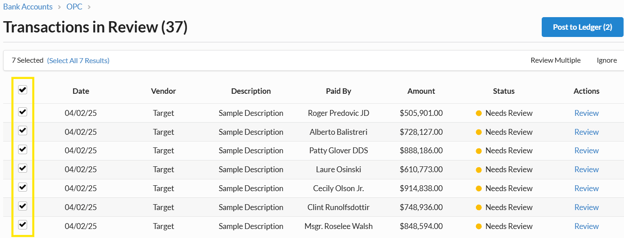
-
After selecting transactions you wish to review, enter the Expense Account and Vendor
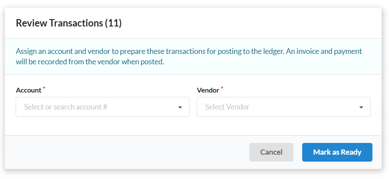
- Choose the GL account and vendor profile from the dropdown
- Click on Mark as Ready and follow the below steps regarding Posting to Ledger
-
Note: You will not be able to add an attachment when reviewing transactions in bulk
Posting to Ledger
-
Once a transaction has been reviewed, its status will change to Ready to Post
-
Selecting the Post to Ledger button will create an invoice and mark it as paid for any of the transactions in the Ready to Post status
-
Posted transactions will be removed from the list
-
You can see a list of the posted transactions if you go to Accounting (left menu) > Payables (top toolbar)