
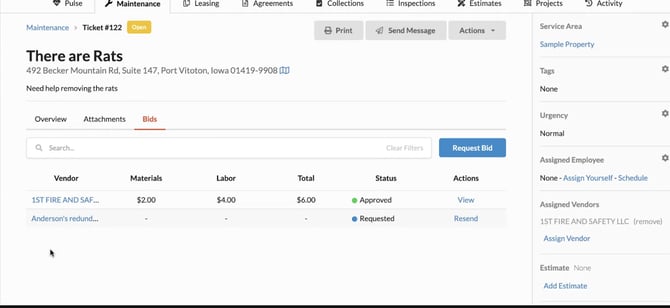
After creating a maintenance ticket, you can request a bid from a vendor or multiple vendors. In order to request a bid, navigate to the Bids tab within the work order and select Request Bid.
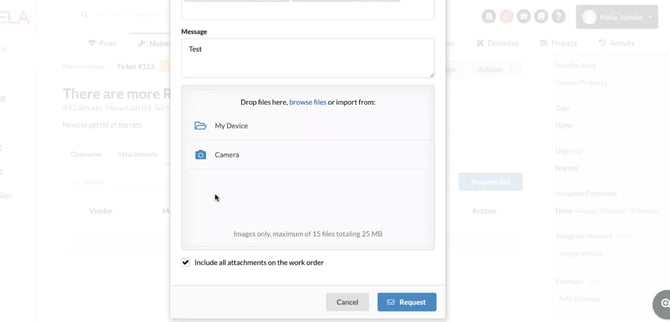
A pop-up will appear to select any vendor(s) you wish to request a bid from and add a brief message. This message will be sent to all vendors that have been selected during this process. Once you select the appropriate vendor(s) and add your message, select any attachments you wish to include in the message. These can be files pre-existing on the work order or you can upload your own. If you choose to upload a new file, that file will be stored under the Attachments tab.
Select all files you wish to include in your message to the vendor(s). If you wish to select all files, select the checkbox at the bottom of the pop-up, “Include all attachments on the work order.”
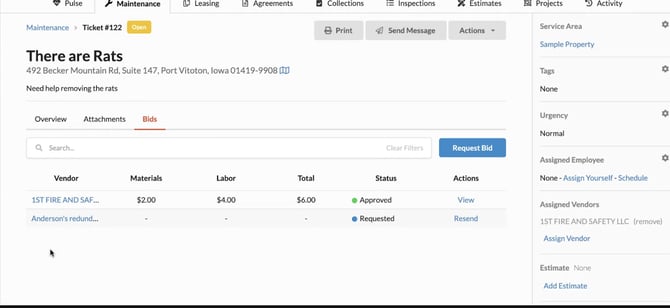
The vendor(s) will have to fill out the bid request, they can do this via the portal or the email that they receive. You can track the progress of a bid request by viewing all bids under the Bids tab of the work order.
Requested - A bid request has been sent to a vendor for the vendor to submit their bid request.
Needs Approval - The bid request has been submitted by a vendor and is waiting for the property manager to review and approve the request.
Approved - The property manager has approved the bid request for this vendor, and the vendor can now be assigned the work order.
Declined - The vendor has declined the bid request and no bid will be submitted.
When you Approve or Reject the vendor's bid through the maintenance ticket, the vendor will be notified of your decision.
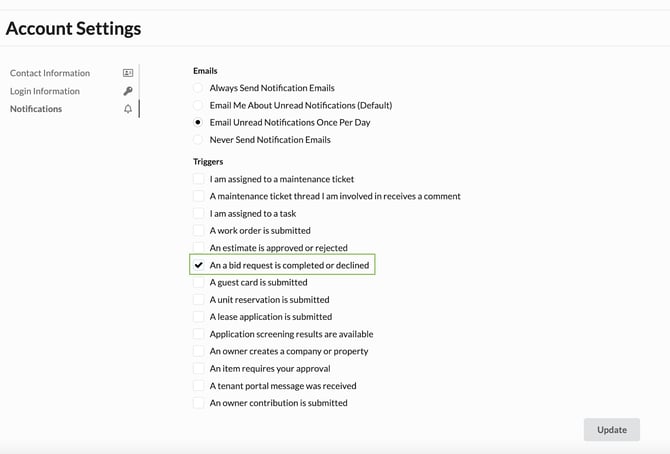
Note: If you want to receive a notification when a bid response is received, be sure to navigate to your Account > Notification Preferences, and check "A bid request is completed or rejected" trigger option.
If the bid is Accepted, the system prompts with the following screen where you can simultaneously invite the vendor to the maintenance ticket, as well as prepare the estimate that can then be sent to the owner for approval (the estimate will be prepared based on the bid response, but can be edited prior to being sent to owner).

If you want to wait to invite the vendor until the estimate is approved, you can do that and even enter a short message letting them know that you're just waiting on owner approval to start the work and will notify them when approval is received.
Once the vendor is invited to the maintenance ticket (whether it was at the time of bid approval or after) they'll go through the standard work order invite process for vendors.
Finally, whenever the vendor has finished with the work order and has submitted an invoice, you will notice the invoice in the right sidebar menu in the maintenance ticket and you will be able to bill the ticket.