Full Refunds
-
Navigate to Tenant Profile -> Transactions -> click on the Payment
-
Click Actions → Refund to issue a full refund. If not available, please reach out to Revela Support at support@revela.co
Partial Refunds: Step-by-Step Guide
1. Unapply the Payment
-
Locate the payment in question.
-
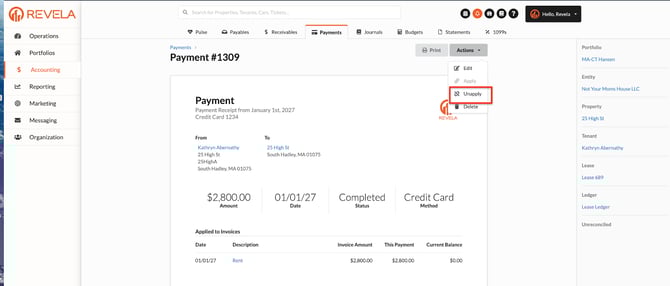
Select Actions → Unapply to disconnect it from the invoice.
2. Create or Edit an Invoice
-
Option 1: Create a new invoice for the adjusted refund amount.
-
Option 2: Edit the existing invoice:
-
Go to Actions → Edit
-
Adjust the invoice amount to match the refund amount.
-
3. Reapply the Payment
-
Navigate back to the payment.
-
Select Actions → Apply to reapply it to the correct invoice.
4. Check for Available Credits
-
A blue credit box will appear on the payment page, showing the refundable amount.
Issuing the Refund
1. Prepare the Refund
-
Go to the Tenant’s Profile (Overview Page).
-
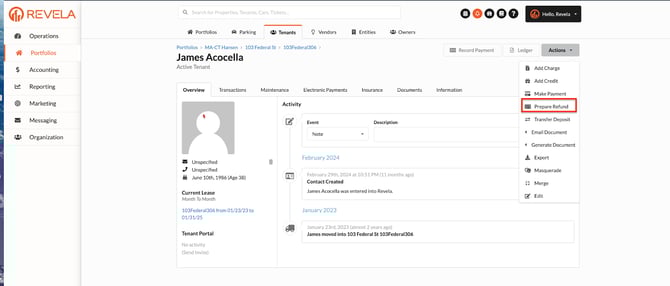
Click Actions → Prepare Refund.
2. Process the Refund Payment
-
A payable invoice will be generated.
-
To pay the refund:
-
Click Actions → Pay.
-
Select Check or ACH (if the member’s bank details are entered).
-
Additional Notes & Best Practices
✔ Ensure bank information is correctly added for ACH refunds.
✔ Double-check all amounts and details to prevent errors.
✔ Keep records updated in case of future payment disputes.