
During the owner onboarding process, owners will receive access to the Revela Owner Portal. This portal is used for property owners to view financial reports regarding their properties and make contributions for expenses.
Dashboard
The first page you will see when logging in is the dashboard. The dashboard consists of the following elements:
Financials
- Owner Balance: The blue circle with the number represents the owner balance that is due from the property manager at that point in time.
- Total Revenue: Total revenue represents the total revenue that all the properties belonging to this owner are accrued to bring in.
- Total Expenses: Total expenses represents the total expenses that all properties belonging to this owner have incurred. This could be maintenance, management fees, etc.
- Net Income: This number is the total revenue minus total expenses.
Make a Payment
This section allows an owner to easily access any outstanding payments that need to be made. These could be owner contributions for necessary projects and repairs, invoices for maintenance services rendered, and more. The owner can simply select which invoice they want to pay, and pay it directly via the portal. Outstanding expenses can also be accessed via the 'Expenses' tab on the left hand side of the screen.
Owner Reports
Owners are able to access owner statements and other reports that their property management company has shared with them via this section.
Notifications
This section allows owners to see any notifications at-a-glance. Owner notifications can be configured to each owners liking. Owners to receive notifications for the following activities:
- When a payment has been received, or when payments are late or unsuccessful.
- When a work order has been created for one of their properties, whether it was created by the tenant or the property manager.
- When applications are completed.
- When a lease for one of their properties is signed.
Owners can also receive email notifications in case they aren't logging into the portal on a regular basis. Owners can receive daily, weekly or monthly digests of all their notifications and activity.
Messaging
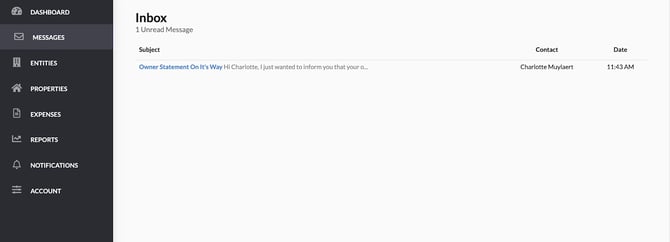
As an owner, one way your management company can communicate with you is directly via your owner portal. These may be direct messages for you, or they may be larger broadcasts that are sent to all owners.
All messages will reside within the 'Messages' tab. At-a-glance you'll be able to see the subject of the email, a short preview of the beginning of the message, who sent the communication and when the communication was sent.
Entities
When logged into the owner portal, you can access a list of all entities you have set up in Revela by navigating to the Entities tab.
You'll be able to select any entity you want to view by clicking on the entity card. Once in the entity, you'll be able to see a break down of information associated with the entity including:
- Status - Whether or not the property is set up or active.
- Contact Information - This is the contact information for the entity that the property management company should use in the case that they need to reach you. You can edit this information by clicking on the 'Edit' box in the upper right hand corner of the Contact Information section.
- Payment Methods - This is where you can set up payment methods to make owner contributions, pay invoices and other costs that may be incurred. To add a payment method, simply select the 'Add Payment Method' box in the upper right hand corner of the Payment Methods section.
- Properties - Within the Properties section, cards will show every property that falls underneath the entity. The cards will display the following information regarding each property:
- Name of property
- Location of property
- # of units at the property
- # of tenants currently living at the property
- Current occupancy %
Properties
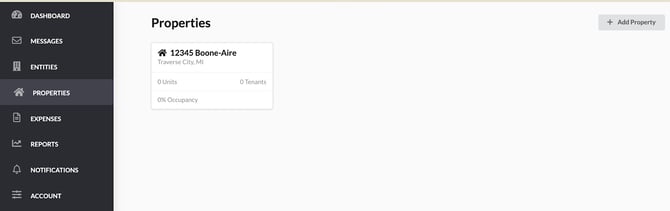
When logged into the owner portal, you can access a list of all your properties by navigating to the Properties tab.
You'll be able to select any property you want to view by clicking on the property card. Once in the property, you'll be able to see a break down of different units within the property (if it is a multi-family property).
Expenses
When logged into the owner portal, you can access a list of all expenses that are currently outstanding that the owner is responsible for paying by navigating to the Expenses tab.
Once in the tab, you'll see a total dollar amount for invoices owed at the top of the page. Below, individual invoices will be available for you to view and pay via the portal.
If you have questions about any outstanding invoices, please reach out to your management company.
Reports
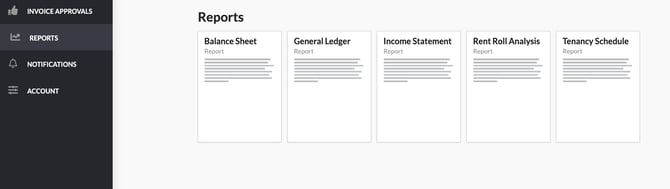
When logged into the owner portal, you can access owner statements and other reports your property management company provides you in Revela by navigating to the Reports tab.
If there are any available reports, you will see individual reports that you can click into to view. Note that each organization may have a different suite of reports that are available depending on their preferences and configuration.
Documents
In the documents tab you can review any documents that your property manager has uploaded for your properties. To view, click on the blue hyperlinked name.
Notifications
As an owner, one way you can stay up-to-date on happenings at your properties is by receiving notifications via your owner portal. To view notifications, navigate to the Notifications tab.
Within the tab, you'll be able to see any notifications you've received and whether you've viewed them or not.
Notification Preferences
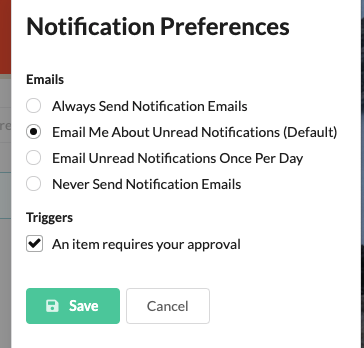
You can update your notifications preferences by selecting the 'Preferences' button in the upper right hand corner.
Emails - These settings allow you to determine how frequently you'd like to receive emails regarding your unread notifications within Revela. This allows you to monitor your Revela notifications via your email.
Triggers - This allows you to set what actions trigger additional notifications for you so you can stay on top of the most important items.
Account
You can update your name, email, or phone number here should you need to.