
Project boards are a convenient way to organize projects by their type, year or whatever method of organization works best with your business. To create a new board, navigate to Operations > Projects, and click the ‘New Board’ button in the top right corner of the page.
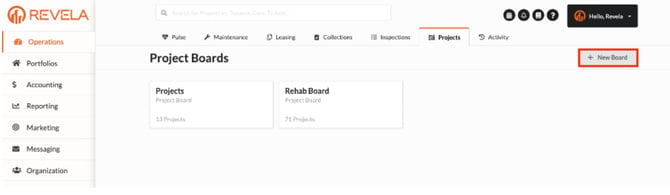 Many property management companies have been able to streamline their rent-ready rehab process using our project management features. For more information about how to optimize this process for your firm, please reach out to your account manager.
Once you’ve created your project board, you can create different phases for your projects, and move the project cards between the different phases that describe the process.
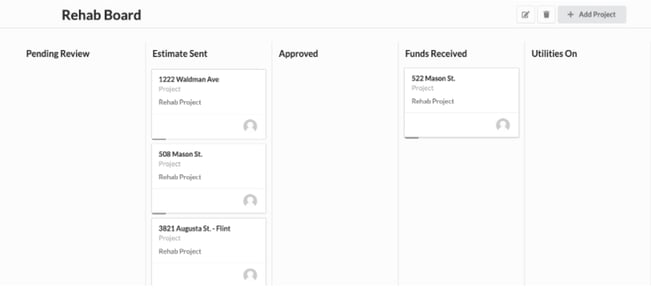
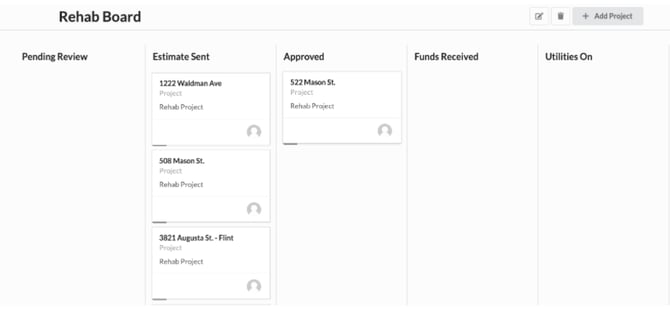 The cards are movable via drag and drop, or we can create conditional rules for each project phase so that when certain criteria are met the cards move through the board on their own.
Assigning Tasks Within a Project
Once you’ve created a task, you can assign that task to either a team tenant or a vendor. You can do so by clicking the three dots in a project phase, by clicking on the Actions menu in a task card, and/or by clicking on the Assign button next to each task.
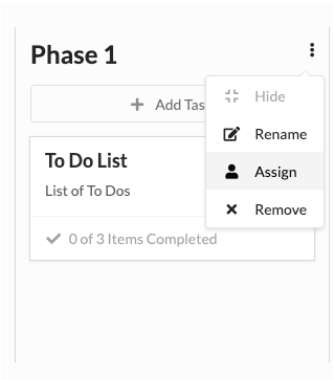
Revela allows you to assign entire project phases, cards and even individual tasks by checking the box associated with them.
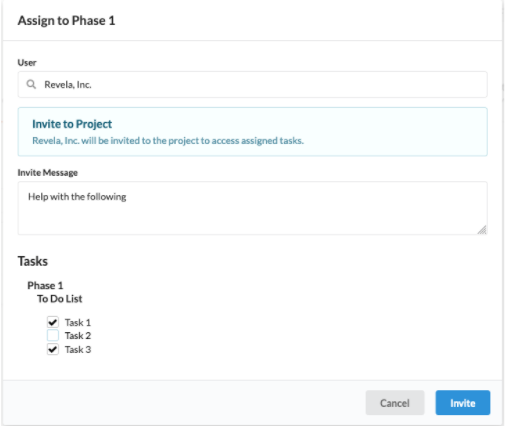
Once Assigned, vendors receive an email that allows them to access a secure page on their mobile device or desktop that:
- Displays a list of tasks they’ve been assigned
- Provides them the ability to upload before and after photos, videos, etc.
- Allows them to submit invoices for the work that has been completed
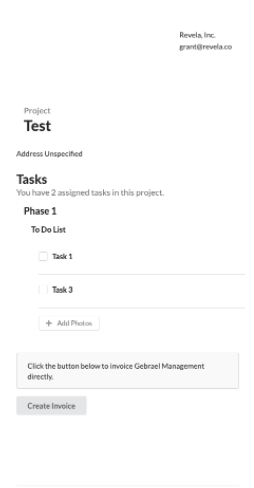
Vendors are only able to view tasks that they’ve been assigned. If you would like to assign a vendor more tasks after the fact, you do so and those tasks will be added to that vendor’s secure page for this project.
As vendors complete tasks, the project updates automatically: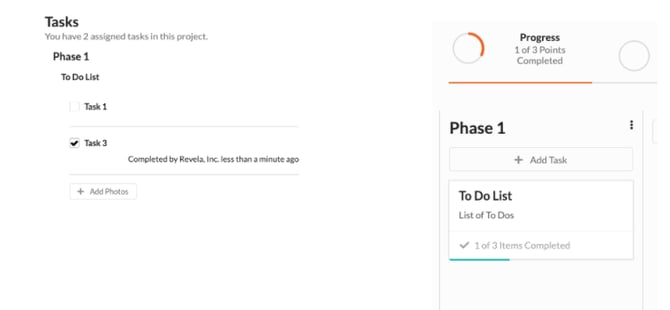
When the tasks that have been assigned within a project are completed, the vendor will be prompted to create an Invoice both on this secure page and via email.
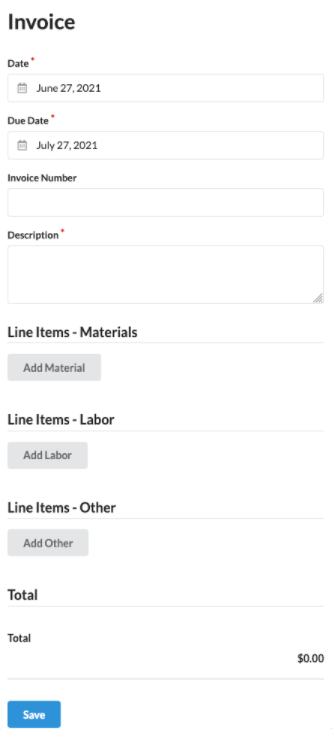
Any bill submitted through this process is automatically reflected against the project’s budget which is set during the Estimate process. This will allow you to see your budget vs. actuals total at the end of the project.
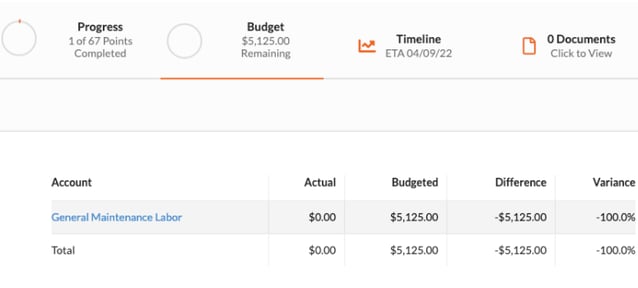
The GL accounts used within the project budget are pre-configured in the chart of accounts for default labor, material and other project related expenses, but can be adjusted on a per project basis by an accounting or administrative user role.