
Overview:
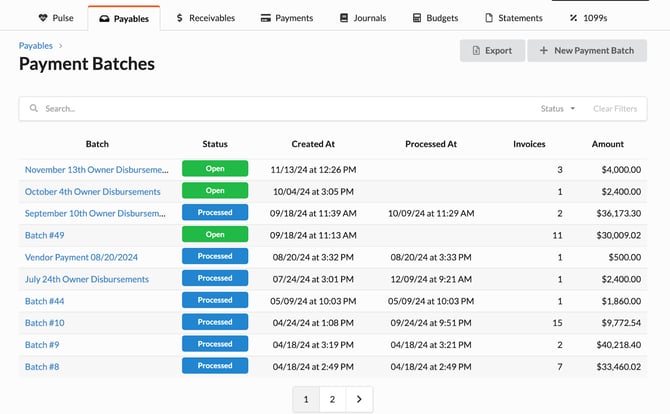
- Purpose: Making multiple payments at one time is a Batch payment. To simplify the process of paying vendors and to enable better cash management practices, we encourage users to use our payables batching process to pay vendors. To create a payables batch, click the Batches button in the top right corner of the page, and then click ‘New Payment Batch’.
- Target Audience: Accountants, Property Managers, and Employees.
Step-by-Step
- Accounting > Payables > Batches

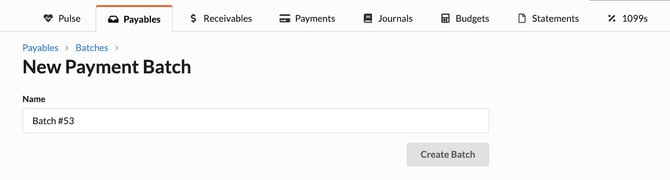
2. When you click on Batches it leads to the following steps:
- +New Payment Batch
- Name the Batch
- Create Batch
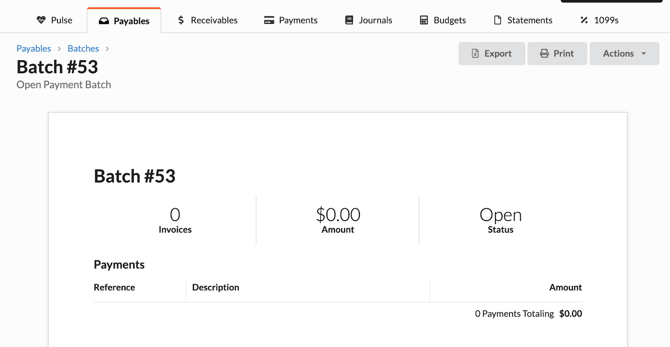
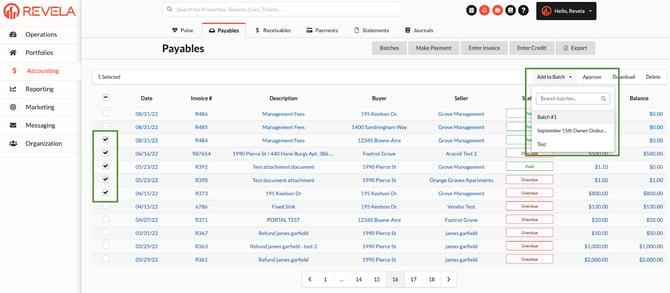
3. Once you’ve created a batch, you can add invoices to it by clicking on the check mark box and Add to Batch appears in the Search Filters Bar.
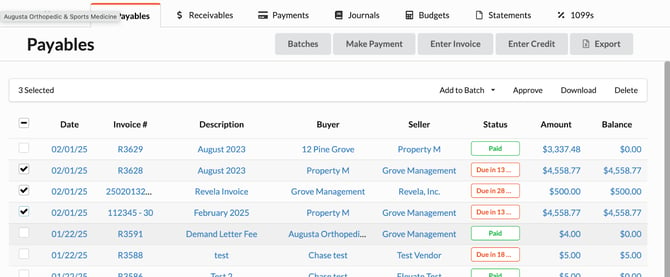
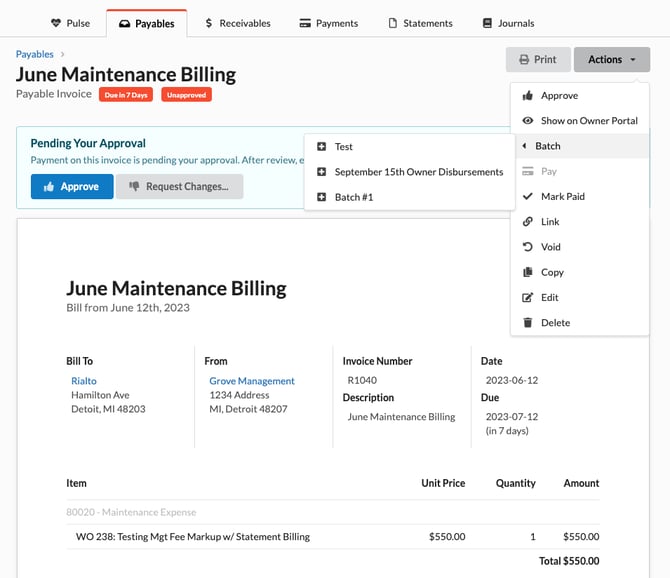
4. Adding a single invoice to a batch: Accounting > Payables > Actions > Batch (select correct Batch)
5. Adding multiple invoices to a batch
6. Once added, you can review all of your open payables batches on the batches screen (Accounting > Payables > Batches).

How Approvals Impact Payables Batching
If your company has enabled an approval process, you will not be able to process the payables batch until all invoices are approved. Unapproved invoices appear in yellow within the table.
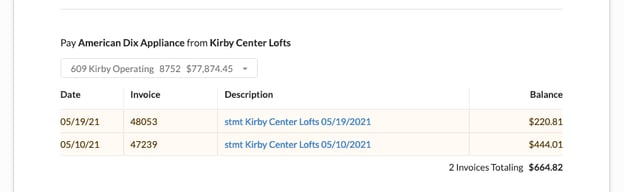
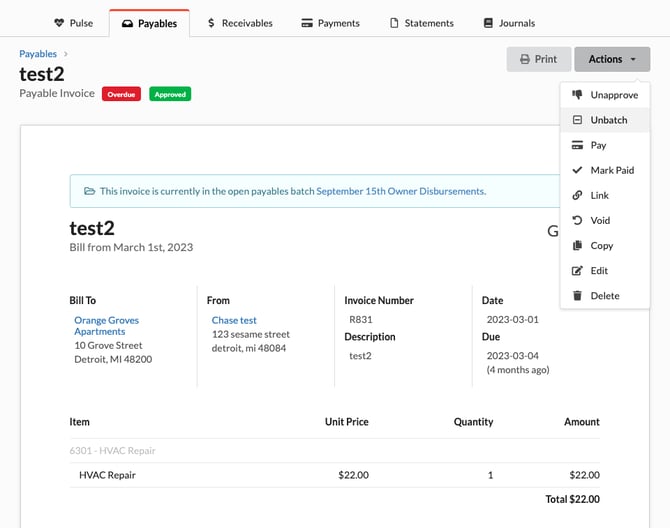
To continue processing the batch, you can either get approval from the stakeholders established in the process, or remove the unapproved invoices from the payables batch by clicking on the invoice and selecting Actions, ‘Unbatch’:
7. To process a batch for payment, click on a batch with the status of 'Open'
This page will show you all of the invoices by vendor, and the current bank balance of all associated bank accounts with that entity to make sure you don’t accidentally overdraw an account. You can select any bank account associated with the company.
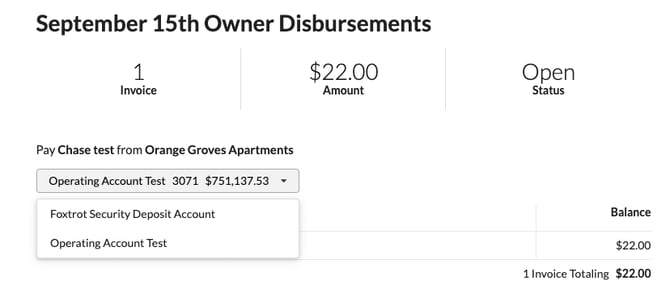
8. Address Validation: When you open your weekly batch, you may notice some invoices showing “Unverified Address” next to the payee’s name.
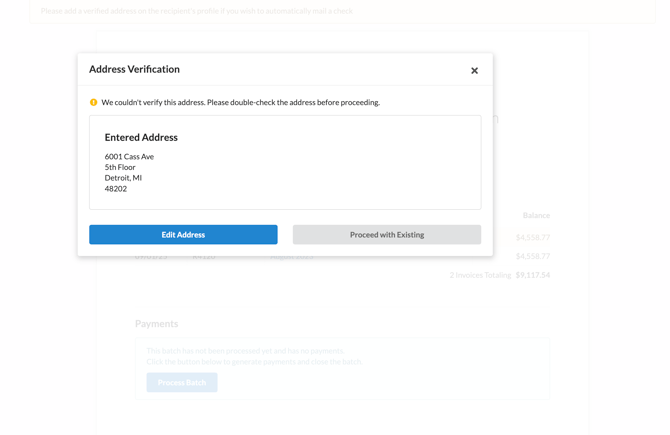
Revela performs address validation to help reduce the risk of checks being lost or returned due to incorrect mailing details. Any vendor or recipient receiving check payments must have their address verified before the check can be mailed.
To verify an address, simply click Verify on the batch page or directly on the vendor’s page. The system will automatically suggest the best-formatted address based on postal standards. If the suggested address looks incorrect but your current one is accurate, you can safely click Proceed with Existing to continue using your version.
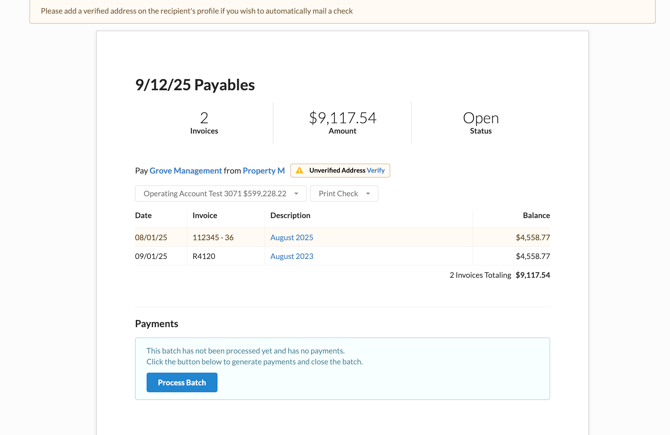
9. For accounts that have ACH Credit services enabled, you can select whether you want to pay a vendor, owner or tenant via ACH or Check.
-
Automatically send a check:
When this option is selected, the system will automatically process and mail the check through USPS on your behalf. You don’t need to print or handle anything manually — the platform generates the check, prints it using our integrated check-printing service, and mails it directly to the recipient’s address on file. This option is ideal when you want a completely hands-off process or when the payee prefers to receive their payment by mail.- Please note that the auto-mailing option comes with an additional cost, which may already be included in certain servicing packages. If you’re unsure whether it’s covered in your current plan, we recommend contacting your Customer Success Manager to confirm.
-
Manually print a check:
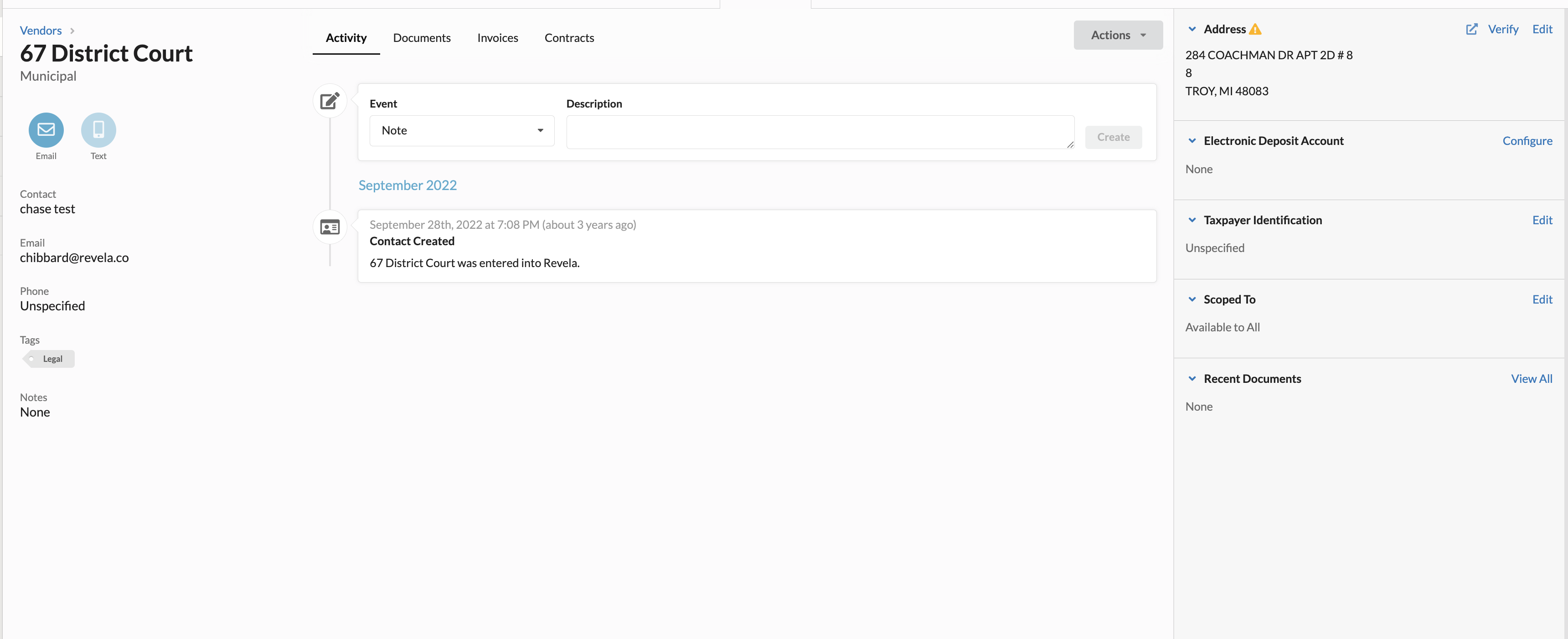
Choosing this option means you’ll be responsible for printing and delivering the check yourself. The system will generate the check details, but it will not mail it out. You’ll need to print it using your physical check stock and hand it or mail it to the vendor or member manually. This option is useful if you prefer to issue checks locally, include them with other documents, or manage distribution personally. - ACH/ Electronic Payment - If you don’t see the ACH Credit option, it means the vendor does not have an electronic payment method set up on their profile.
- You can update this by going to the vendor’s profile and clicking Configure next to Electronic Deposit on the right-hand side. From there, you’ll be able to enter the vendor’s bank account details.
- Please note that vendors can log into their portal to add their electronic deposit account from their end
- You can update this by going to the vendor’s profile and clicking Configure next to Electronic Deposit on the right-hand side. From there, you’ll be able to enter the vendor’s bank account details.
10. Once you’ve selected the appropriate bank accounts and payment methods, you can process the batch by scrolling to the bottom of the page, and hitting the ‘Process Batch’ button.
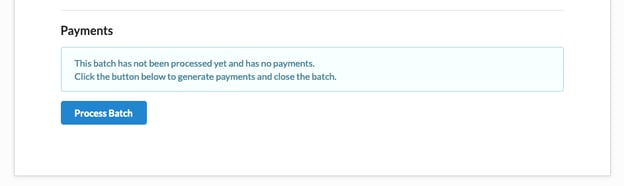
Doing so will create payments for all invoices in the batch, which appear at the bottom of the page with Check/ACH reference numbers.
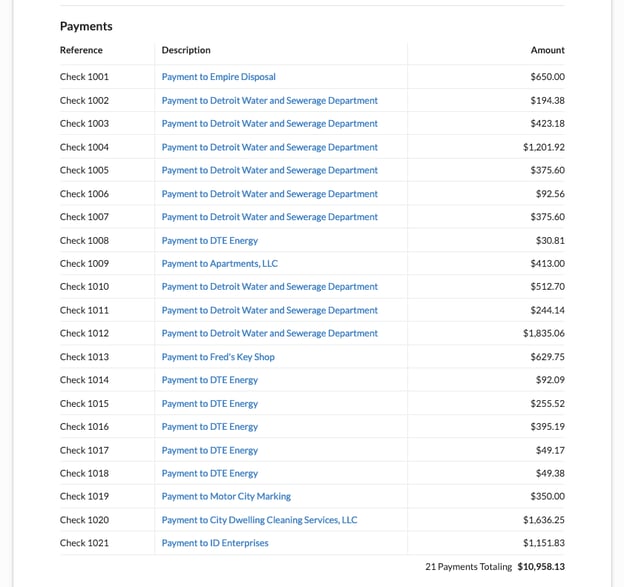
11. Printing Checks from a Batch
For those that are not set up for ACH or auto check mailing, you can print checks by scrolling to the bottom of the page and clicking the ‘Print Checks’ button on the batch. Doing so will load a concatenated list of all check images that can be printed from the browser onto blank check stock.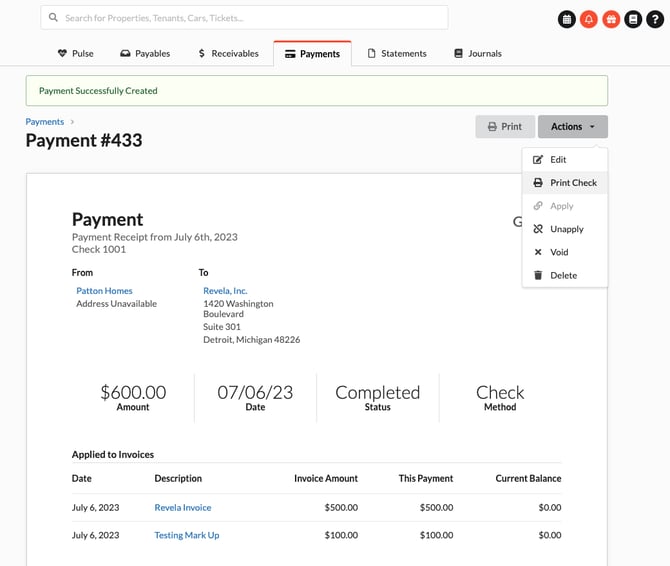
For Auto Mailed Checks
When the check goes out, the status changes as:
- Still being processed by PostGrid
- Ready according to PostGrid
- Being printed by PostGrid
- In the hands of the carrier
- Delivered to end user according to PostGrid's best estimate