Overview
-
Purpose: This guide explains how property managers can disburse funds owed to owners while ensuring that Management Fees are billed on any eligible transaction activity, and Property Balance Transfers are executed to prevent the property manager from floating funds on behalf of owners.
-
Target Audience: Property managers
Step-by-Step Instructions
Generating Owner Disbursements in Bulk - Please note that prior to generating Owner Disbursements, Management Fees should be billed, and Property Balance Transfers should be executed (if needed). Management fees, Property Balance Transfers, and Owner Disbursements can all be executed quickly in bulk on the entities page.
- Navigate to Portfolios/Properties > Entities.
- Select the entities that need Owner Disbursements generated.
- If Management Fees have not been generated, first generate them by selecting the appropriate entities, then clicking the "Generate Management Fees" link in the search bar. Management Fees will be generated based on transaction activity that is eligible and has taken place since the last time Management Fees were billed - this date is visible in the Billed Thru column on the Entities page. Management Fees are generated based on the Management Contract associated with the entity. To edit a Management Contract, navigate to a specific entity > Actions > Management Contract. Any updates should be made prior to generating Management Fees.
- If Property Balance Transfers need to be executed, this can be done in bulk. When entities are selected, and the "Property Balance Transfers" link is clicked, this transfers funds from a property that has a positive balance to a property owned by the same entity that has a negative balance. These Property Balance Transfer entries will display on the owner statement based on the Effective Date selected. Property Balance Transfers can be disabled on the entity’s Management Contract. When running transfers in bulk, entities that are opted out will automatically be skipped.
- Note that the Property Balance Transfer function does not execute transfers across different entities, even if the entities are owned by the same owner.
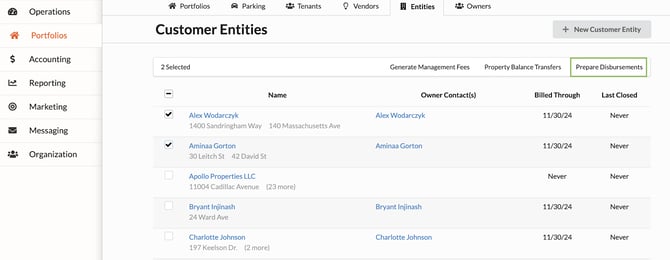
- Once Management Fees have been generated and any desired Property Balance Transfers have taken place, select the appropriate entities and click "Prepare Disbursements" in the search bar.
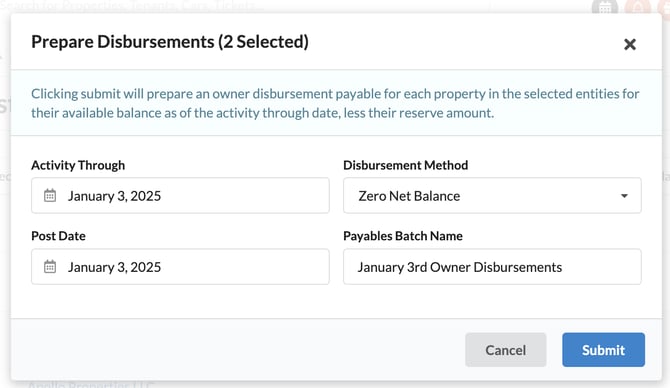
 This will display the options and parameters for disbursements, including:
- Activity Through - This will be the timeframe for which disbursements are generated. For example, if disbursements were last generated on March 31, and it is now May 5, and you want to generate disbursements for all funds collected for the month of April, you would select April 30 as your Activity Through Date
- Disbursement Method - This is to determine how you want the disbursement amount to calculate.
- Zero Net Balance = Available funds owed to the owner minus reserves and funds owed to the property manager. This is the most commonly used option.
- Zero Cash Balance = Disburse all funds so the owner balance is brought to zero. This will override all reserves or other funds held.
- Post Date - This is the post date of the disbursement invoices. Note that invoices cannot be generated if the post date selected is within a closed period.
- Payables Batch Name - This is the name of the payables batch that all the Owner Disbursement invoices that are generated will reside in.
- Click "Submit". Upon clicking "Submit" all of the Owner Disbursement invoices for the selected entities will be generated. Invoices are generated by property, not by entity.Navigate to Accounting > Payables > Batches to access, review, and pay the batch. Once the batch is paid, owners can expect to receive their funds the next business day (if paid via ACH).
Generating One-Off Owner Disbursements
In some situations, you may want to generate Owner Disbursements one-off for a specific owner entity. If this is the case, the Close Period page can be leveraged.
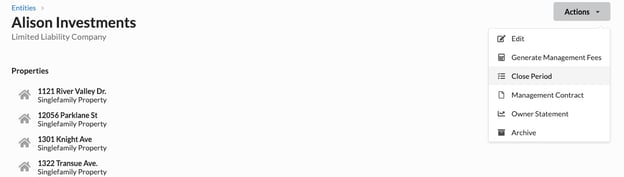
To close a period for an owner and make their owner statements available, click on the specific entity you would like to close and click Actions > Close Period.
From here, you’ll see this screen:

- Billing Period - The Billing Period sets the accounting period in question. For example, if May is selected, only transactions for May will be shown. This allows users to close accounting periods in the month following.
- Close Journal Checkbox - Selecting the close journal option will close and lock the accounting journal for this customer entity, which prevents any transactions from being posted before the lock date of the journal. This prevents reports from changing and introduces additional accounting controls to ensure the highest data integrity.
-
- Note - If you execute mid-month disbursements, uncheck this box.
- Unpaid Expenses - The Unpaid Expenses section shows all unpaid expenses for all of the properties owned by this entity. If the box is checked, the system will automatically create credit notes and apply them to the unpaid invoices, and deduct them from the owner’s balance.
Once you’ve reviewed your unpaid expenses, you’ll see the following:
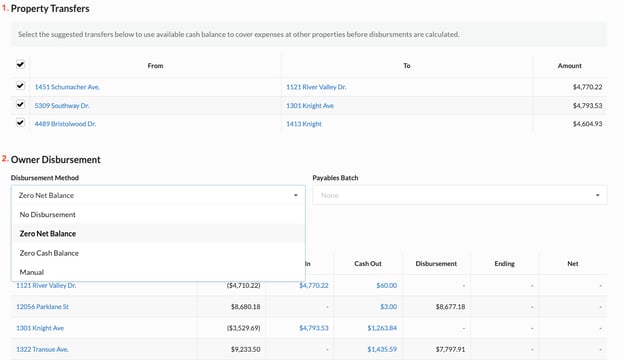
- Property Transfers - The property transfers section automatically creates transfers between properties in the event that one property spends more than its available balance.
- Owner Disbursement - The Owner Disbursement section gives the user control over the disbursement process with several common options for paying out owners. Once generated, all Owner Disbursements are added to a payables batch for processing. Those options include the following:
|
No Disbursement |
Does not create a payable. |
|
Zero Net Balance |
Creates a payable for available cash minus unpaid expenses and the reserve amount. |
|
Zero Cash Balance |
Creates a payable for all available cash. |
|
Manual |
Creates a payable for a custom amount. |
Once created, Owner Disbursements are added to a payables batch for processing.
Before submitting, it is best practice to review the Cash Summary table as it is a condensed representation of the owner statement.
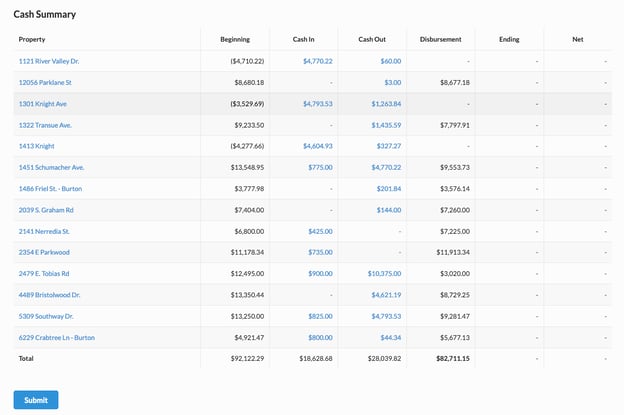
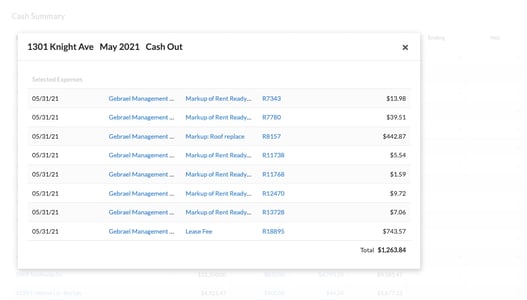
You can click on any blue dollar amount and Revela will load a pop up to show you the detail of the transactions that make up each item: