
Overview
- Purpose: This guide explains how to manage maintenance requests in Revela, including creating, updating, and assigning tickets.
- Target Audience: Property managers, maintenance staff, and admins.
Step-by-Step
Step 1: Access Maintenance Requests
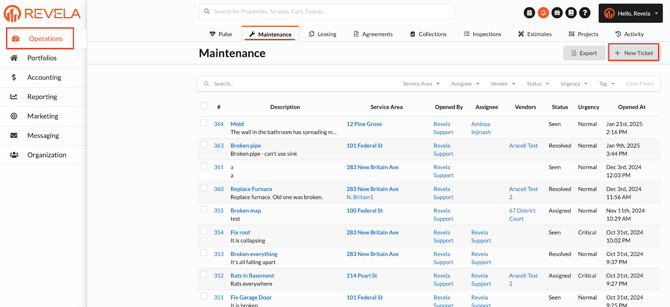
- In Revela, navigate to Operations Menu > Maintenance.
- All tenant maintenance tickets will appear in this section.
Step 2: Manually Enter a Maintenance Request
If a tenant calls in a request, an employee can enter it manually:
- Click ‘+ New Ticket’.
- Fill out the New Maintenance Ticket form:
- Regarding: Enter the property, unit, or tenant’s name.
- Subject: Summarize the issue in one sentence.
- Description: Provide a detailed description of the issue.
- Urgency: Select Minor, Normal, or Critical based on priority.
- Assign Employee: Choose an employee from the dropdown list.
- Tags: Leave blank, create a new tag, or enter an existing one.
- Entry Code: Indicate if the property/unit has a lockbox or door keycode.
- NEW !: Ticket ID # where you can easily locate and refer to maintenance work orders
- Click Submit to create the ticket.
Step 3: Managing a Submitted Maintenance Ticket
Once a ticket has been submitted, additional actions can be performed:
- Attach extra comments, photos, or files to provide more details.
- Assign a vendor to handle the request.
- Attach a vendor bid for pricing estimates.
- Add an estimate for repair costs.
- Link an expense or invoice to the request for tracking.
Step 4: Additional Ticket Options
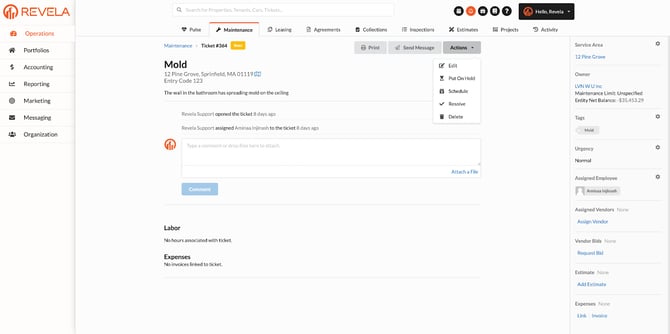
In the right-hand corner of a maintenance ticket, you can:
- Print the ticket.
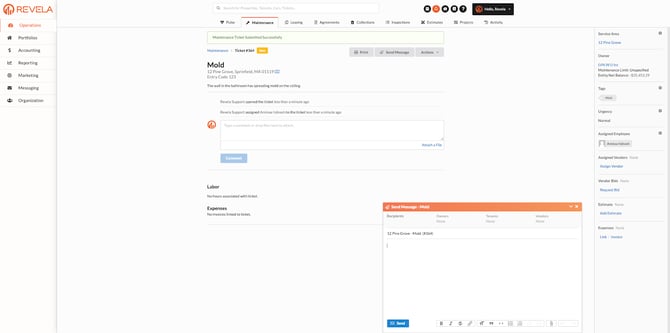
- Send a Message within the ticket.
- Access ‘Actions’ for further updates.
Step 5: Using Advanced Maintenance Features
On the right-hand side of the Maintenance tab, you can:
- Assign vendors and employees to handle the request.
- Request bids from vendors for service estimates.
- Link or create invoices based on the work ticket.
- Add estimates to track potential repair costs.
Best Practices, Tips, and Notes
- Encourage tenants to provide detailed descriptions and attach photos when submitting a request.
- Assign tickets promptly to reduce response times and improve tenant satisfaction.
- Regularly update the maintenance ticket status to keep records accurate.
Common Issues & Troubleshooting
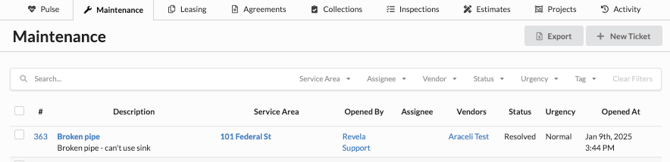
Issue 1: Maintenance tickets are not appearing under Operations > Maintenance.- Solution: Check filters to ensure all requests are visible, and refresh the page.
- Solution: Ensure the vendor is added to the system under Vendor Management.