
Overview
-
Purpose: This guide provides a step-by-step process for generating, configuring, and finalizing property management contracts (agreement between a property owner and a management company to clearly define responsibilities, billing terms, and operational expectations) in Revela.
-
Target Audience: Property managers, property owners, and administrative teams.
Step-by-Step Instructions
Generating a Management Contract
-
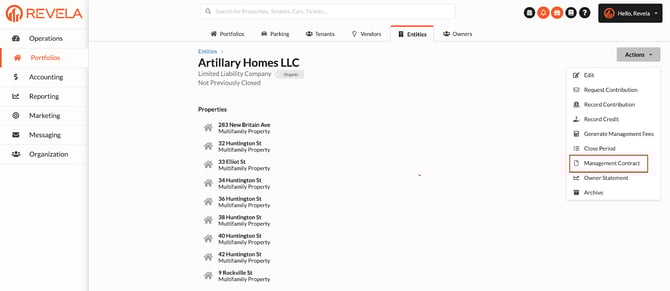
Navigate to the Contract Setup:
-
-
Click "Actions" and select "Management Contract."
-
-
Review the Initial Window:
-
-
This screen provides an overview of the management contract setup before entering details.
-
Configuring Contract Details
Duration of Management:
-
Set start and end dates for the management agreement.
Properties to Manage:
-
Select properties covered under the contract.
-
Add new properties with customized start and end dates.

Reserve Amount:
-
Configure reserve funds to cover emergencies and unexpected expenses.
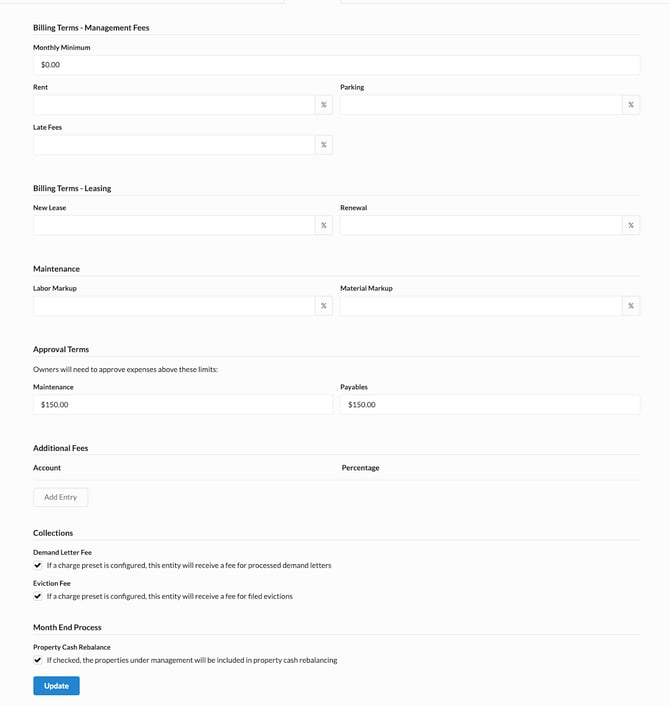
Manager Fees:
-
Specify the monthly base rate for management services.
-
Define additional charges, such as rent collection fees (e.g., 20% of rent collected).
Lease Billing Terms:
-
Set fees for new leases and lease renewals.
Maintenance Fees:
-
Define the markup percentage for maintenance services and materials purchased.
Establishing Approval Terms
-
Set approval requirements for high-cost expenses (e.g., expenses exceeding $200).
-
Determine whether owners must approve invoices before payments are processed.
Additional Fees and Collections
Configuring Additional Fees:
-
Assign GL codes and define any extra fees (e.g., pet deposits, admin fees).
Handling Collections & Month-End Processes:
-
Set up automated services for collections communications (e.g., letters, emails).
-
Specify whether owners will be charged for sending demand letters or eviction notices.
Property Cache Rebalance Status
-
Determine whether the listed properties will be included in rebalance processes for asset allocation.
Finalizing the Management Contract
-
Click "Update" to save the management contract details.
-
A confirmation message will appear: “Management contract data successfully saved.”
-
Review and edit details if needed.
-
Generate a contract document for distribution to relevant parties.
Best Practices & Tips
✔ Clearly define billing terms and management fees to avoid disputes.
✔ Configure approval settings for high-cost expenses to ensure financial transparency.
✔ Regularly review and update contracts to reflect changes in portfolio management.
Common Issues & Troubleshooting
Issue 1: Contract Not Saving Changes
-
Solution: Ensure all mandatory fields (e.g., start date, property selection) are completed.
Issue 2: Incorrect Billing Calculations
-
Solution: Double-check that fees and percentages are set correctly under Billing Terms.
Issue 3: Owner Approval Not Required When Needed
-
Solution: Verify approval thresholds and ensure expense limits are correctly configured.
Link to Video