If you would like the Revela system to automatically process your payable invoices for you, this is an option.
Each customer has its own invoice processing email that comes with their instance of Revela. That email looks like this: [company sub domain]@invoices.revela.co
Finding Your Company Subdomain
To find your company subdomain, log into Revela and look at the website URL. Your subdomain is the content that appears before the '.revela.co'. For example, if you work for ABC Property Management, your URL may be abc-pm.revela.co. This means the invoice processing email would be abc-pm@invoices.revela.co.
How to Send an Invoice for Automatic Processing
When you, or a contractor, sends an invoice to this email, please ensure that:
- The invoice file is under 25MB.
- There is only one invoice per PDF (emails can include multiple attachments).
- If the PDF includes any back up documentation that the invoice be the first page of the PDF.
Invoices sent to this email address must include:
- Property/Entity/Department Name
- Property/Entity/Department Address (Shipping Address, not Billing Address)
- Vendor name and remittance address
These items are noted in the standard vendor packet that is included in your implementation and is sent to the vendor when they are invited through the vendor onboarding process explained below.
Depending on your company’s configuration, an invitation to complete their Vendor profile may automatically be sent to each vendor added to the system. This process asks each vendor to go through a brief onboarding workflow, where they’ll be asked to provide key information in line with your company’s policies and procedures as it relates to providing service to each property or portfolio.
These workflows may include, but are not limited to, requests for the following information:
- Company Name and Preferred Address
- Key Contacts
- Employer Identification Number (EIN)
- A completed W9
- A copy of their certificate of insurance with it’s end date
- A signed Master Services Agreement from your Company
Depending on your company’s configuration, Vendors may not be eligible to receive payment until they complete this workflow.
To invite Vendors manually:
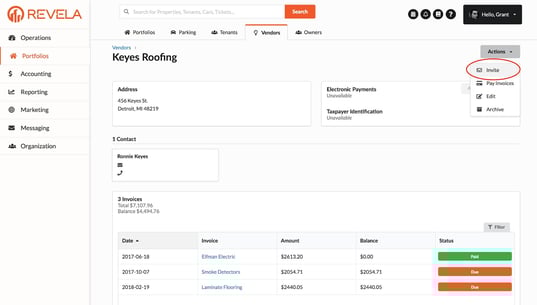
- Navigate to the vendors profile.
- Click the ‘Actions’ dropdown.
- Click the ‘Invite’ button.