
Overview
- Purpose: This guide explains how to reset an employee's password in Revela, either by contacting support or resetting it within the system.
- Target Audience: Admins, managers, and Revela support staff.
Step-by-Step
Option 1: Contact Revela Support
-
If you are unable to reset the password through the system, contact Revela Support at support@revela.co for assistance.
Option 2: Reset the Password Manually in Revela
-
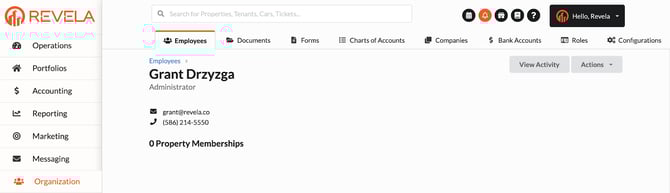
Navigate to Organization > Employees.
-
Select the employee whose password needs to be reset.
-
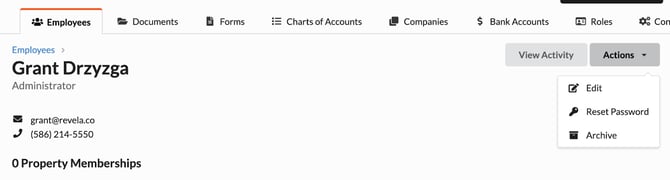
Click the Actions dropdown menu.
-
Click ‘Reset Password’.
-
The system will send a password reset email to the employee.
Best Practices, Tips, and Notes
-
Ensure the employee checks their spam or junk folder if they don’t receive the reset email.
-
If the reset link expires, repeat the Reset Password process.
-
Employees should choose a strong password that includes a mix of letters, numbers, and symbols.
Common Issues & Troubleshooting
Issue 1: Employee did not receive the password reset email.
-
Solution: Verify their email address is correct in the system and ask them to check spam/junk folders.
Issue 2: The Reset Password option is not available.
-
Solution: Ensure you have admin permissions to manage employee accounts.