
Overview
Purpose: This guide explains how to remove an applicant from the waitlist, either by generating a lease or removing them manually if they no longer wish to lease the property.
Target Audience: Leasing agents, property managers, and admins.
Step-by-Step
Option 1: Remove an Applicant by Generating a Lease
If the waitlisted applicant is ready to lease the property they were waitlisted for:
-
Navigate to Operations (left menu) > Leasing (top toolbar) and select the applicant’s profile
-
Click the Generate Lease button in the top right corner of their profile
-
You will be redirected to the Lease Creation Page, where rent and associated fees will be pre-populated
-
Finalize the lease details and proceed with the leasing process
Please note: All applicants that have been removed from the waitlist will be moved back to the Applicant’s Column in the Leasing Pipeline
Option 2: Remove an Applicant Who No Longer Wants to Lease
If the applicant no longer wishes to lease the property:
-
Navigate to Operations (left menu) > Leasing (top toolbar) and select the applicant’s profile
-
Click on the Documents tab within their profile
-
Under the Documents tab, locate and select their Application
-
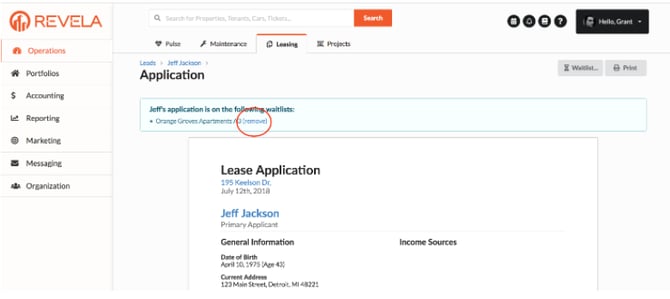
On the application page, you will see a blue box indicating the applicant’s current waitlist status
-
Click the Remove button to remove them from the waitlist.
-
The applicant will be moved back to the Applicant’s Column in the Leasing Pipeline
Archiving an Application
If the applicant is no longer interested in leasing any property, you can archive their application:
-
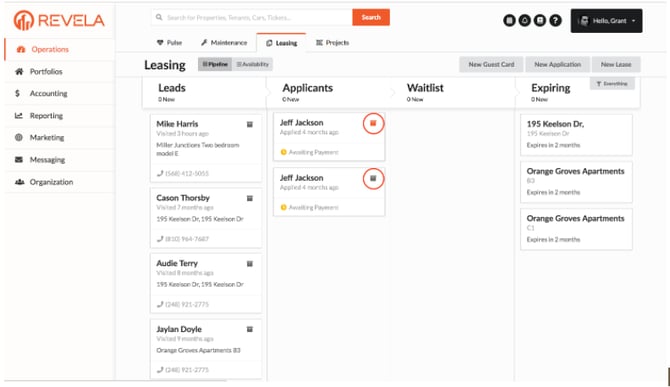
Locate the applicant’s card in the Leasing Pipeline
-
Click on the File Box icon to archive their application
Note: Archiving an application removes it from the Leasing Pipeline but retains all associated data and transactions for future reference
Best Practices, Tips, and Notes
-
Ensure the applicant is ready to proceed before generating a lease from the waitlist
-
If an applicant is removed from the waitlist but still interested in leasing later, you can re-add them to the waitlist if needed
-
Archived applications can still be accessed for historical records and financial data
Common Issues & Troubleshooting
Issue 1: The Remove button is not visible
-
Solution: Confirm that the applicant is currently on a waitlist by checking their application details
Issue 2: The applicant’s lease details are not pre-populating
-
Solution: Ensure the property and unit are correctly assigned in their application before generating the lease