
Overview
-
Purpose: This guide explains the process of importing and exporting budgets in Revela for efficient financial planning.
-
Target Audience: Property managers, financial administrators, and accounting teams.
Step-by-Step
1. Introduction to Budget Management
Budgeting in Revela allows users to:
-
Track financial plans for past, current, and future periods.
-
Generate budget variance reports to compare expected income vs. actual income.
-
Streamline financial decision-making with organized budget data.
2. Accessing Budget Settings
-
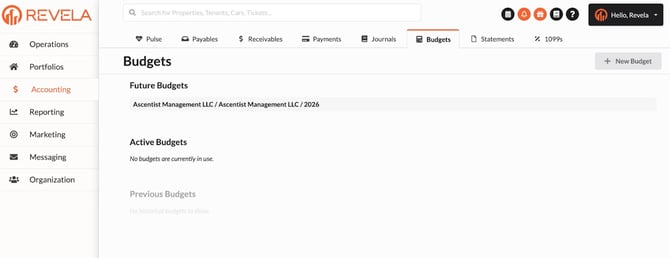
Navigate to Accounting > Budgets.
-
Revela provides access to three types of budgets:
-
Future Budgets – View upcoming financial plans.
-
Active Budgets – Manage the current year’s budget.
-
Previous Budgets – Access and analyze past budgets.
-
4. Importing a New Budget
To upload a new budget into Revela:
-
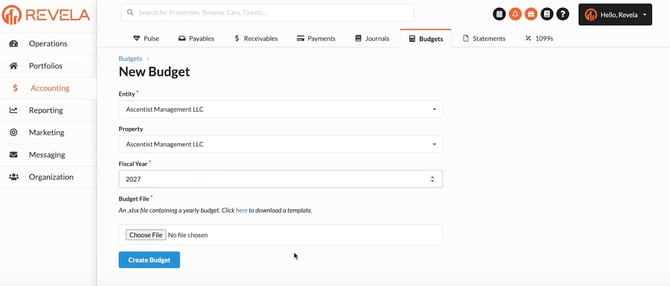
Click "New Budget".
-
Select the Entity and Property from the drop-down menus.
-
Choose the Fiscal Year (e.g., 2027).
-
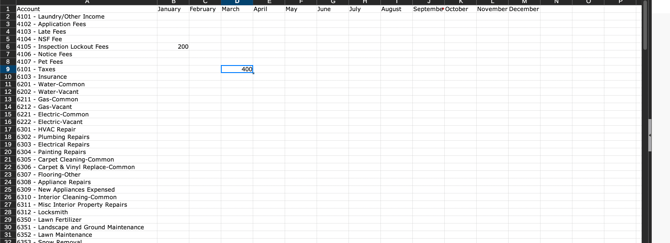
Download the Budget Template to input financial data.
5. Filling Out the Budget Template
-
Open the Excel template provided by Revela.
-
Fill in all required budget data for each GL account.
-
Ensure accuracy in projected income, expenses, and financial allocations.
-
Save the completed template for upload.
6. Attaching and Creating the Budget
-
Upload the completed budget template back into Revela.
-
Click "Create Budget" to finalize the import.
-
The budget data will now be reflected in financial reports
7. Viewing Budgets
To review an upcoming budget:
-
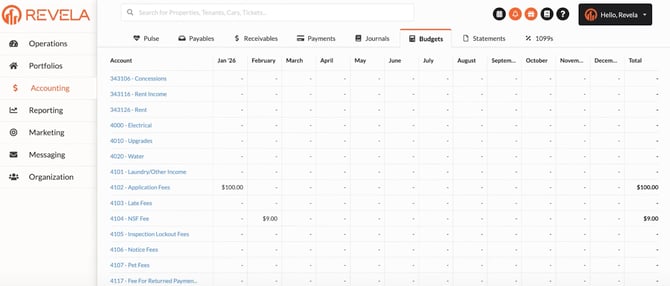
Click on Future Budgets to access imported financial plans.
-
Review details such as:
-
General Ledger (GL) accounts
-
Total budgeted amounts for each month
Best Practices & Tips
✔ Review past budget data to make accurate future projections.
✔ Use the correct GL codes when filling out the budget template.
✔ Double-check uploaded data before finalizing to avoid errors.
Common Issues & Troubleshooting
Issue 1: Budget Data Not Appearing After Import
-
Solution: Confirm the template was filled out correctly and re-upload the file.
Issue 2: Incorrect GL Code Assignments
-
Solution: Ensure that each budget entry matches the corresponding GL account.
Issue 3: Errors During Budget Upload
-
Solution: Review the formatting of the template to confirm all required fields are completed.