
Overview
Purpose: This guide explains how to create and manage prospect profiles in Revela’s Prospect CRM, enabling you to track communications and interactions with prospective renters effectively.
Target Audience: Leasing agents, property managers, and admins.
Step-by-Step
Step 1: How Prospect Profiles Are Created
Prospect profiles can be created in Revela through multiple methods:
- Internal Users and Employees:
-
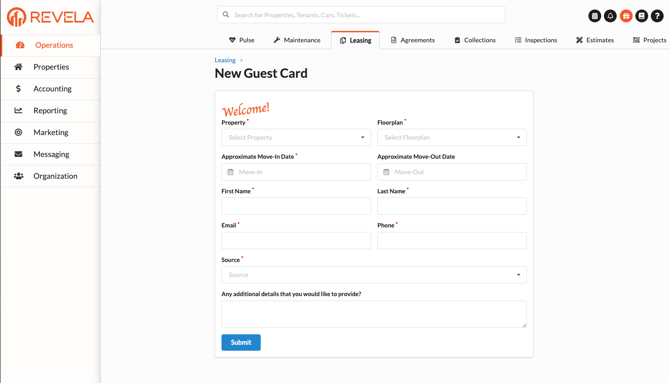
Navigate to the Leasing Dashboard
- Operations (left menu) > Leasing (top toolbar)
-
Click the New Guest Card button
-
This will open a form to fill out
-
Fill out necessary information
- Select Submit to create a prospect profile
-
-
-
Website Submissions:
-
If your company has enabled online Guest Cards, prospective renters can fill out and submit them directly via your website
-
Once submitted, their name and contact information will automatically appear in the Leads Column of the Leasing Pipeline
-
-
Email & Phone Inquiries:
-
When inquiries are received via email or phone, property managers can manually create prospect profiles:
-
Follow the same steps as outlined in New Guest Card Button to input the prospect’s information into Revela
-
-
Best Practices, Tips, and Notes
-
Keep prospect profiles updated with communication logs to maintain accurate records
-
Enable and test the online Guest Card feature to streamline lead generation from your website
-
Use the Leads Column in the Leasing Pipeline to prioritize and organize follow-ups with prospects
Common Issues & Troubleshooting
Issue 1: Online Guest Cards are not appearing in the Leasing Pipeline
-
Solution: Confirm that the Guest Card feature is enabled and configured correctly in the system
Issue 2: Duplicate profiles for the same prospect
-
Solution: Regularly review leads in the pipeline to identify and merge duplicate profiles