Overview
Purpose: This guide explains how to create and manage Chapter & House Corporation Agreements in Revela, including setting dates, preparing documents, and tracking signatures.
Target Audience: Chapter administrators, House Corporation representatives, and property managers.
Step-by-Step
Step 1: Locate the Agreement
-
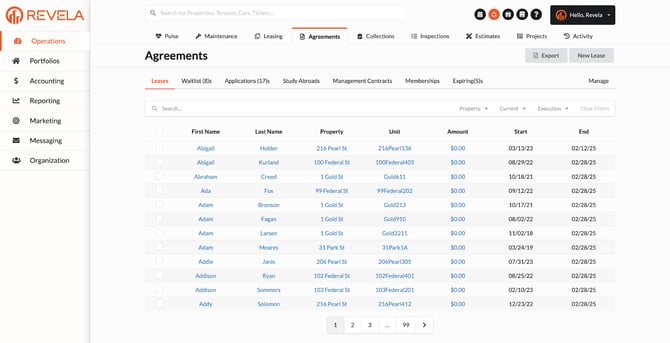
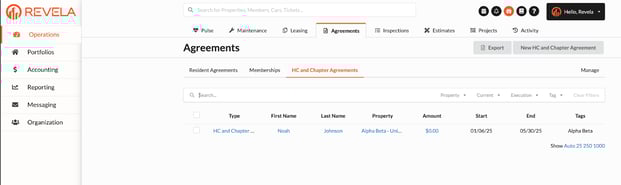
Navigate to Operations (left menu) > Agreements (top toolbar) > HC and Chapter Agreements OR Memberships (between tenants) depending on the uses
-
To locate agreements for the next school year:
-
Navigate to the mid-screen Search bar
-
Select the Current dropdown menu
-
Select Upcoming to filter the Agreements
-
Step 2: Set Agreement Dates
-
Select the desired agreement from the list.
-
Click Actions (dropdown) > Edit
-
Enter the correct start and end dates for the agreement
-
Click Submit to save changes
Step 3: Prepare the Document
-
Click Actions (dropdown) > Prepare Document
-
Select the document that has been uploaded to Revela
Step 4: Fill Out Required Fields
-
Complete all required fields in the document
-
Ensure the entered information is accurate and up to date
Step 5: Generate the Document
-
Click Generate Document to create the agreement
-
To review, scroll to the bottom of the page and click Unexecuted Document
-
Verify that all entered information is correct before proceeding
Step 6: Send for Signatures
-
If everything is correct, click Actions (dropdown) > Send for Signatures
-
You can select a custom countersigner from the dropdown
-
-
Revela will send the document to all parties listed in the agreement summary for electronic signatures
Step 7: Track Signature Progress
-
The Signature History section in the agreement summary shows:
-
When the document was sent for signature
-
Who has signed and who has not signed
-
Timestamps for each signature
-
Step 8: View the Executed Document
-
Once all parties have signed, an Executed Document link will appear
-
Click the link to view or download the fully signed agreement at any time
Using a Custom Agreement Document
The process for custom agreements follows the same steps as above, with one additional step:
-
Submit the Custom Agreement
-
Email your custom agreement to support@revela.co to have it uploaded into the system
-
-
Select the Custom Document
-
When preparing the document, choose your custom agreement instead of the standard “2025-2026 Chapter-HC Agreement.”
-
Best Practices, Tips, and Notes
-
Always review the document before sending for signatures to avoid errors
-
Use filters to quickly locate agreements for specific academic years
-
Regularly check the Signature History section to ensure agreements are signed on time
Common Issues & Troubleshooting
Issue 1: The agreement is not appearing in the list
-
Solution: Adjust the filter settings to show Upcoming agreements
Issue 2: A party has not received the signature request
-
Solution: Verify the email address listed in the agreement summary and resend the request
Additional Resources
-
How to Track Agreement Signatures in Revela