
Overview
Purpose: This article provides a step-by-step guide on creating a lease for an approved applicant using three different methods in Revela.
Target Audience: Admins, property managers, and leasing agents.
Option 1: From the Application
-
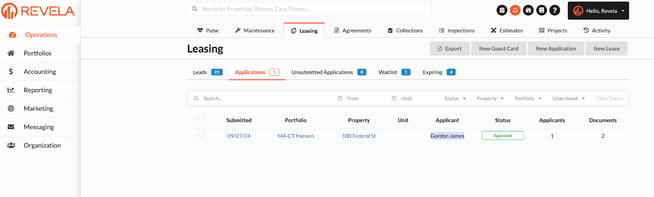
Navigate to Operations (left menu) > Leasing (top toolbar) and select an approved applicant from the list of applications.
-
Approved applicants are identified by the status listed on their guest card.
-
-
Click into the applicant's profile
-
Click on Actions in the upper right-hand corner and select Create Lease from the dropdown menu
Option 2: From the Search Bar
-
Search for the approved applicant in the search bar at the top of the browser page
-
Select the applicant from the search results
-
Navigate to the Documents tab in the applicant's profile
-
Click on the applicant’s Application
-
Click on the Actions button in the upper right-hand corner and select Create Lease from the dropdown menu
Option 3: From the Leasing Homepage
-
Navigate to Operations (left menu) > Leasing (top toolbar)
-
Select New Lease in the upper right-hand corner
-
Fill out the fields for the new lease:
-
Property & Unit: Depending on the property/unit selected, the lease page will autofill rent, security deposit, and other fees.
-
To add additional fees, click the Add Charge button at the bottom of the screen.
-
-
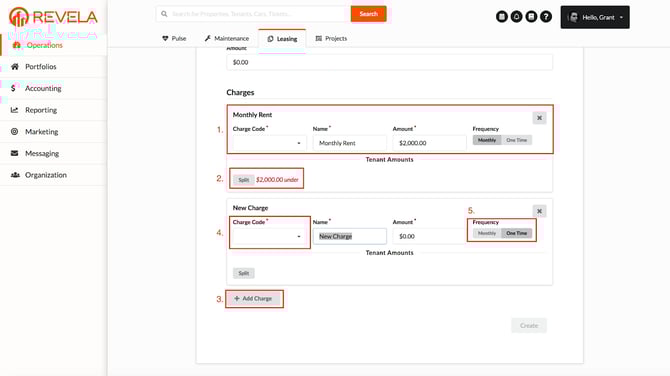
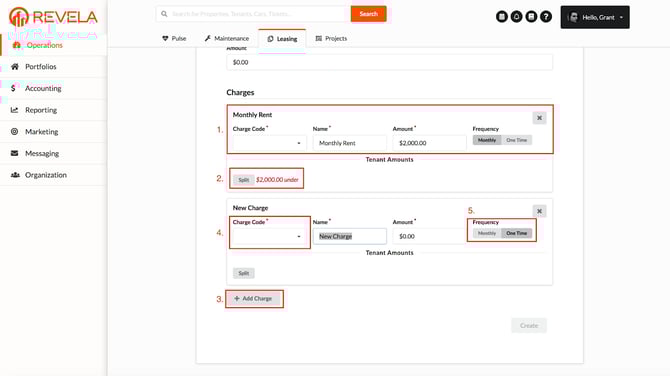
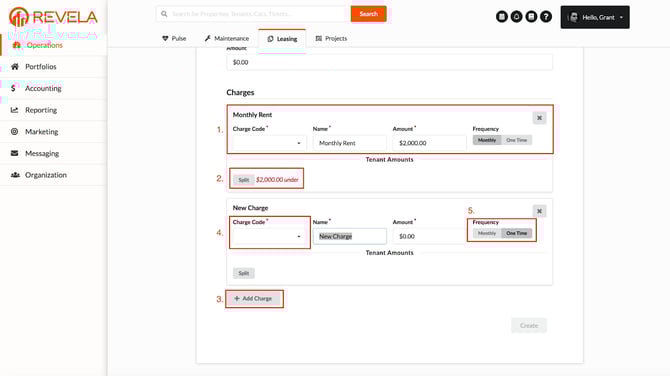
Key Features on the Create Lease Page:
-
Monthly Rent: Automatically fills based on the property and unit selected
-
Add Charge Button: Add additional fees using pre-configured charge codes
-
Charge Codes: Pre-configured charges that simplify adding charges to leases
-
Frequency Toggle: Choose between Monthly (billed monthly) or One Time (billed on the first invoice)
-
Split Button: Split the rent between multiple tenants or assign the full amount to one tenant
Renewal Options
-
Fixed: For fixed-term leases that should not auto-renew
-
Rollover: Converts the lease to month-to-month after the term ends
-
Month-to-Month: For leases that are month-to-month from the start
Lease Summary
After generating a lease, you’ll be directed to the Lease Summary page, which includes:
-
Lease Term: Start and end dates
-
Property & Unit: Details about the leased property/unit
-
Monthly Charges and One-Time Fees: Security deposit, pet deposit, etc
-
Breakdown of All Charges: Detailed summary of fees
-
Tenant Information: Name and summary
Actions Dropdown
-
Generate Document: Create a copy of the lease to print and sign offline
-
Renew: Begin the lease renewal process
-
Unit Transfer: Initiate the unit transfer process
-
Eviction Document: Generate a Seven Day Demand Letter
-
Move-In: Start the move-in process
-
Move-Out: Begin the move-out process
-
Edit: Modify lease terms
-
Archive: Terminate and archive the lease
Best Practices, Tips, and Notes
-
Use charge codes to streamline adding fees and avoid errors
-
Ensure renewal options match your leasing strategy
-
Review the Lease Summary page carefully before finalizing
Common Issues & Troubleshooting
Issue 1: Unable to locate an approved applicant
-
Solution: Verify the applicant’s status under Operations > Leasing or search their name in the search bar
Issue 2: Lease charges do not autofill
-
Solution: Check the property/unit configuration for missing details