
Maintenance time tracking rarely goes perfectly. A technician might check into a job and forget to check out, never check in at all, or clock in late. Work Order Hours Tracking gives you full visibility into the hours your maintenance team logs against a job, along with the ability to correct a record whenever reality and the timestamps don't match.
Where Hours Live on a Work Order
Every work order includes a dedicated Hours tab alongside the Overview, Attachments, and Bids tabs. The Hours tab shows every hour logged against the job in one place, including who checked in, when they checked out, and the total hours worked. To find it, navigate to Maintenance > Work Orders, open the ticket you want to review, and select the Hours tab.
Automatic Time Capture on Check-In
When a technician checks into a job, Revela automatically creates a timestamped hours record and moves the work order to an In Progress status. When the technician checks out, Revela calculates the total hours worked automatically, down to the decimal, so no one on your team needs to do the math by hand.
Adding Hours After the Fact
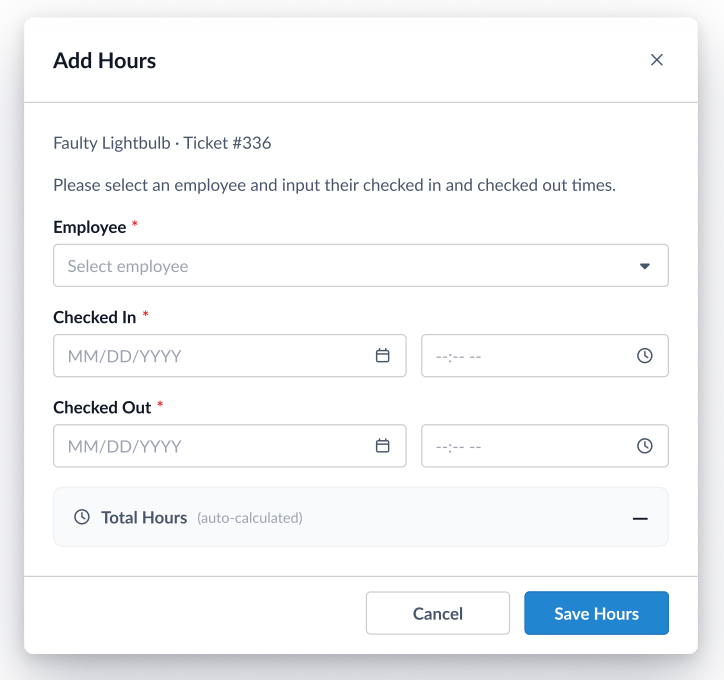
If a technician forgets to check in, or you need to log time on their behalf, you can add an hours record manually rather than relying on the automatic check-in and check-out flow.
- Open the work order and select the Hours tab.
- Click Add Hours.
- Select the Employee the hours should be logged against.
- Enter the Checked In date and time.
- Enter the Checked Out date and time.
- Click Save Hours.
Revela calculates the Total Hours automatically as you enter the check-in and check-out times, so there's no need to work out the math yourself before submitting the record.
Editing and Deleting Records
If a check-in or check-out was missed or entered incorrectly, you can correct it directly from the Hours tab rather than starting the record over. Select the record you want to change to edit the employee, date, or time.
You can also delete an hours record entirely if it was created in error. Deleting a record always prompts a confirmation step first, so a record can't be removed by accident.
Reviewing the History
A History section at the bottom of the Hours tab logs every change made to the work order's hours records, including who added, edited, or deleted each one and when. This gives your team a clear audit trail to reference if a logged hour is ever questioned.
Tips & Best Practices
- Encourage technicians to check in and out directly from the job whenever possible. Automatic time capture removes the need for manual entry and keeps your labor records as accurate as possible from the start.
- When correcting a missed punch, edit the existing record instead of deleting and recreating it. This keeps the record's original creation details intact in the History log for accountability.
- Review the Hours tab regularly on jobs with markup-based labor billing, since accurate hours directly affect what gets billed to the property owner.