
1. Creating a Late Fee Configuration
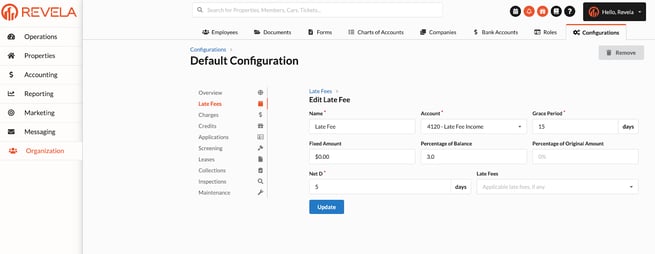
To automate late fee charges, you must first configure late fees under Organization → Configuration → Late Fees. In this section, you can:
-
Create either a flat late fee or a percentage-based fee.
-
Set a Grace Period (e.g., 5 days after rent is due) before the late fee is applied.
-
Example: If rent is due on the 1st, and a 5-day grace period is set, the late fee will apply on the 6th.
-
-
Configure Net D, which determines how many days the late fee invoice is due.
-
Example: If a late fee is posted on the 6th (after the grace period), and Net D is set to 5 days, the tenant has until the 11th to pay the late fee invoice.
-
2. Creating a Charge Preset for Late Fees
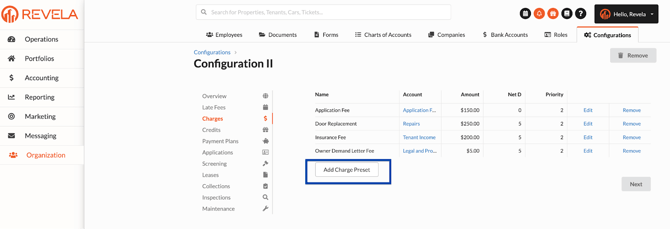
Before enabling auto-generated late fees, ensure you have the Charge Preset that will be used to bill tenants:
-
Go to → Organization → Configurations → Charge Presets → Add Charge Preset.
-
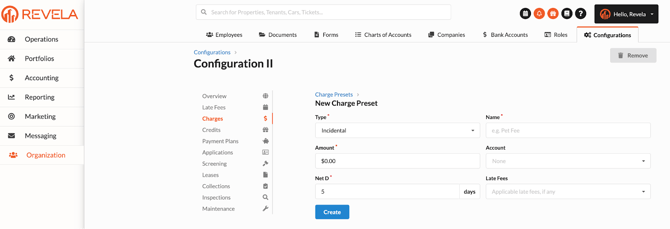
Set up the charge preset details:
-
Type: Choose the category of charge (Incidental, Lease, etc.).
-
Name: Enter a clear description of the charge.
-
Amount: Specify the fee amount or percentage.
-
Net D: Set the number of days before the invoice is due.
-
Account: Choose the GL account the deposit will be registered under.
-
Late Fees: Select the Late Fee Configuration from the dropdown list.
-
3. Enabling Auto-Generation of Late Fees
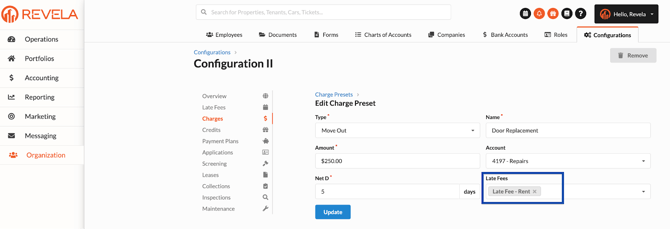
To ensure late fees generate automatically, confirm that the Late Fee Configuration is properly assigned within the charge preset:
-
Navigate to → Organization → Configurations → Charge Presets.
-
Select the relevant charge preset used for rent payments.
-
Ensure the Late Fee Configuration is selected in the dropdown menu.
Best Use Cases for Auto-Generated Late Fees
1. Ensuring Consistent Late Fee Application
-
Property managers can eliminate manual tracking of late payments by automatically applying late fees based on lease agreements.
-
Helps enforce timely rent payments, reducing delinquency.
2. Customizing Late Fee Policies for Different Portfolios
-
Allows custom configurations for different properties, such as:
-
Flat fees vs. percentage-based late fees.
-
Varying grace periods depending on lease agreements.
-
-
Ensures compliance with local and state regulations on late fee policies.
3. Automating Late Fee Notices to Tenants
-
Once a late fee is generated, tenants receive an automated notification, improving communication.
-
Reduces tenant disputes over late fees by maintaining clear and consistent policies.
4. Integrating with Payment Plans
-
Late fees can still be applied even when tenants are on structured payment plans, ensuring revenue recovery.
-
Flexible due dates allow landlords to adjust penalties based on tenant agreements.
Common Issues & Troubleshooting
Issue 1: Late Fees Are Not Generating Automatically
Solution:
-
Verify that the Late Fee Configuration is properly set under Organization → Configurations → Late Fees.
-
Ensure the Charge Preset associated with rent charges has Late Fee Configuration enabled.
-
Confirm that the grace period has expired before expecting late fees to be generated.
Issue 2: Late Fee is Not Appearing on Tenant's Ledger
Solution:
-
Check if the Net D (due date period) is delaying the charge visibility.
-
Ensure the tenant’s rent payment transaction was properly recorded before the due date.
-
Verify that the lease type supports automatic late fee application.
Issue 3: Tenants Being Charged Late Fees Incorrectly
Solution:
-
Review the tenant’s payment history to confirm if rent was paid before the due date.
-
If an exception was granted, manually adjust the tenant's charge to waive the late fee.
-
Verify that the grace period and charge preset settings align with the intended late fee policy.
Issue 4: Late Fees Not Displaying in Reports
Solution:
-
Check if the correct accounting period is selected in reports.
-
Confirm that late fees are assigned to the correct GL account under Charge Presets.
-
Ensure the tenant’s lease is active and associated with the correct financial records.