
New employees can be added to Revela as users by navigating to Setup > Employees. On the Employees section, click the Add Employee button and fill out the required information for the new employee’s profile, including:
- First Name
- Last Name
- Primary Phone Number
- Email Address
- Role - Available out-of-the-box roles include Manager, Leasing Agent, Facilities, Human Resources, Owner, Accountant, and Administrator. Users are able to create custom roles within your Revela instance. This capability is permission based.
- Property Access - Check the box for “Access to All Properties” if applicable. If the employee should have limited property access, select the specific properties they can access from the dropdown list.
- Contractor Billing Rate (If Applicable) - If the employee is a contractor, enter their Contracting Billing Rate ($ amount).
- AI Features - This activates Revela’s AI Agent. Contact your Customer Support Manager (CSM) for more information on using this feature.
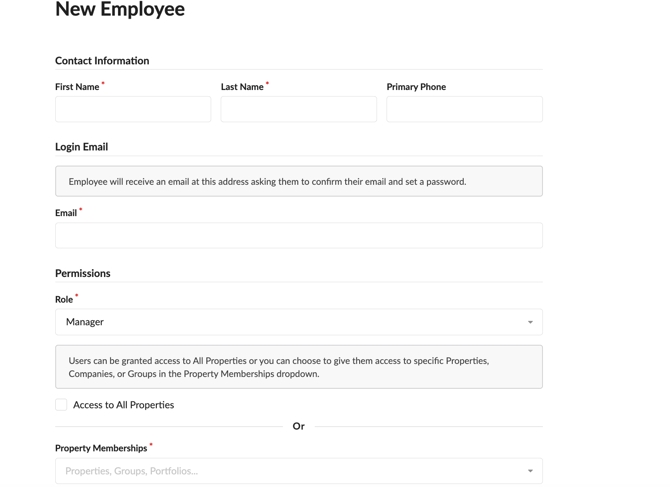
Once all required information for the new employee has been entered, clicking Save will automatically send a confirmation email to the employee’s email address on file so they can complete their account setup.
Best Practices and Tips
- Assign appropriate roles and permissions to ensure employees have access to the correct features.
- If an employee’s property access changes, update their profile in Setup > Employees.
- For security, ensure that all employees use unique login credentials and do not share accounts.
- Have the employee check their spam/junk folders to ensure the email was not misdirected to this folder instead of the inbox.