
Overview
- Purpose: This guide explains how to add a new employee to the Revela system and assign them appropriate access and roles.
- Target Audience: Admins, managers, and Revela support staff.
Step-by-Step
-
Log into Revela
-
Admins, managers, or Revela Support can send out a new employee login.
-
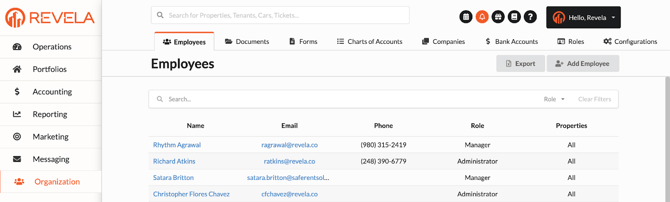
Navigate to Organization > Employees.
-
-
Add a New Employee
-
Click the grey “+ Add Employee” button.
-
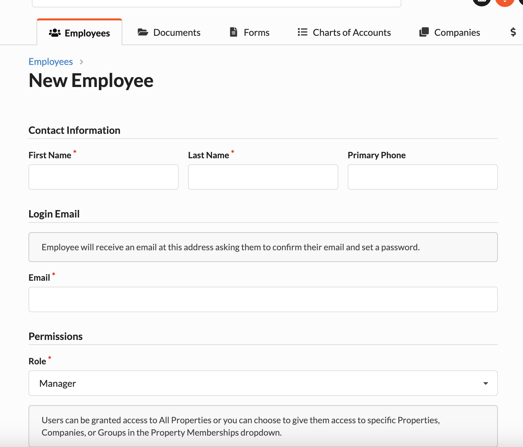
Fill out the required employee details:
-
First Name
-
Last Name
-
Primary Phone Number
-
Email Address
-
Role (e.g., Manager, Leasing Agent, Facilities, Human Resources, Owner, Accountant, Administrator)
-
-
-
Set Property Access
-
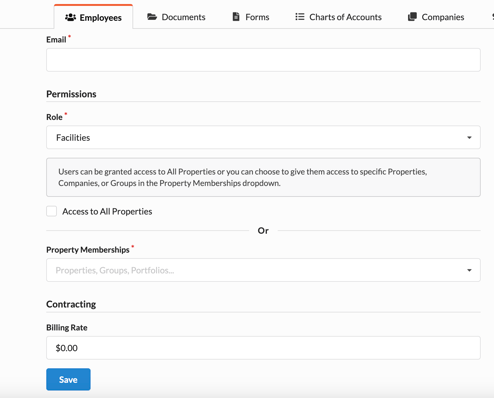
Check the box for “Access to All Properties” if applicable.
-
If the employee should have limited property access, select the specific properties they can access from the dropdown list.
-
-
Contractor Billing Rate (If Applicable)
-
If the employee is a contractor, enter their Contracting Billing Rate ($ amount).
-
-
Save the Employee Profile
-
Click Save to finalize the new employee entry.
-
Best Practices, Tips, and Notes
-
Assign appropriate roles and permissions to ensure employees have access to the correct features.
-
If an employee’s property access changes, update their profile in Organization > Employees.
-
For security, ensure that all employees use unique login credentials and do not share accounts.
Common Issues & Troubleshooting
Issue 1: The new employee is not receiving the login email.
-
Solution: Verify their email address is correct and check their Spam/Junk folder.
Issue 2: The “Add Employee” button is not visible.
-
Solution: Ensure you have admin or manager permissions to add new employees.