
Overview
Purpose: This guide explains how to add an approved applicant to the waitlist for a property
Target Audience: Leasing agents, property managers, and admins
Step-by-Step
-
Navigate to the Applicant’s Profile
-
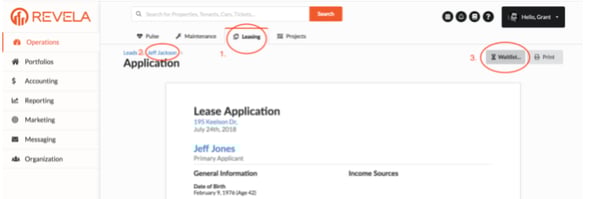
Go to Operations (left menu) > Leasing (top toolbar) in Revela
-
Select the approved applicant you want to add to the waitlist
-
-
Add the Applicant to the Waitlist
-
Click the Waitlist button in the top right corner of the page
-
-
Confirm Waitlist Status
-
The applicant will automatically be added to the waitlist for the property and floor plan they originally applied for
-
Best Practices, Tips, and Notes
-
Regularly monitor the waitlist to ensure applicants are notified of availability in a timely manner
-
If an applicant wants to change their desired unit or floor plan, update their application details before adding them to the waitlist
-
Communicate with waitlisted applicants periodically to confirm continued interest
Common Issues & Troubleshooting
Issue 1: The ‘Waitlist’ button is not visible
-
Solution: Ensure the applicant is fully approved before attempting to add them to the waitlist
Issue 2: Applicant wants to change their preferred unit after being waitlisted.
-
Solution: Remove them from the waitlist and re-add them with the updated unit preference