The Revela homepage dashboard is your at-a-glance view of key insights across Leasing, Maintenance, and Accounting, along with important tasks that need your attention. Use it as a quick status check, then go to the full records or reports when you need more detail.
The data in the homepage dashboard is displayed in four main sections:
- To Do
- Leasing
- Maintenance
- Accounting
To Do
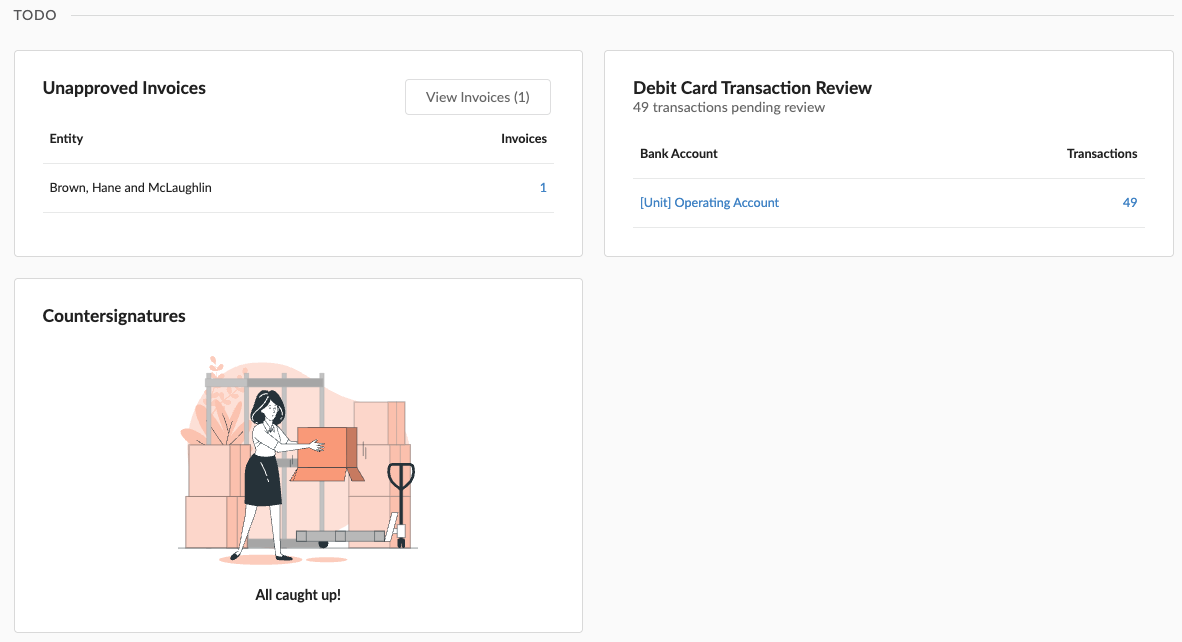
The To Do section sits at the top of the dashboard and shows items that may need your attention, so you don’t miss critical tasks. This includes:
- Unapproved Invoices - This card displays and links to invoices that are ready for your approval.
- Countersignatures - This card highlights and links to documents that are ready and awaiting your countersignature.
- Debit Card Transaction Review - This card shows debit card transactions that need an employee to review and code them. This card only displays for customers using Revela's embedded banking.
- If there are no pending items to review in your To Do queue, the card will display an “All caught up!” banner.
Leasing
The Leasing section gives your team real-time visibility into each stage of the leasing process, from the moment a lead comes in to the day a lease is signed.
- Leads - Shows every lead generated this month compared to last month, so you can tell whether prospect traffic is keeping pace with your current vacancies. The bar chart shows lead trends over a rolling six-month period. The count includes both archived and unarchived leads for the given time period.
- Applications - Shows how many applications were submitted this month compared to last month, so you can make sure submissions keep pace with your leasing needs before another month of vacancy passes. The Applications chart shows submissions over a rolling six-month period. The count includes both archived and unarchived applications for the given time period.
- Occupancy - Shows real-time occupancy across your entire portfolio. The Occupancy chart shows the most recent six months, so you can quickly see whether occupancy is trending in the right direction. Occupancy is calculated as the percentage of unarchived units that have active leases.
- Available Units - Displays the count of every vacant, ready-to-lease unit across your portfolio, broken down by property, so your leasing team always knows what's on the market.

Maintenance
The Maintenance section shows where every work order stands, from the moment it's submitted to the moment it's closed, so your team can stay ahead of the queue.
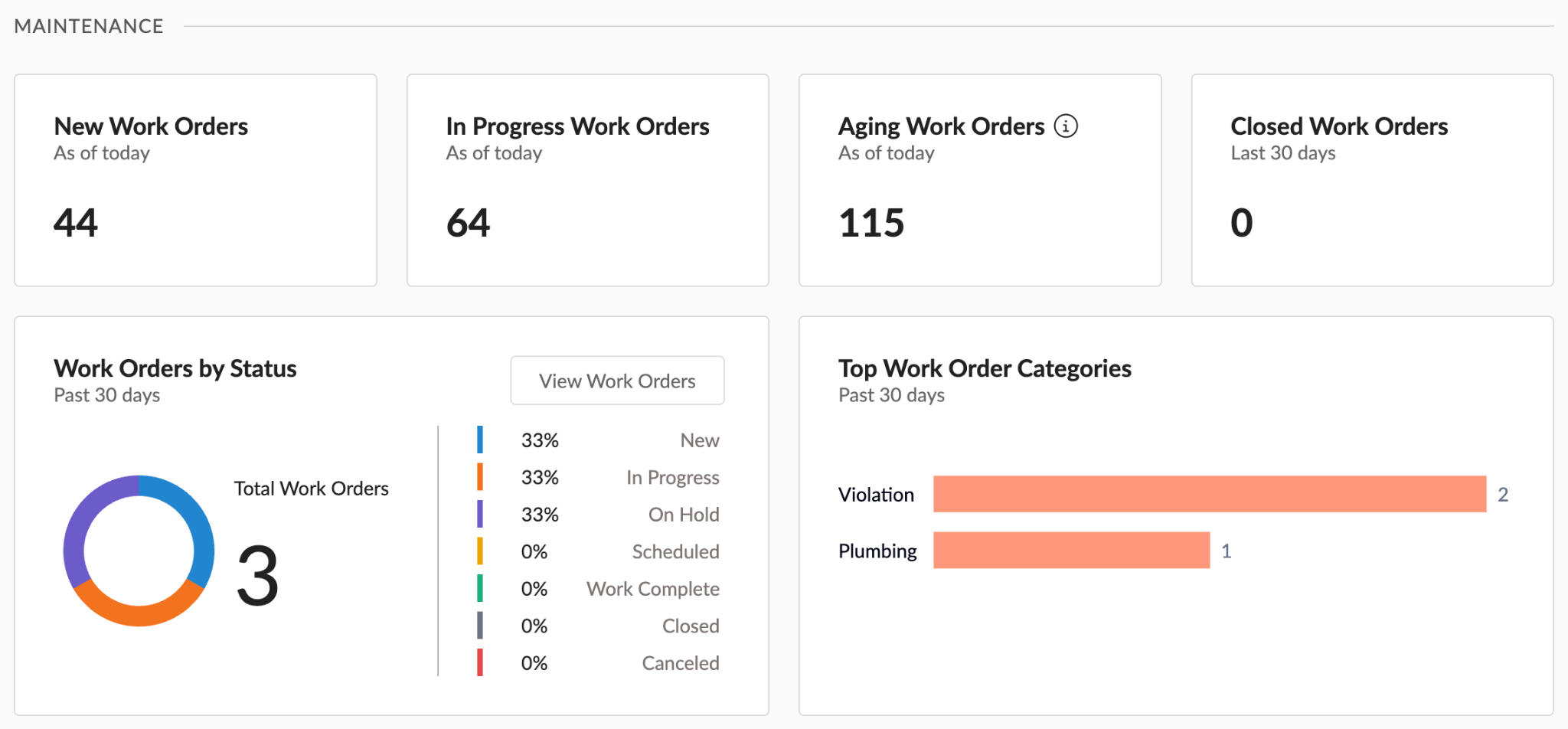
- New Work Orders - A live count of every new work order that hasn't been assigned to a technician or vendor, or scheduled yet.
- In Progress Work Orders - Shows how many work orders are actively being worked right now. A work order counts as In Progress when an employee and/or a vendor is assigned, there is no scheduled appointment, and the work order is not on hold.
- Aging Work Orders - Flags any work order that has been open for 7 or more days, so your team can prioritize it and protect resident satisfaction.
- Closed Work Orders - A running tally of all work orders your maintenance team has resolved in the last 30 days.
- Work Orders by Status - A full breakdown of all work orders from the past 30 days by status, so you can see where recent work orders stand at a glance.
- Top Work Order Categories - Shows work orders from the past 30 days, grouped by work order tag. See Tips & Best Practices below for how to keep your tags clean so this card stays useful.
Accounting
The Accounting section gives you a live read on what you owe, what's owed to you, and where your money is going, so you can make decisions based on current numbers.
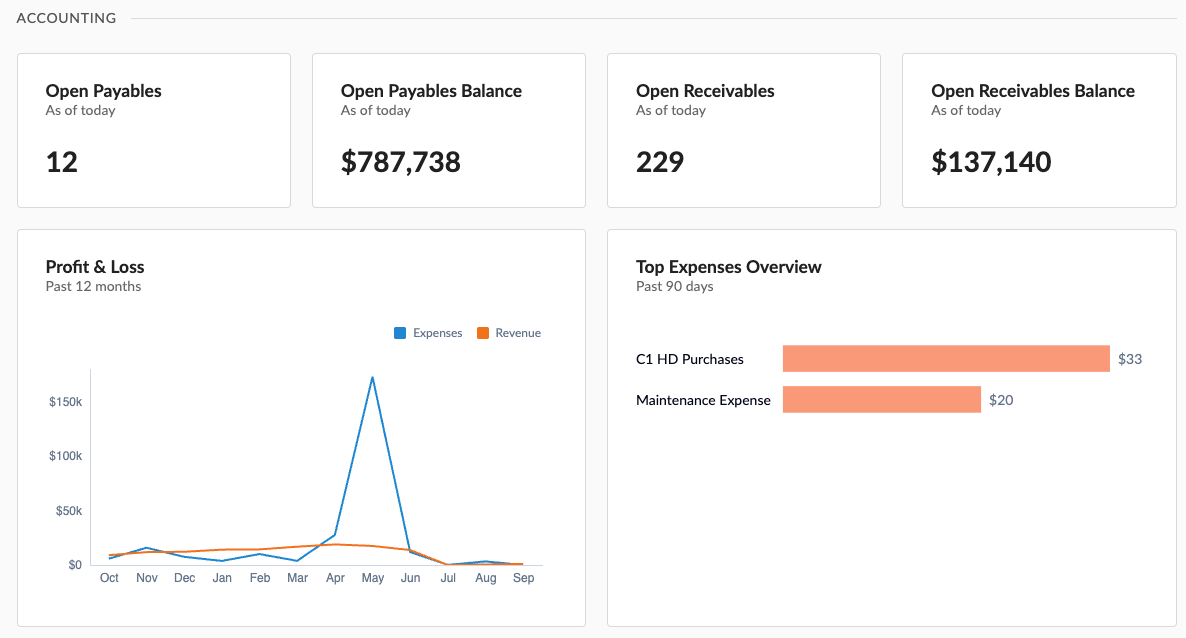
- Open Payables - Shows how many vendor bills are outstanding across your entire portfolio, so nothing falls through the cracks, such as work orders that require approval.
- Open Payables Balance - Shows the total dollar amount owed across every open bill, so you can plan payments and manage cash flow.
- Open Receivables - Shows how many outstanding charges are owed to you across your portfolio, so you can stay on top of collections.
- Open Receivables Balance - A live total of every outstanding balance across your portfolio, so you always know where you stand.
- Top Expenses Overview - Shows where your operating dollars are going over the past 90 days, ranked by General Ledger (GL) code, so you can spot cost-saving opportunities.
Tips & Best Practices
- Use the dashboard as a quick daily status check. Start with the To Do section to clear approvals and countersignatures, then scan Leasing, Maintenance, and Accounting for anything trending in the wrong direction. When a number needs more context, go to the full list or report behind it rather than relying on the dashboard total alone.
- The dashboard is also a useful starting point for owner conversations about occupancy, open work, and outstanding balances. Before sharing exact figures with an owner, confirm them in the related report.
- Keep Your Top Work Order Categories Clean
-
- The Top Work Order Categories card pulls directly from the tags applied to your work orders, so it's only as useful as your tagging is consistent. If your team's work order tags have grown messy over time due to duplicates, inconsistent naming, or tags that are no longer used, follow the steps below to clean them up.
-
-
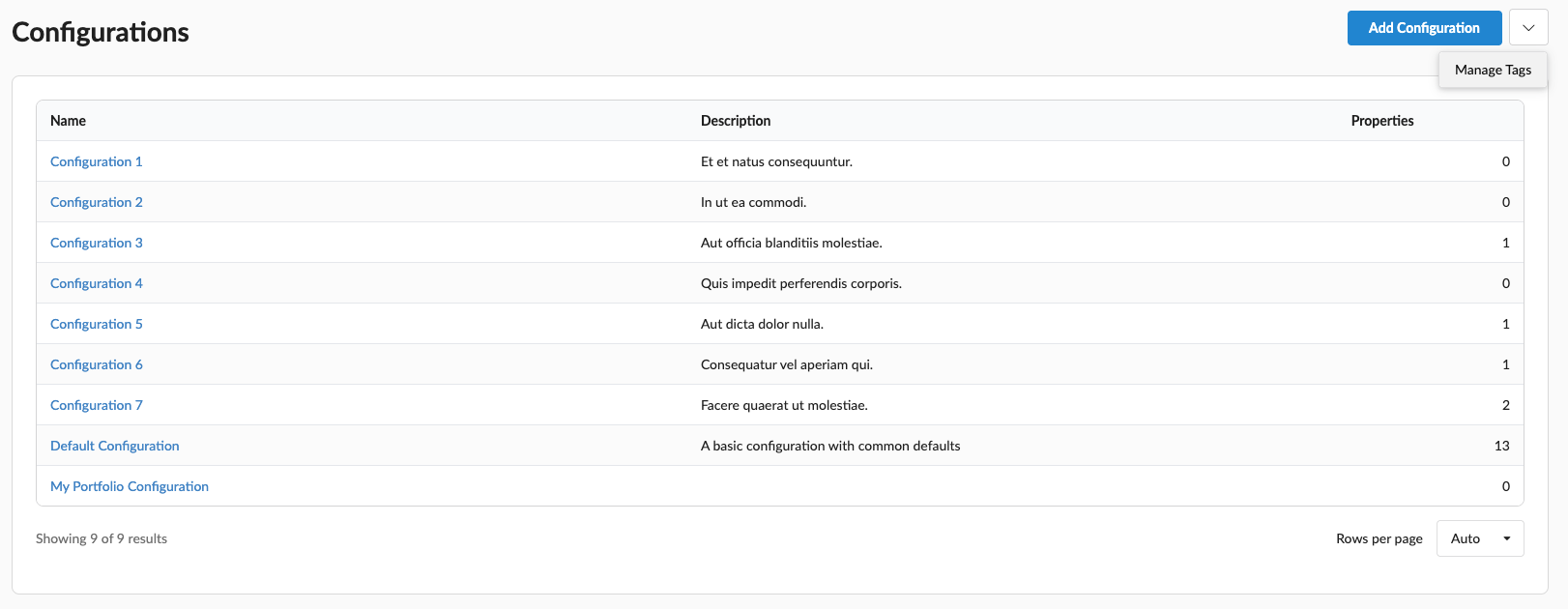
- Clean Up Work Order Tags - Navigate to Setup > Configurations > Manage Tags to view all work order tags. Edit or remove tags to tidy up the list.
-
- Ask Revela AI to Update Work Order Tags - Once your tag list is cleaned up, ask Revela AI to assign the appropriate tags to work orders from the past 30 days. Revela AI will review the work orders and bulk apply the appropriate tags from your list. This gives you a solid foundation for the Top Work Order Categories card.