
Revela helps you review and file Form 1099-NEC and Form 1099-MISC for vendors and owners, so your tax reporting stays accurate and on time. This guide walks property managers, accountants, and administrative teams through preparing, reviewing, and submitting 1099 filings directly within Revela.
Preparing for 1099 Filing
Before filing your 1099s, conduct a vendor audit to confirm that vendor information is accurate and complete. Catching missing or incorrect data before you start filing prevents most of the issues that come up later in the process.
A vendor is eligible for a 1099-NEC if they meet all of the following criteria:
- Vendor Type: Contractor, Financial, or Legal
- Entity Type: Any entity except a C Corporation, S Corporation, or Nonprofit
- Payment Threshold: Paid $2,000 or more during the tax year
An owner or landlord is eligible for a 1099-MISC if they received $2,000 or more in revenue from tenant payments during the tax year.
For each vendor or owner, Revela totals all qualifying payments made to them over the course of the tax year. If that total meets or exceeds the reporting threshold, the payee is included for 1099 generation; if it falls below the threshold, no 1099 is generated for that payee for the year.
Note: For tax year 2026 and beyond, the 1099 reporting threshold is $2,000, an increase from the $600 threshold used in prior years. Revela's default threshold reflects this update automatically, so no action is needed on your part for the new threshold to take effect.
Creating a 1099 Filing Account
To begin filing vendor and owner 1099s:
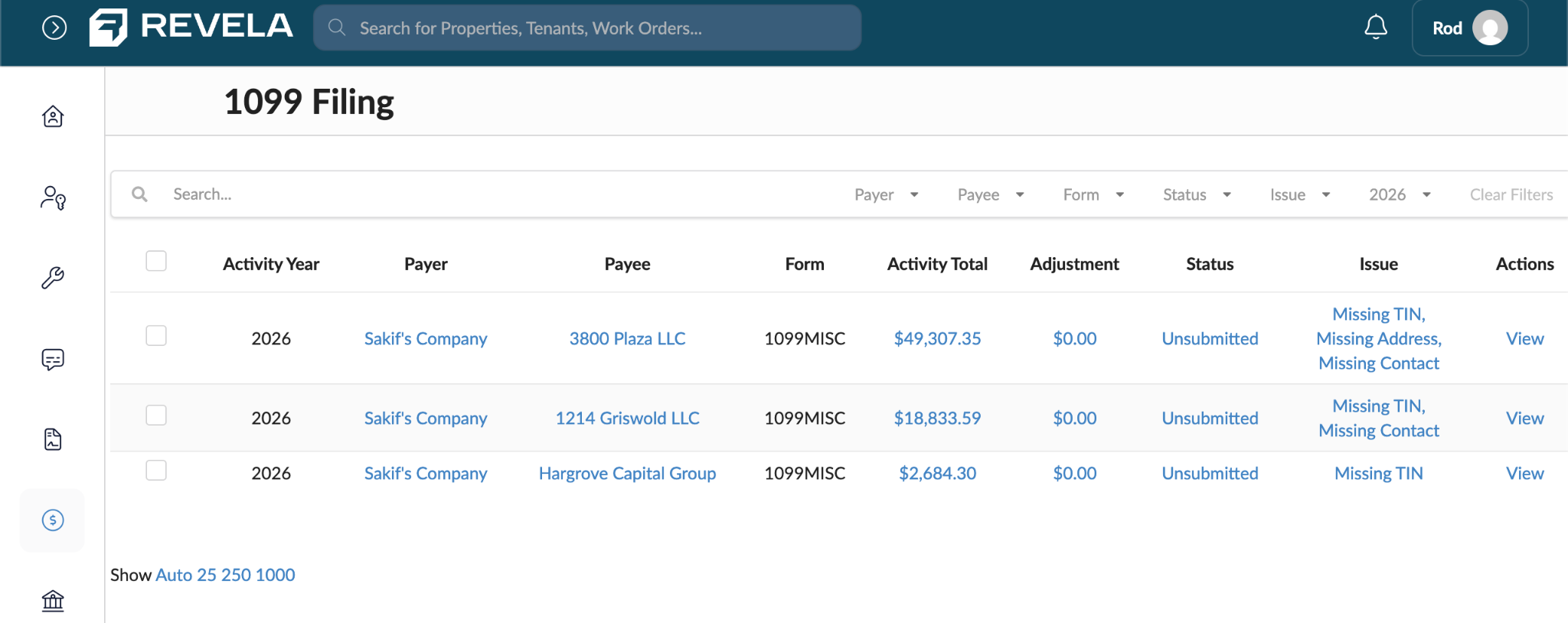
- Navigate to Accounting > 1099s.
- Click Get Started.
- If this is your first time accessing the page, you'll be prompted to create a Nelco account.
- Verify that the information on the form is accurate, create a password, and click Submit.
Note: Creating a Nelco account is only required the first time you access the 1099s page. Once it's set up, you'll be able to view all eligible vendors and owners who've met the payment threshold for the tax year.
Reviewing Vendors & Owners for Accuracy
You can review 1099 data two ways before filing: through reports, or directly on the 1099s page.
The Vendor 1099s Report confirms that all necessary vendor information is present, and the Owner 1099s Report confirms eligible landlords and their revenue details.
On the Accounting > 1099s page, the Issues column flags missing critical information that could prevent a 1099 from being filed.
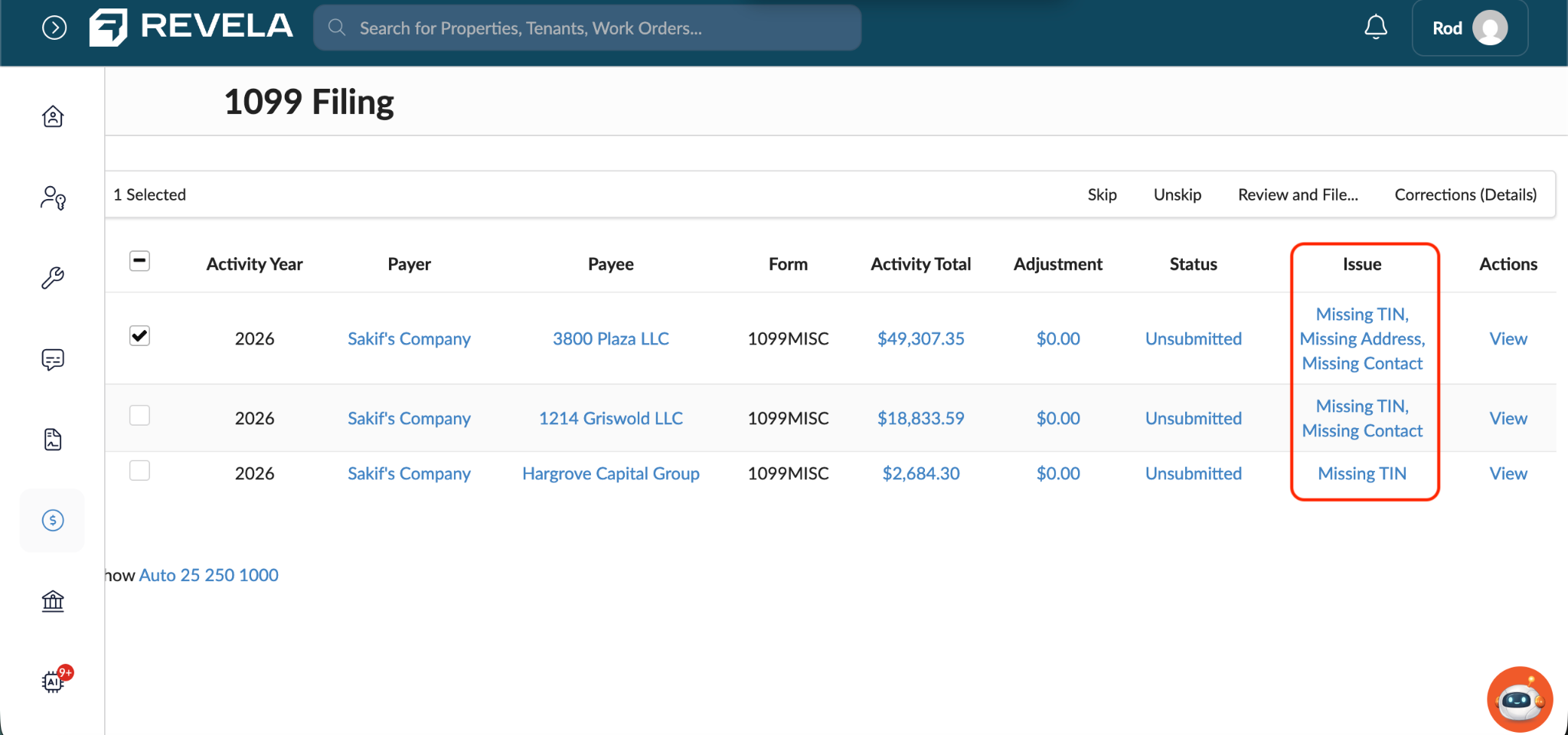
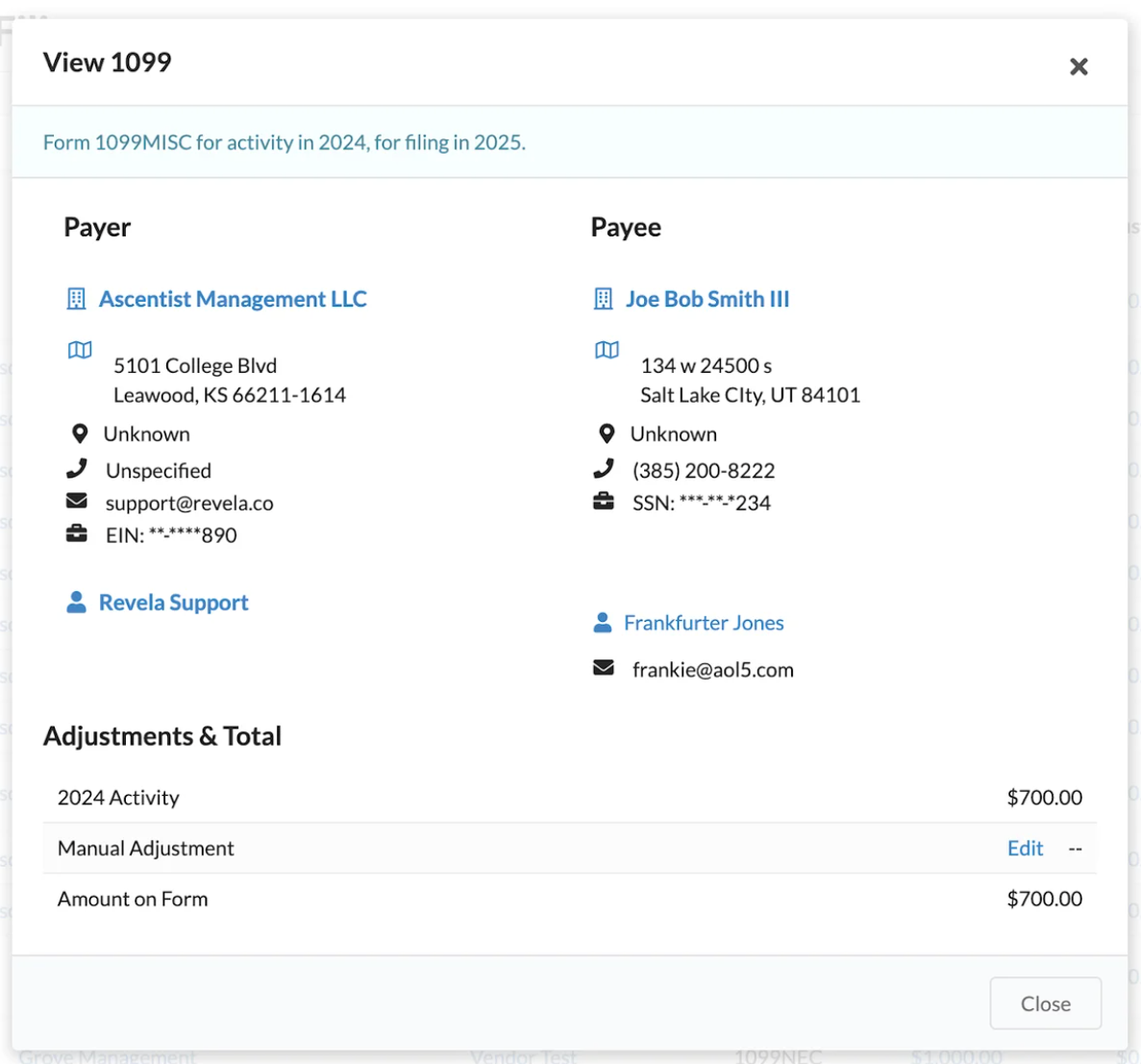
If a vendor's or owner's reported amount needs to be adjusted before filing, click View in the right-hand column for that record, then add a Manual Adjustment to modify the total 1099 amount.
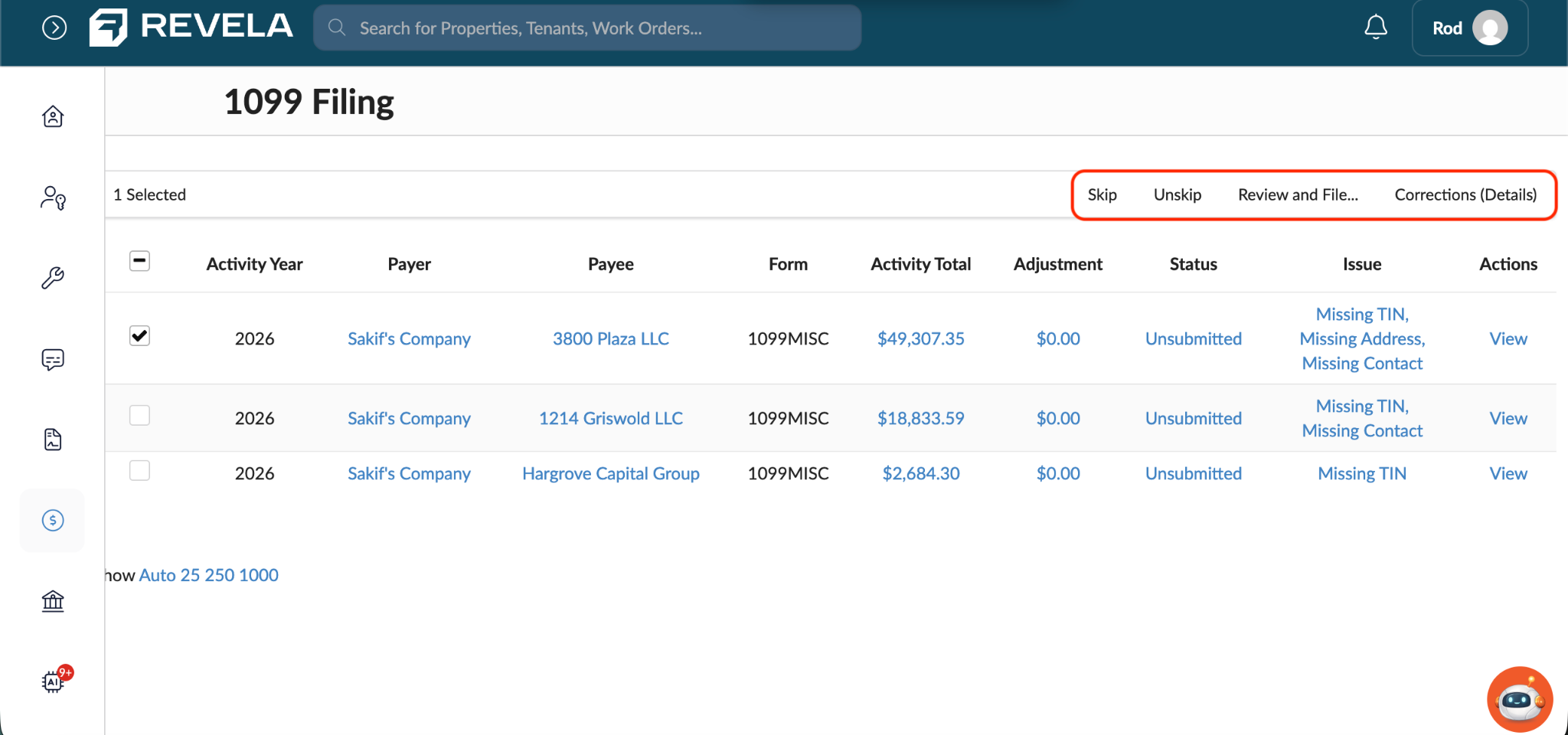
If a record shouldn't be included in the filing at all, select its checkbox and click Skip. To reverse this, select the record again and click Unskip in the search bar.
Filing 1099s
Once all vendor and owner information has been reviewed and verified:
- Select the records you want to file.
- Click Review and File.
- On the final review page, verify all details. Revela displays the estimated filing cost and a breakdown of the number of forms being filed.
- Click Submit to complete the filing.
Filing charges will appear on your next Revela invoice.
Making Adjustments to a Filed 1099
If a vendor's or owner's amount needs to change after you've already filed, click View in the right-hand column for that record and add a Manual Adjustment. This updates the total amount represented on the 1099.
After making the adjustment, go to the Accounting > 1099s page, select the record, and click Corrections. This resends the corrected form to the vendor or owner by both email and mail.
Common Issues & Troubleshooting
- Missing Vendor or Owner Information - Check the Issues column on the 1099 page and update any missing fields for that payee.
- Incorrect Payment Amounts on 1099s - Use the Manual Adjustment option to correct the reported amount before filing.
- A Vendor or Owner Is Showing Up That Shouldn't Be Filed - Select the record and click Skip to exclude it from the filing.
Tips & Best Practices
- Complete a vendor review before filing to make sure all required details are present.
- Use manual adjustments if amounts need to be corrected before submission.
- Double-check each vendor's entity type to determine whether they qualify for a 1099-NEC or a 1099-MISC.
- Use the Skip option for vendors or owners who don't need a 1099, to avoid unnecessary filings.
- If an owner or vendor asks why they did or didn't receive a 1099 this year, the most common explanation is the $2,000 threshold. Because this is a recent increase from the long-standing $600 threshold, some payees may expect a 1099 they're no longer eligible for, so it may be worth proactively explaining the new threshold when they ask about tax documents.