
When a prospect views one of your vacant units online, whether through your own website or a shared listing link, they land on Revela's external listing details page. This page presents everything a prospective renter needs to evaluate and act on a listing: photos, pricing, availability, amenities, nearby points of interest, and a direct path to apply or schedule a tour, all without requiring them to log into anything.
Layout and Imagery
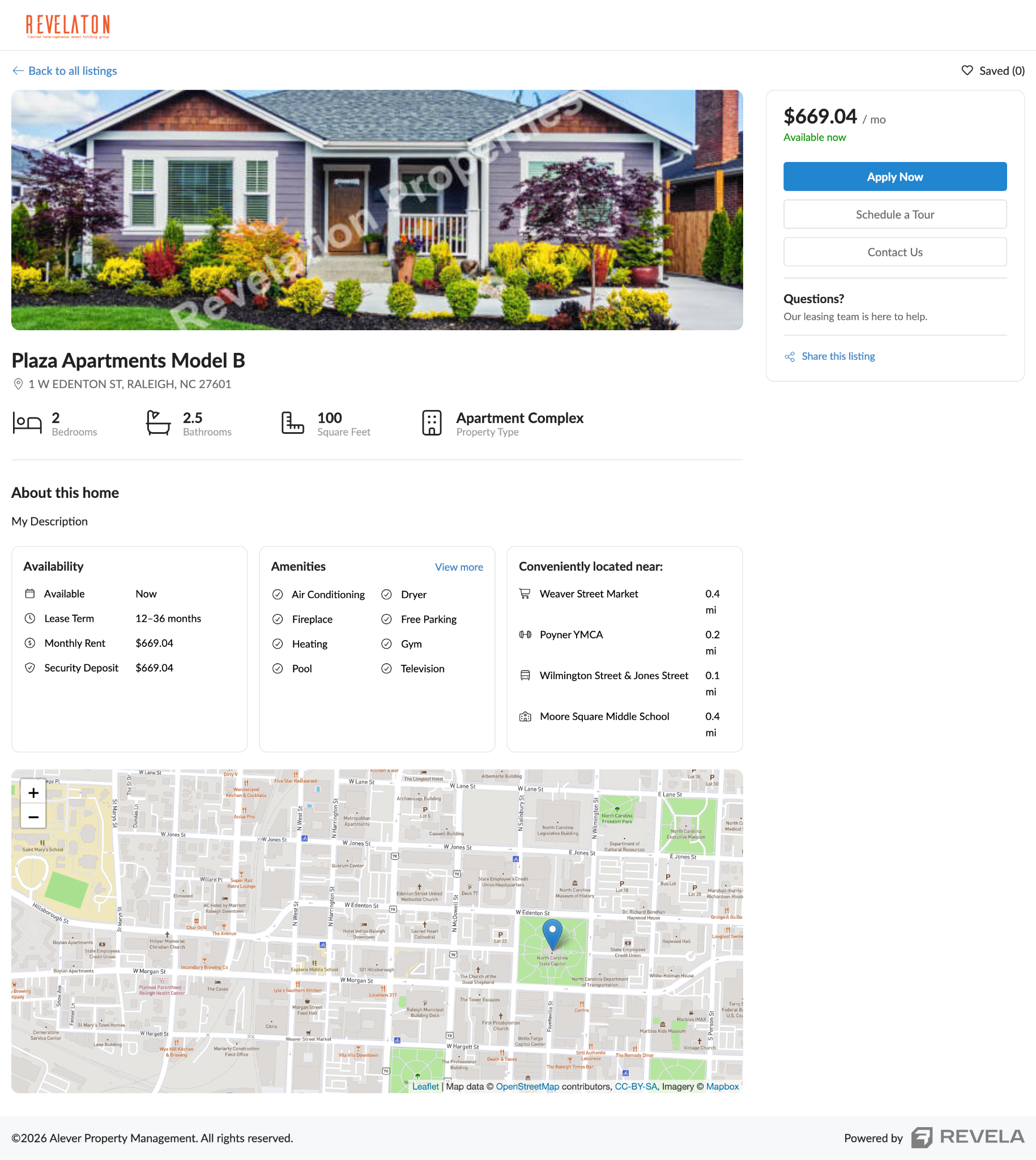
Each listing details page opens with a large hero image, followed by a set of smaller supporting photos. Clicking any photo opens the full photo set in a carousel view, and the page indicates how many additional photos are available beyond what's shown.
The listing's name defaults to its street address, though the full address is always displayed further down the page regardless of the listing name. Bedrooms, bathrooms, square footage, and property type are shown with supporting icons; the property type icon adjusts automatically based on whether the listing is a house or a unit within a multi-family property.
The Call-to-Action Sidebar
As the visitor scrolls, a call-to-action sidebar remains fixed ("sticky") on the right-hand side of the page so that pricing and next steps stay visible no matter how far down the listing they've scrolled. This sidebar includes:
- Monthly rent and availability date
- Lease term, when one is configured on the listing
- Security deposit
- An Apply Now button
- A Schedule a Tour option, when tour scheduling is enabled
- Leasing agent contact information, including name, email, and phone number, pulled directly from the leasing agent's Revela profile
Note: If a leasing agent's phone number is not entered on their profile, only their email address appears on the sidebar. To ensure prospects can reach a leasing agent by phone, confirm the agent's phone number is entered on their user profile by navigating to Setup > Employees.
The sidebar also includes a Share Listing option, which lets the visitor share the listing via text message, AirDrop, or other options native to their device.
Listing Details
- Description and Availability Details
- The listing description appears below the header details and expands automatically to accommodate longer descriptions. Core leasing details, availability, lease term (if configured), monthly rent, and security deposit, are grouped together in a single availability section so a prospect can find pricing information in one place rather than scanning the whole page.
- Amenities
- Amenities are displayed as an organized, scannable list rather than a single comma-separated line of text. By default, up to eight amenities are shown; if a listing has more than eight, a View More option expands the full list.
- Note: There is no fixed cap on how many amenities a listing can display.
- Amenities are displayed as an organized, scannable list rather than a single comma-separated line of text. By default, up to eight amenities are shown; if a listing has more than eight, a View More option expands the full list.
- Conveniently Located Near
- Listing pages can display a Conveniently Located Near section that surfaces nearby points of interest, such as grocery stores, fitness centers and gyms, public transportation, hospitals, schools, and parks.
- Note: If a listing's address doesn't have relevant points of interest nearby (for example, a very rural property), this section can be disabled so it doesn't display an empty or unhelpful result. To disable, Navigate to Setup > Organization Settings > Listings > Toggle off “Show Nearby Locations on Listings.”
- Listing pages can display a Conveniently Located Near section that surfaces nearby points of interest, such as grocery stores, fitness centers and gyms, public transportation, hospitals, schools, and parks.
- Map
- A map showing the listing's location remains part of the page, positioned within the main content area rather than spanning the full width, since the sticky call-to-action sidebar now occupies the right-hand column.
Tips & Best Practices
- Encourage leasing agents to keep their phone number current on their Revela profile so it appears alongside their email on every listing they're assigned to.
- When reviewing a listing before it goes live, confirm the amenities list and photos are complete.
- Since the amenities section only expands past eight items when a prospect clicks View More, list your most compelling amenities first so they're visible without any extra clicks.