
Tables are at the heart of how you and your team get work done in Revela. Our refreshed table design components allow you to configure how a table's columns are displayed to fit the way you work, and that personalization is saved the next time you return to that page on your local browser.
Customizing Column Visibility
Our flexible table components allow you to choose which columns are visible. This is useful when a table includes more information than is necessary to complete your daily operations, or when you want to focus on a specific subset of data without scrolling horizontally.
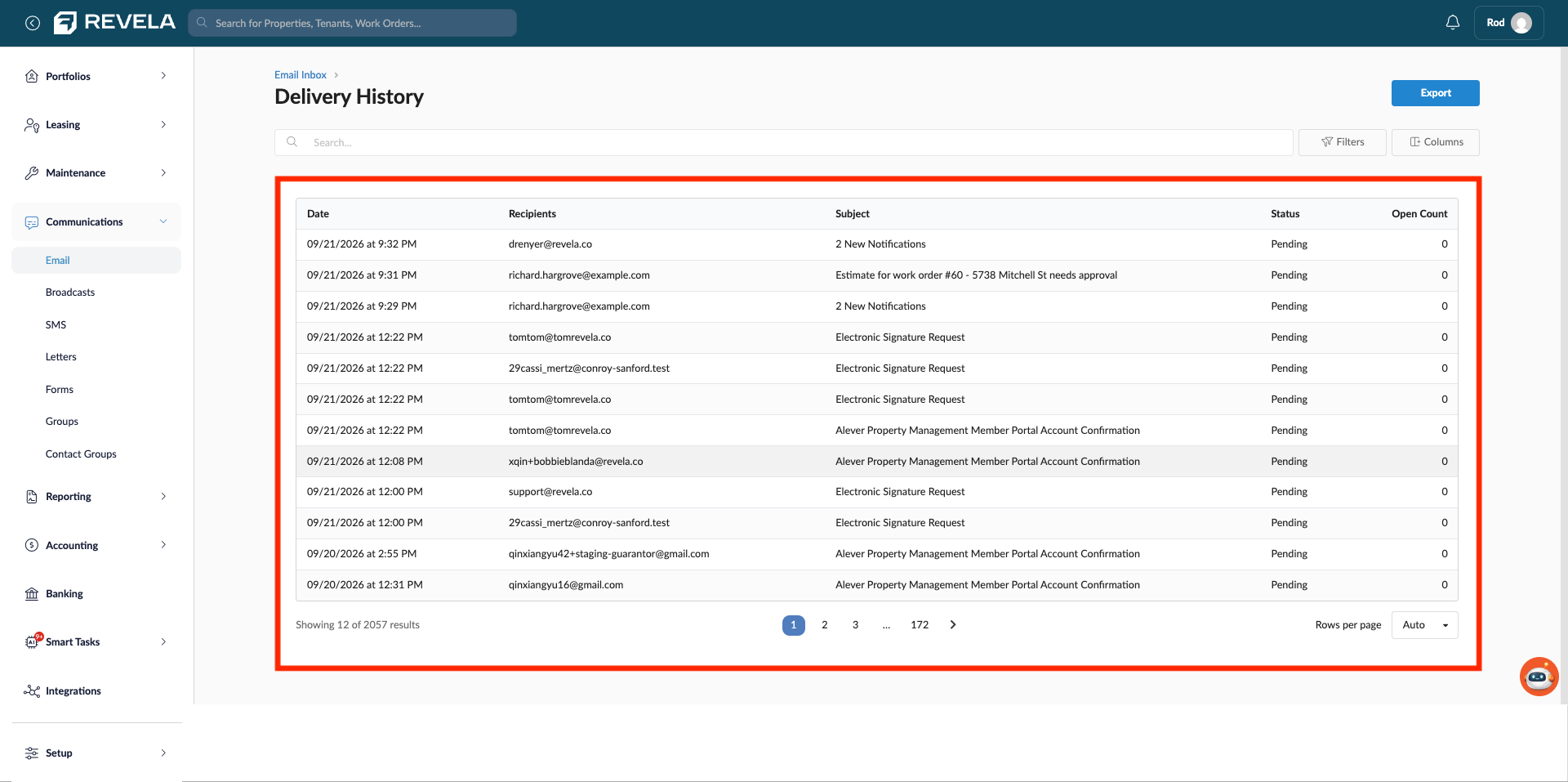
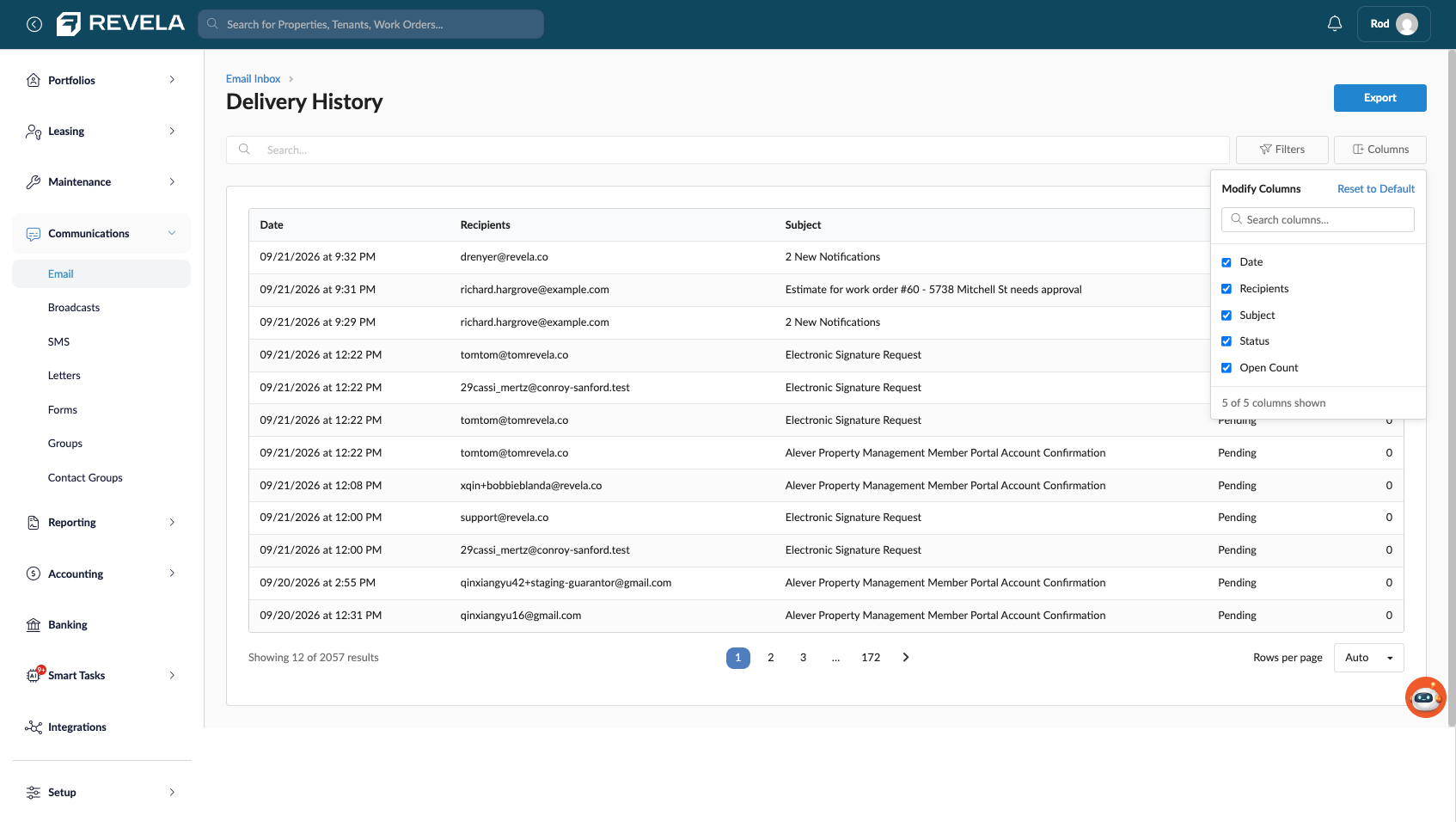
To hide or show a column, select the Columns button. From the modification menu, select or deselect a column name to control whether it appears in the table.
Revela defines a default set of visible columns for each table, but you're free to adjust this to match your workflow.
You can see these changes today on pages such as Vendors, Estimates, Contact Groups, Forms, and Email Delivery, just to name a few. In the coming weeks and months, expect to see these updates in more places across Revela, including:
- Maintenance
- Reporting
- Accounting
- Document Management
- And more
Reordering Columns
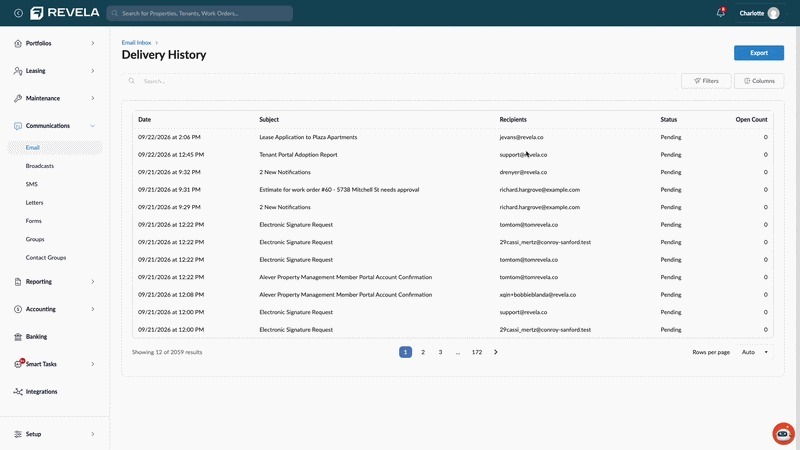
In addition to controlling which columns are visible, you can change the order in which visible columns appear. Click and hold a column header, then drag it to the desired position in the table. Release to drop the column in its new location.
How Your Preferences Are Saved
Once you've customized a table's column visibility or order, Revela remembers your preferences automatically. The next time you return to that page, the table displays exactly as you left it.
Your preferences are specific to you and to that particular table. Customizing the columns on the Work Orders table, for example, has no effect on how the Delivery History table or any other table displays for you, and your changes don't affect what other users on your team see.
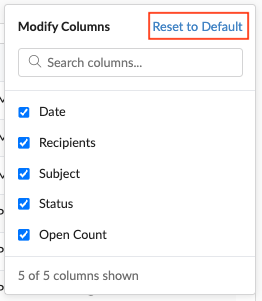
If you want to return a table to Revela's original column configuration, click the Reset to Default button on the modification menu.
Note: This customization applies to which columns are shown and the order they appear in. It does not change a table's existing sorting, filtering, row selection, pagination, or responsive behavior on mobile devices.
Tips & Best Practices
- If a table feels cluttered, start by hiding columns you rarely reference rather than scrolling past them repeatedly. You can always bring a column back later.
- Reorder columns so the information you check most often (like status or due date) sits toward the left, where it's visible without scrolling.
- Because preferences are saved per user, each person on your team can set up tables the way that works best for them without affecting anyone else's view.
- If a table looks different than you remember and you didn't intentionally change it, check whether a column was hidden rather than assuming data is missing. Restoring the default view will confirm this quickly.