
Overview
-
Purpose: This guide explains how to create custom contact groups in Revela for targeted messaging.
-
Target Audience: Property managers, leasing agents, and administrative users.
Step-by-Step
Understanding Contact Groups in Revela
Revela allows users to curate custom contact groups to meet business needs.
Example Use Case:
-
If your company wants to contact only residents with pets within a portfolio, you can create a custom contact group.
-
Note: These groups must be manually created and do not update automatically.
Creating a New Contact Group
-
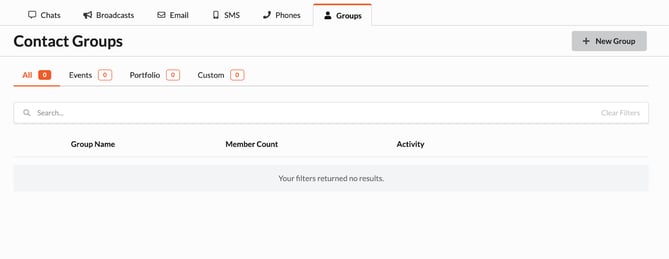
Navigate to the Groups Section:
-
Go to Messaging > Groups.
-
-
Click the "New Group" Icon:
-
Located in the top-right corner of the screen.
-
-
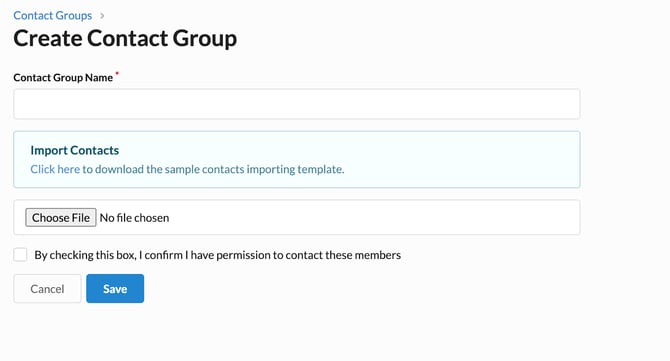
Download the Sample Contact Template:
-
The template link is available in the light blue banner on the upload page.
- You would need only First Name, Last Name , Email, Phone
- Tip: You can export the Member/Tenant Directory Report with specific filters (such as member or tenant tags) to quickly retrieve the corresponding data directly.
- If a phone number is missing, please enter a placeholder (e.g., an invalid number), as the group import will fail if any phone number field is left blank.
-
-
Fill Out the Template with Desired Contacts:
-
Add the contacts that should be included in the group.
-
-
Upload the Completed Contact Sheet:
-
Use the upload section on the Revela platform to submit your contact group.
-
-
Save the Group:
-
Once saved, the Contact Group will be ready for use in messaging and communications.
-
Best Practices & Tips
✔ Use clear naming conventions for each group (e.g., "Pet Owners – Portfolio A").
✔ Regularly update groups manually to ensure they remain accurate.
✔ Download and reference the sample template to format data correctly before uploading.
Common Issues & Troubleshooting
Issue 1: Contact Group Not Appearing After Upload
-
Solution: Ensure the template was filled out correctly and re-upload the file.
Issue 2: Group Needs Updating Automatically
-
Solution: Manually update the contact list as needed, since custom groups do not update automatically.
Issue 3: Unable to Send Messages to a Group
-
Solution: Confirm the group was successfully saved and selected in the Messaging section.