-
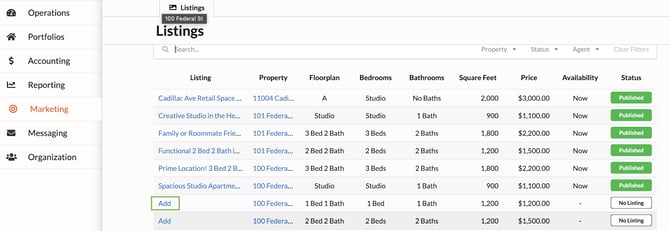
Navigate to the Marketing tab.
-
Find the property or unit you want to generate a listing for.
-
Note that all listings are by floorplan. This means for a single-family property, you will have one floorplan to create a listing for. For a multifamily property or apartment building, listings should be created based on the floorplan assigned to the available unit.
-
-
Click “Add” under the Listing column to create a new listing for a property.
-
Upon clicking “Add”, details regarding the listing can be added such as:
-
Listing Name - This should be a catchy advertising title for your listing.
-
Listing Agent - If interested applicants have questions, the listing agent is who should be contacted. Their information will display on the listing itself.
-
Price - This information automatically defaults from the floorplan associated with the property and/or unit. If this shows as $0, check to see if the floorplan has a Market Rate by navigating to the property record > Floorplans. This can also be updated on the listing to be different than the Market Rate to show Gain/Loss to Lease in reporting.
-
Floorplan Details - The number of bedrooms, bathrooms, and the property/unit square footage are also populated based on the floorplan.
-
Description - Provide an interesting, eye catching description for the property to draw in potential applicants.
-
Virtual Tour Link - If your organization uses a virtual tour platform such as Matterport or ShowMojo, past the link to the virtual tour for this property/unit in this box to link directly to it from the Revela listing.
-
Amenities - Select from the list of pre-provided amenities, or add custom amenities.
-
Photos - Upload or drag and drop photos for the property to the listing. Note: Only image files are acceptable here. No video files.
-
Notes or Showing Instructions - Any information provided in this text box are only visible to internal company users and are not visible to applicants or on the public facing published listing.
-
-
Click “Create Listing”, and this will redirect to an internal view of the listing.
Previewing & Publishing a Listing
-
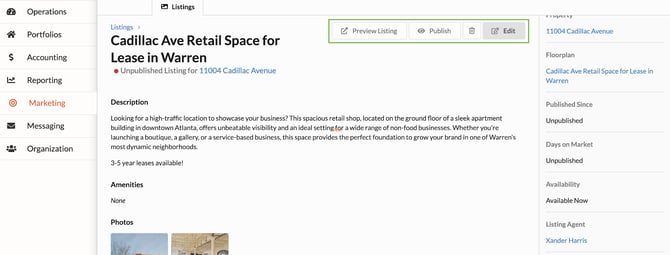
To preview a listing, click “Preview Listing” up in the right hand corner of the listing.
-
If the listing appears as expected, click “Publish”.
-
To edit or make changes to the listing, click “Edit”.
Unpublishing a Listing
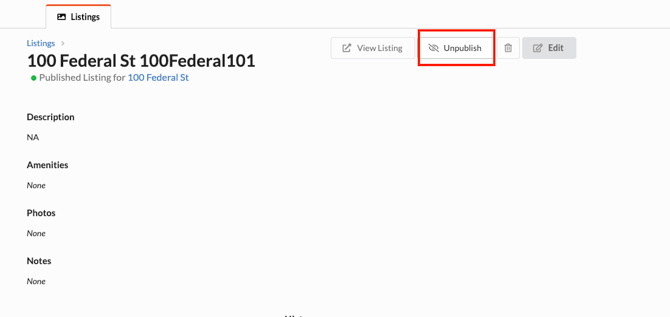
- To unpublish an active listing at any time, click the Unpublish button at the top of the Listing Summary page, as shown below: