
Overview
-
Purpose: This guide explains how to configure phone numbers in Revela’s messaging system to enable SMS communication with tenants, property managers, and other stakeholders.
-
Target Audience: Property managers, leasing agents, and administrative users.
Step-by-Step
Understanding Phone Number Configuration in Revela- Revela allows users to configure dedicated phone numbers for sending and receiving SMS messages. Proper configuration ensures that all text-based communications are routed correctly to and from the platform.
-
Enables two-way SMS messaging with tenants and vendors.
-
Helps maintain a dedicated contact number for professional communication.
-
Allows messages to be logged and tracked within Revela.
Configuring a Phone Number for Messaging
- Access the Messaging Settings:
-
Navigate to Messaging -> Phones in Revela.
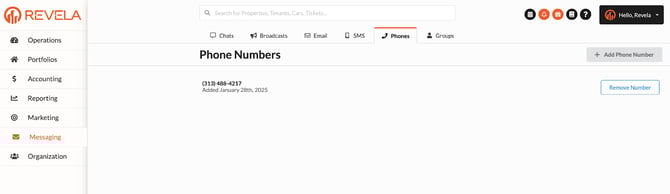
- Select “Add Phone Number”
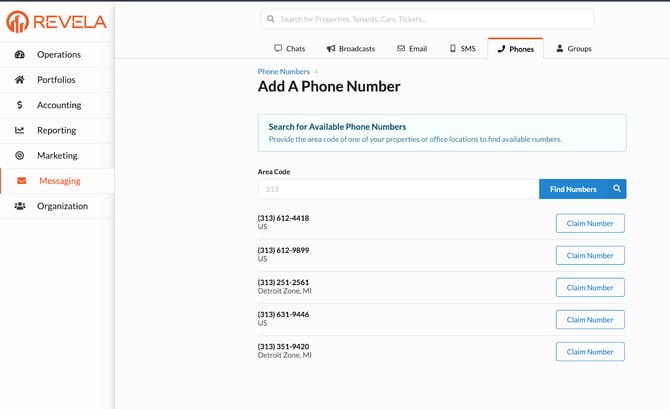
- Choose a Dedicated Phone Number:
-
You can either:
-
Use an existing Revela number assigned to your organization.
-
Use your own company phone number
-
-
-
Click on Claim Number
-
-
If you need to remove the phone number you can go to Phones -> Phone Numbers - > Remove Number.
Best Practices & Tips
✔ Use a dedicated business phone number for professional messaging.
✔ Verify number ownership to prevent messaging disruptions.
✔ Regularly review messaging settings to ensure correct configurations.
Common Issues & Troubleshooting
Issue 1: SMS Messages Not Sending- Solution: Ensure the phone number is correctly configured and verified in Revela.
- Solution: Confirm that the recipient’s number is valid and not blocked for SMS.
- Solution: Update the number in Settings > Messaging and notify relevant contacts of the change.