
Overview
Configuring your system in Revela helps streamline operations and ensures smooth management for your business. Here’s a step-by-step guide based on recommendations for setting up configurations.
Creating a New Configuration
-
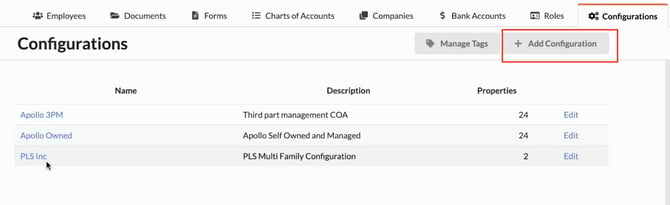
Navigate to Organizations > Configurations.
-
From here, you can view, create, or manage existing configurations.
-
To get started with adding a new configuration, you would select Add Configuration on the top right of the screen.
-
Add a descriptive name (e.g., Apollo 3rd Party Management) and choose an appropriate Chart of Accounts (CoA).
-
In general, we recommend providing a clear description of the CoA for better context!
-
-
When ready, click Create to save your new configuration!
-
Once a Configuration has been set up in Revela, users can customize a wide variety of system attributes to suit your property management needs, including late fees, lease and incidental charges, and much more! This article will highlight the most common sections of a Revela configuration in sequential order.
Late Fees
-
In the Late Fees section, users have the ability to:
-
Create either a flat late fee or a percentage-based fee.
-
Set a Grace Period (e.g., 5 days after rent is due) for a late fee, if you so choose
-
-
-
NOTE: Daily late fees may also be configured in this section. For assistance with setting up a daily late fee, please reach out to your CSM!
Example: For rent due on the 1st, a 5-day grace period means late fees begin on the 6th.
Charges
-
Charges can be added by selecting Add Charge under the Charges section.
-
It’s suggested to:
-
Define a Type (e.g., Application Fee, Security Deposit).
-
Set amounts and assign GL Codes for accurate tracking.
-
Use a Net D (e.g., due within 15 days) for payment timelines.
-
Tip: For specific scenarios like move-out cleaning fees, charges can be tailored accordingly.
Defining Credits
-
Revela provides property managers the ability to set up credits in the system, which can be used to refund tenants. We recommend setting up at least two credit types:
-
Credits from Owners.
-
Credits from 3rd-Party Managers.
-
Applications and Leases
- Within Applications section, the following attributes are configurable to your needs:
- Accepting applications for units or floor plans.
- Assigning application fees and linking a specific GL Codes for those application fees
- Adding disclaimers or document requirements (e.g., proof of income) to your lease application for applicants to submit
- Please note: If you require state-specific screening packages for your business, please consult with your Client Success Manager (CSM)!
- Leases terms are also configurable in the following ways:
- Commonly used lease terms durations (e.g., 12-month or 6-month) can be setup here
- Automated rent postings, proration methods (e.g. per diem calculation schedules), and NSF charges can be setup in this section as well
Collection and Eviction Preferences
- For Collections, we typically recommend that users:
- Set a minimum balance threshold for demand letters.
- Decide whether fees are assigned to tenants or owners.
- For Evictions, you can restrict electronic payments and set up specific charges to streamline the process if a tenant is escalated to this step of the Collections Process.
Maintenance Configuration
- Maintenance billing preferences can vary:
- Individually Billed is often recommended for 3rd-party managers.
- Non-billing setups typically suit owner-operators better.
Finalizing Your Configuration
- After reviewing and customizing all sections of the Configurations section to your liking, select the Update Configuration button at the bottom of the screen to save your changes!
Next Steps
Configurations are the backbone of efficient workflows for your business. By tailoring them to your business, Revela helps you create a foundation for smoother operations. Take your time exploring these settings to maximize their impact! If you have any questions, please contact your CSM.