
Overview
-
Purpose: This guide provides a step-by-step walkthrough on how to access, utilize, and edit the Chart of Accounts in Revela.
-
Target Audience: Property managers, financial administrators, and accountants responsible for portfolio financial management.
Step-by-Step
1. Accessing the Chart of Accounts
To locate and manage the Chart of Accounts, follow these steps:
-
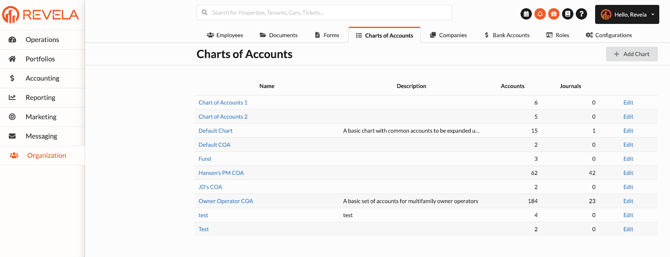
Navigate to Organization > Chart of Accounts.
-
Identify the default chart, titled Default Chart of Accounts, and review any additional custom charts that may exist.
2. Understanding the Chart of Accounts
✅ Portfolio-Specific Charts
-
Each Chart of Accounts is specific to a portfolio, ensuring segregated financial tracking.
-
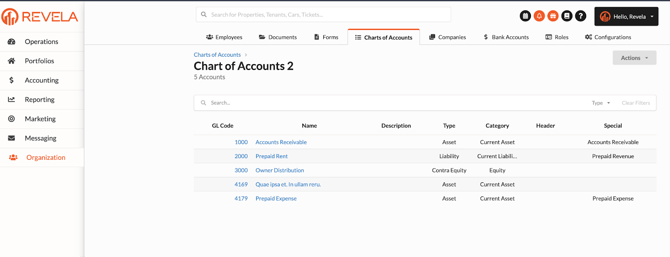
Click into a chart to view:
-
The number of accounts included.
-
Their respective GL codes and classifications.
-
3. Editing the Chart of Accounts
Entering Edit Mode
-
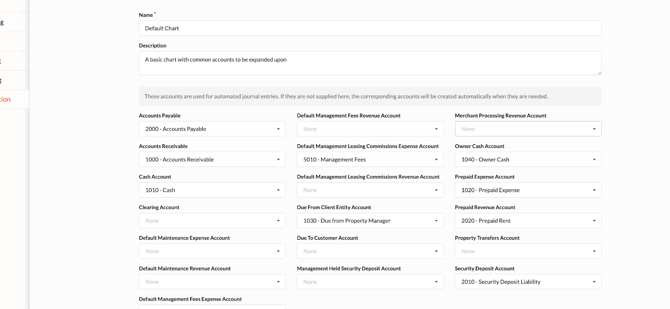
Editing is essential for setting up default financial structures.
-
Ensure key accounts, such as accounts payable and receivable, are correctly configured.
Default Accounts Overview
-
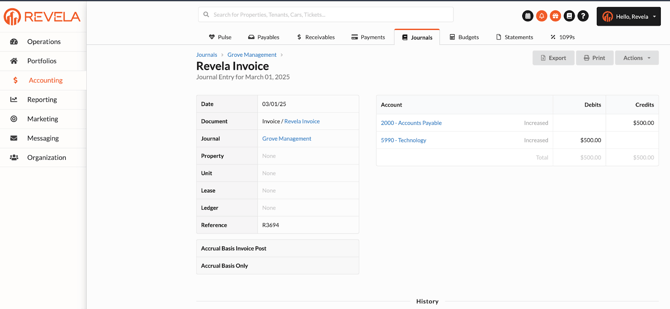
Accounts Payable: Increases when a bill is created.
-
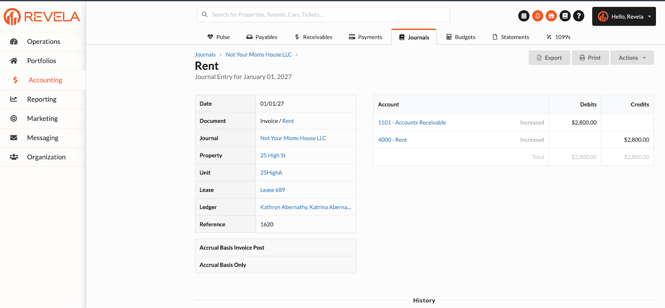
Accounts Receivable: Increases when a tenant charge is recorded.
-
Cash Account: Affected by owner draws and operational expenses.
-
Clearing Account: Temporarily holds funds, such as security deposits until they are refunded.
4. Key Account Types and Their Purpose
✅ Maintenance Expense Account
-
Tracks general maintenance costs and markups for repairs and services.
✅ Management Fee Accounts
-
Ensures that management fee revenue and expenses are properly categorized.
✅ Leasing Commission Accounts
-
Similar to management fees, these accounts track leasing commissions and related expenses.
5. Handling Security Deposits
-
Management Held vs. Owner Held Security Deposits
-
Decide whether security deposits are held in separate accounts based on management practices.
-
-
Setting Up Security Deposit Accounts
-
Set the type as a liability to track deposits correctly.
-
Ensure deposits are recorded properly for easy reconciliation.
-
6. General Ledger (GL) Code Structure
A well-organized GL numbering system ensures accurate financial reporting. Below is the recommended structure:
|
GL Code Range |
Category |
|
|
1000s |
Assets |
|
|
2000s |
Liabilities |
|
|
3000s |
Equity |
|
|
4000s |
Income |
|
|
5000s+ |
Expenses |
7. Additional Account Settings
✅ Contra Accounts
-
Used to offset balances in another account (e.g., Accumulated Depreciation for fixed assets).
✅ Editing Accounts
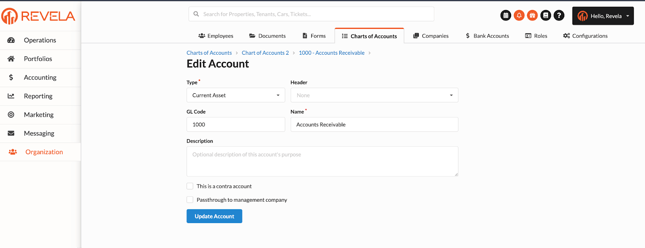
-
Assign correct account types (e.g., Revenue for Rent Income) to ensure accurate management fee calculations.
8. Mapping the Chart of Accounts to Portfolios
To ensure proper functionality, follow these steps:
-
Navigate to Configurations.
-
Click Add New Configuration.
-
Select the appropriate Chart of Accounts.
-
Ensure the configuration is linked to the correct portfolio for accurate financial behavior.
Best Practices & Tips
✔ Ensure accounts payable and receivable are correctly linked to prevent misallocation of funds.
✔ Use the recommended GL code structure to maintain consistency across financial reports.
✔ Regularly review and update Chart of Accounts settings to align with portfolio financial goals.
Common Issues & Troubleshooting
Issue 1: Incorrect GL Codes Assigned
-
Solution: Verify that each account type matches its purpose (e.g., income, expense, liability).
Issue 2: Transactions Not Reflecting in Reports
-
Solution: Ensure that the Chart of Accounts is mapped correctly to the respective portfolio.
Issue 3: Unable to Edit Default Accounts
-
Solution: Check that edit mode is enabled and that required permissions are assigned.