
Overview
-
Purpose: This guide explains how to use the Broadcasting feature in Revela to efficiently send bulk emails, text messages, and notifications to specific groups.
-
Target Audience: Property managers, admins, and organization leaders.
Step-by-Step
1. Accessing the Messaging Feature
-
Navigate to Messaging in the Revela Member/Tenant Portal.
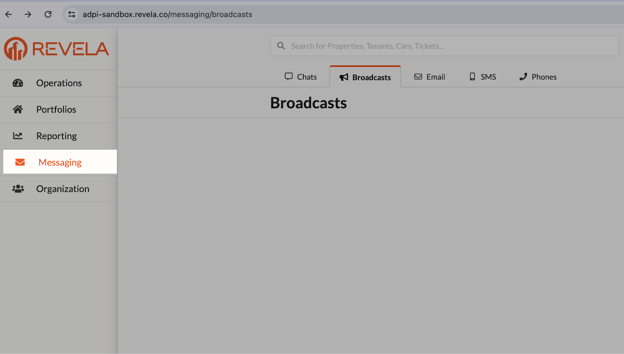
2. Initiating a Broadcast
-
Click on "Broadcasts" and then select "New Broadcast" in the upper-right corner.
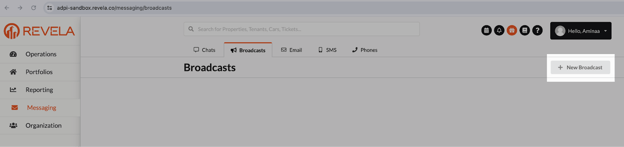
3. Selecting Recipients
-
Choose the target audience by selecting specific groups of properties or regions.
-
Customize the recipients by deselecting any irrelevant chapters/properties within the chosen group.
4. Designating a Reply Address
-
Enter the email address where replies to the broadcast message should be sent.
5. Sending the Message
-
Once finalized, the broadcast will be delivered to all selected chapters/properties via:
✅ Email
✅ Text message
✅ Notification within the Revela Member/Tenant Portal
Additional Functionality
Viewing Broadcast Message History
-
To review previously sent broadcasts, navigate to the Broadcasts menu and select the desired item.
-
The system provides detailed information, including:
-
Recipients
-
Sender details
-
Timestamp
-
Message content
-
Best Practices & Tips
✔ Use targeted messaging to ensure properties and tenants/members receive relevant communications.
✔ Check the message history for reference before resending updates.
✔ Specify a clear reply-to email to manage responses efficiently.
Common Issues & Troubleshooting
Issue 1: Chapters/Properties/Tenants Not Receiving Messages
-
Solution: Verify that the correct groups and regions were selected before sending.
Issue 2: Message Not Appearing in the History
-
Solution: Refresh the page or check if the message was successfully sent under the Broadcasts menu.