Overview
- Purpose: How to reconcile transactions on your bank statement with transactions within Revela.
- Target Audience: Property managers, accounting staff, and admins.
To reconcile a bank account, navigate to Organization > Bank Accounts and select the account you want to reconcile. Select 'Reconcile' from the Actions button drop down menu.
From here you can enter information regarding your bank statement and also upload a copy of your statement.
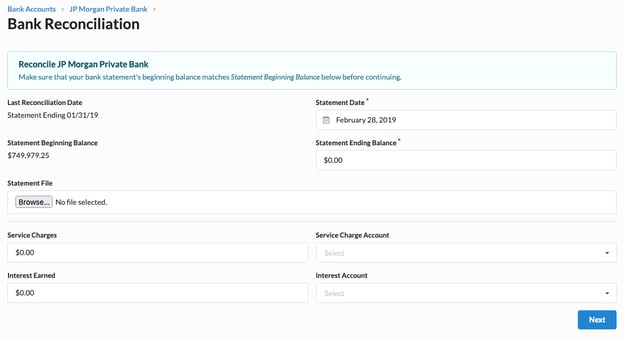
Once you’ve filled out the initial details, select the cleared transactions until the ‘Difference’ is equal to 0.
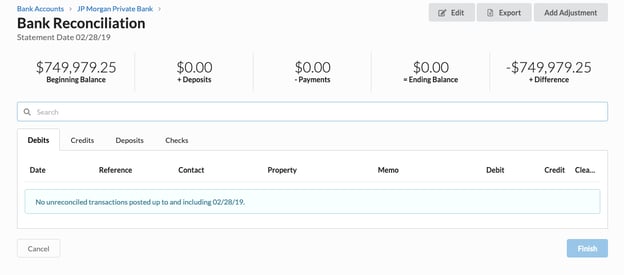
Note: Revela treats transactions to the cash account as debit and credit normal, meaning that debits are deposits, as they increase the balance of the cash account, and credits are expenses, as they reduce the cash balance.
To see if a payment has been reconciled with the bank statement, navigate to the payment in question via Accounting > Payments. Select the appropriate payment. From here, there is a section in the side bar on the right hand side that indicates whether or not the payment has been reconciled. If the account has been reconciled, it will show which period it was closed in and which bank account the payment is associated with. If the account has not been reconciled, it will simply read 'Unreconciled.'
To view the reconciliation summary for that period, simply click the link within the side bar.
Identifying If a Payment Has Been Reconciled By Viewing the Journal Entry
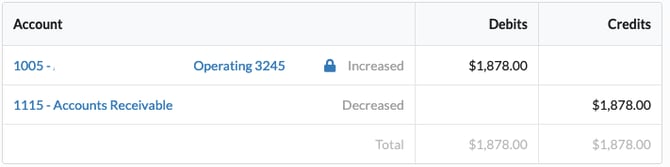
At the bottom of the page you will see the journal entries associated with the payment. Select the journal entry you want to view. This will take you to the journal entry page where you will be able to see whether a payment or account has been reconciled. If it has been reconciled you will see a 'Lock' icon in the journal entry, like the one below.