
Overview
-
Purpose: This guide explains how to use the Activity Tab and Operations Menu in the Revela Portal to track tenant activities and streamline property management.
-
Target Audience: Property managers, leasing agents, and administrative staff.
Step-by-Step Instructions
1. Introduction to the Activity Tab
The Activity Tab provides a detailed log of actions performed by property managers and tenants. It serves as a centralized record for tracking key activities within the portal.
2. Overview of Activities Recorded
The Activity Tab captures a variety of property management actions, including:
Applications Submitted – Tracks new lease applications from tenants.
Executed Documents – Logs lease agreements and other signed paperwork.
Maintenance Tickets – Records all submitted maintenance requests.
Lease Applications – Monitors pending and completed lease processes.
Tenant Payments – Provides a history of rental payments and transactions.
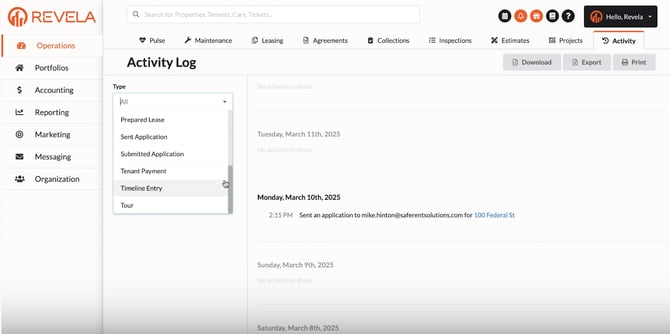
3. Using the Activity Log
To access and filter activity records:
-
Navigate to Operations > Activity Log.
-
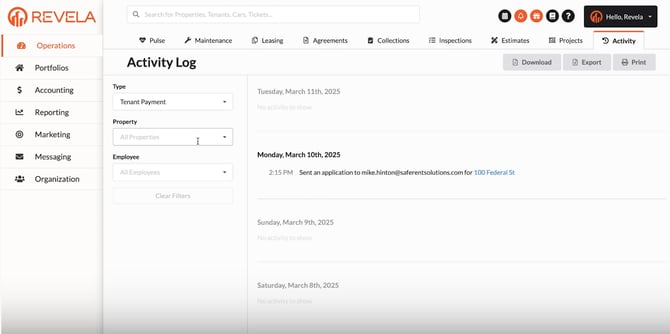
Use the available filtering options to refine your search:
-
By Property – View activities for a specific property.
-
By Employee – Track actions performed by individual employees.
-
By filtering data, property managers can quickly find relevant records and ensure smooth operations.
Best Practices & Tips
✔ Regularly review the Activity Tab to stay updated on tenant actions.
✔ Utilize filtering options to narrow down records efficiently.
✔ Monitor executed documents and lease applications for timely follow-ups.
Common Issues & Troubleshooting
Issue 1: Unable to Locate a Specific Activity
-
Solution: Use filters by property or employee to refine search results.
Issue 2: Activity Log Not Updating
-
Solution: Refresh the page or verify that the activity has been recorded under the correct category.
Issue 3: Missing Tenant Payments in the Activity Log
-
Solution: Check the tenant’s payment history to confirm successful transactions.